.png)
Handling membership requests
With respect to a public workspace, all internal intranet users can see the workspace link in the PortalTalk Workspaces web part, in the Public subcategory.
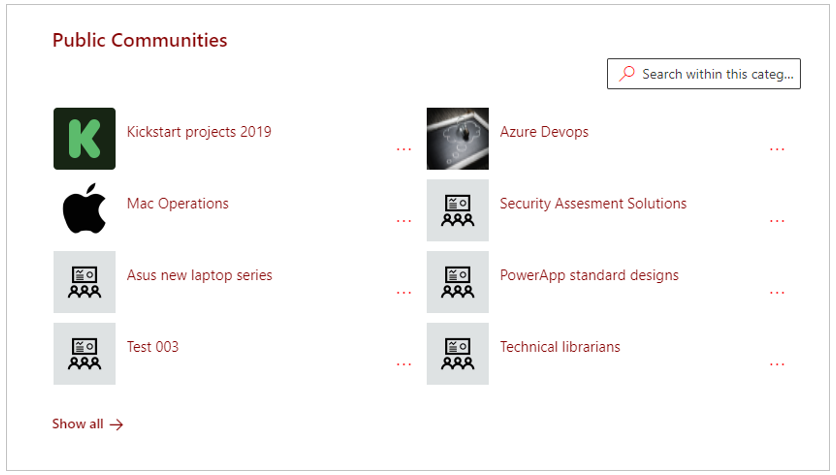
With regard to the public workspaces, any internal user can submit a request for team membership to the workspace owner.
As a workspace owner, it is your job to review and approve or reject these permission requests.
You will automatically receive an email notification of the request:
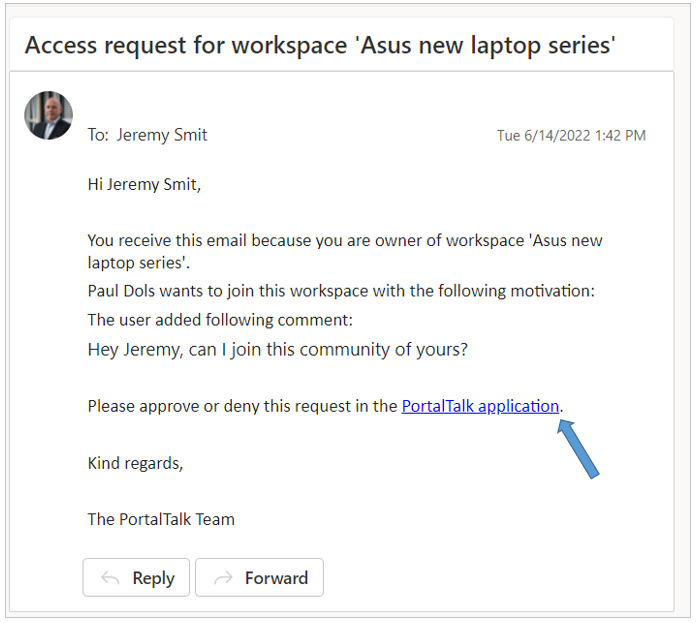
The text of these email messages can be set/modified by the PortalTalk application administrator.
If necessary, refer to the manual page related to managing the PortalTalk email templates.
-
Click on the link in the email to start processing the request.
The PortalTalk web application is launched in a new browser tab with, on the right side of the screen, the Approve permissions requests panel.
-
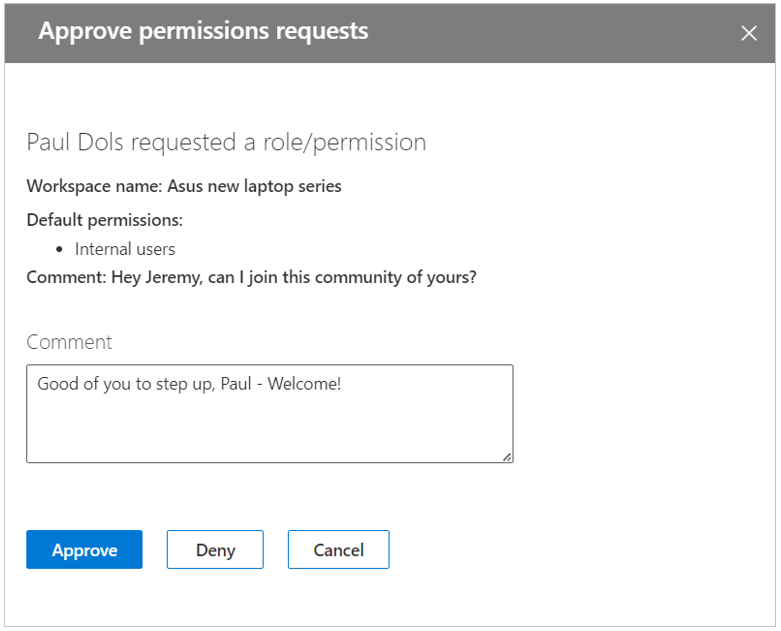
Comment - Your comment will be sent to the requester in an automated email.
-
Click either Approve or Deny.
-
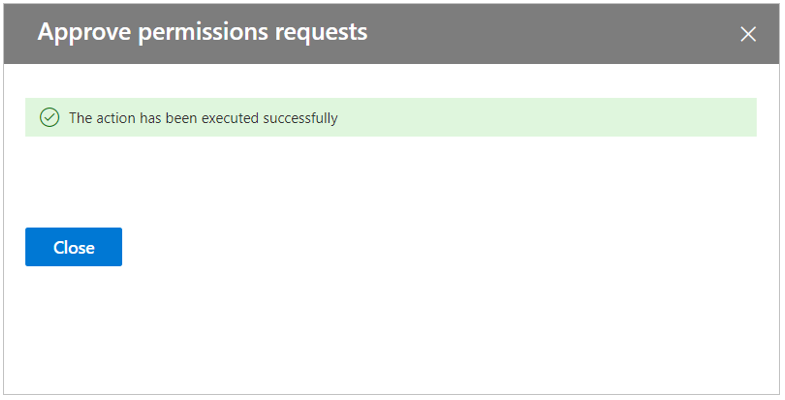
Click Close.
The requester will receive an automated email message informing them of your response:
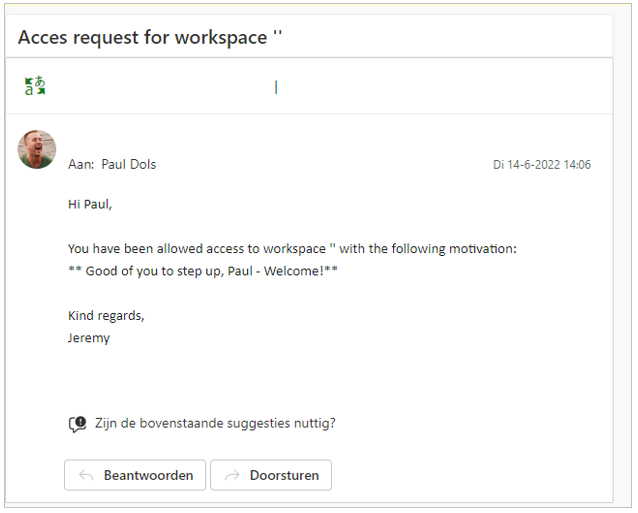
The text of these email messages can be set/modified by the PortalTalk application administrator.
If necessary, refer to the manual page related to managing the PortalTalk email templates.
Upon approval, the requester is included in the workspace team as an internal member.
The requester will now no longer find the workspace link within the Public subcategory, but in the My subcategory.