.png)
Apply for a team membership to a public workspace
For all public workspaces, which you can find within the Public workspace subcategory, you can request team membership.
Once you have submitted your request, the workspace's owners will receive an email notifying them of your request.
After your request has been honored, you become an internal team member of the workspace with the default permissions that apply to all internal team members.
-
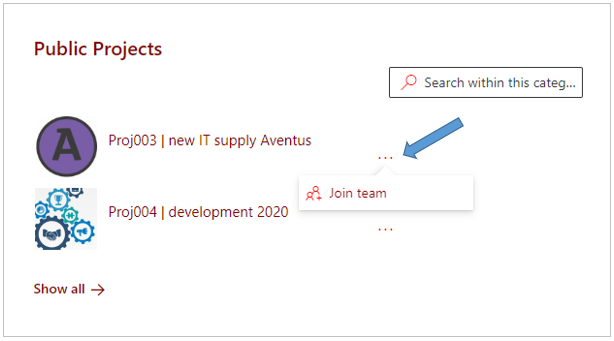
Click the public workspace's ellipsis menu button and select the option Join team.
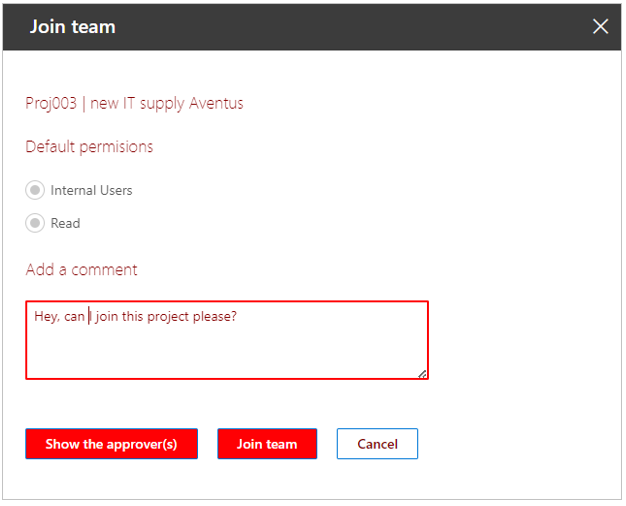
The Join team panel is displayed on the right side of the screen:
-
Add a comment - If you wish, enter an explanation in this box.
-
Show the approver(s) - Click this button if you wish to verify who owns the workspace, i.e. to whom your request is sent.
-
Join team - Click this button to submit your request.
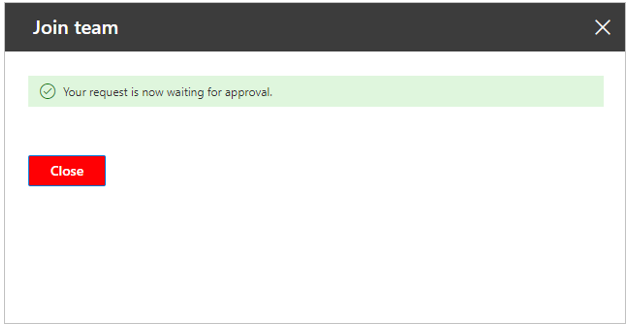
Your submitted request is confirmed:
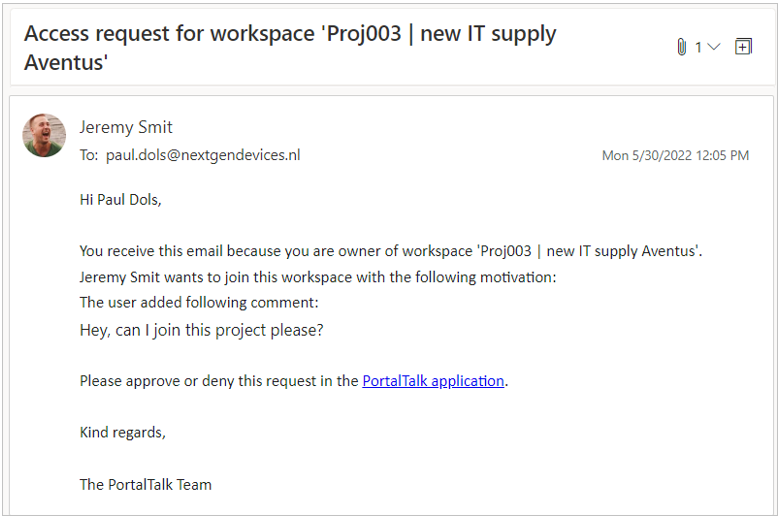
The workspace's owners are automatically notified of your request by e-mail:
Once one of the workspace owners has completed your application, you will receive a corresponding notification (approval or rejection) by email:
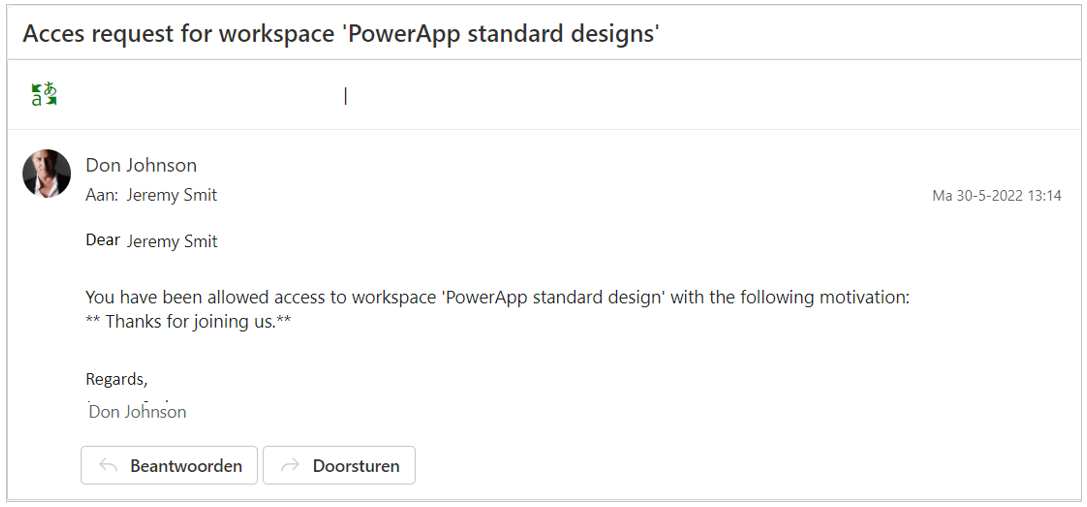
The text of these automatic email messages can be set/modified by the PortalTalk application administrator.
If necessary, refer to the manual page related to managing the PortalTalk email templates.
Once your membership request has been approved, you will no longer find the workspace link in the Public workspace subcategory, but in the My subcategory.