.png)
Who are my team members within this workspace
As a workspace's member, you can find out who your team members are.
You can do this from the PortalTalk Workspaces web part.
If you are already in a SharePoint site workspace, you can see who the team members are in the PortalTalk Team Members web part.
-
Find the workspace link within the PortalTalk Workspaces web part.
-
Click the ellipsis menu button at the workspace link and select the option View the Team Members.
The workspace's Team Members pane is displayed on the right hand side of the screen:
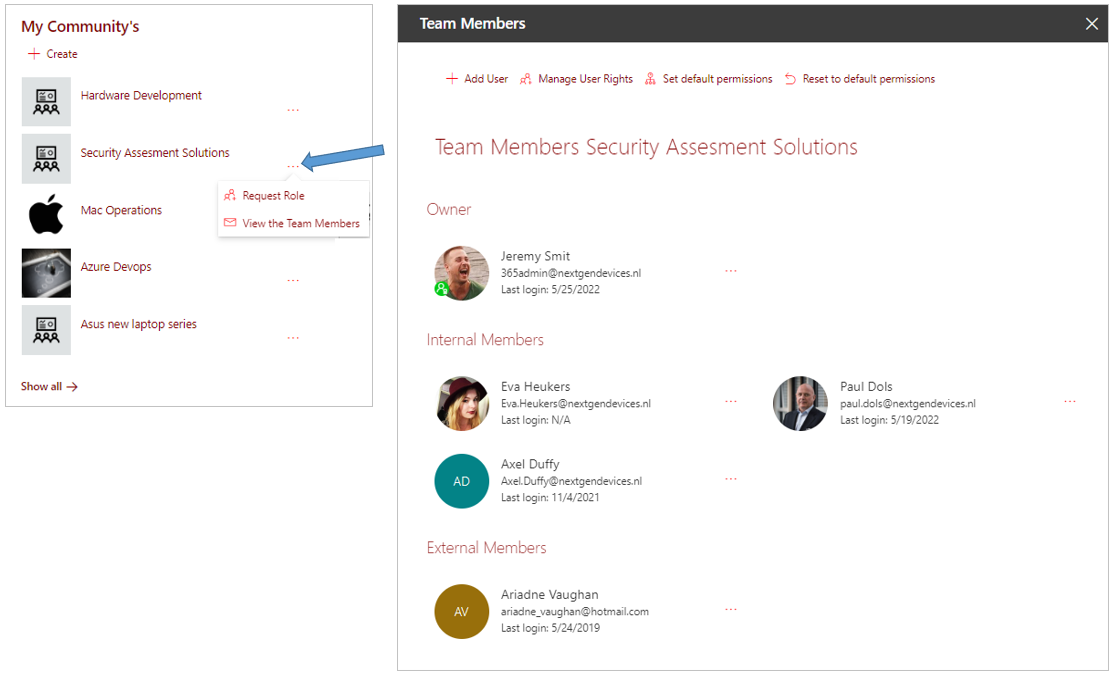
Image above: The owners are presented at the top of the Team Members pane. Below is a segment displaying the internal team members. The external team members are listed in the segment at the bottom of the pane.
The icons displayed with the individual team members
A special status of a team member is specified by means of small indicator icons.
The various icons are explained in the table below.
|
Team member who fulfills the owner role within the workspace. |

|
|
User whose PortalTalk account has been deactivated, for example because the user has left employment.
|

|
|
External user invited to join the team. The user has not yet used the information in the invitation email to log in to PortalTalk. |

|
Within a SharePoint workspace itself, the team members are displayed by the PortalTalk Team Members web part.
The PortalTalk Team Members web part can usually be found on the Team Members page of the workspace:
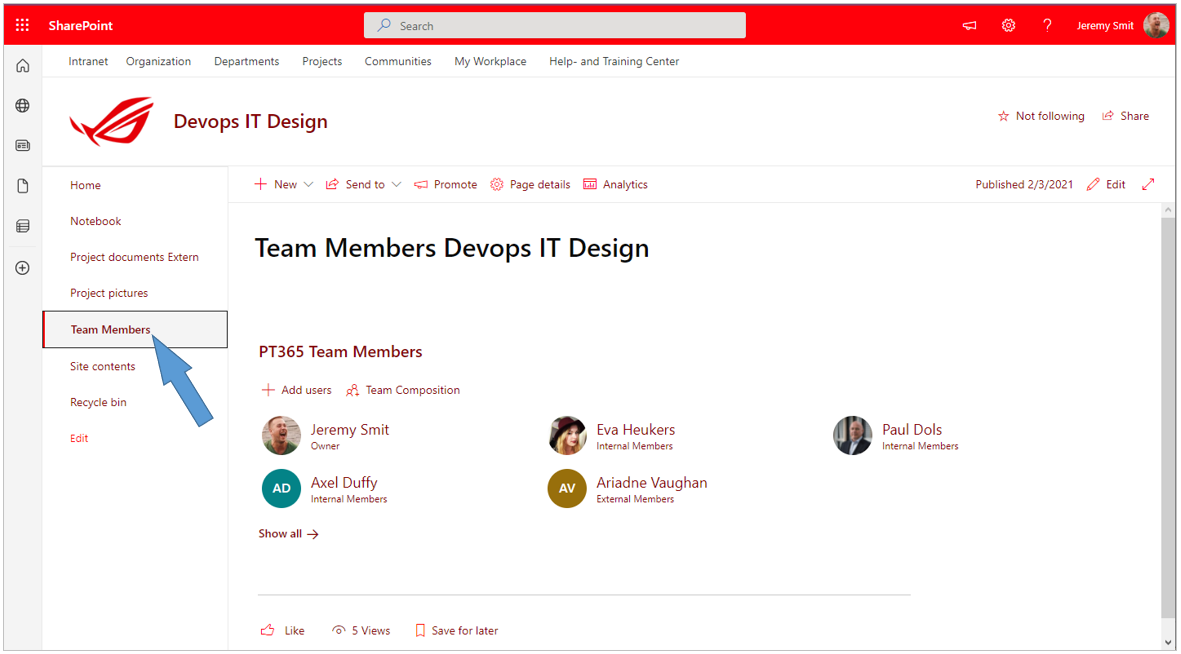
Image above: A SharePoint site page with the PortalTalk Team Members web part. The web part lists the users who are part of the workspace team.