.png)
Create and use links of your own choice
All users can create and maintain their own personal links within the intranet portal, provided that this function has been activated by the PortalTalk administrator.(see Allow personal apps).
Your personal links are links to online applications, websites and workspaces of your own choice and you can create and maintain these within a PortalTalk web part set up by the SharePoint administrator.
The SharePoint administrator can make such a web part available to users at any desired location in the intranet portal (see Install and configure the PortalTalk integration web parts in SharePoint).
Your personal links are visible for you only. No other users can see or make use of your personal links.
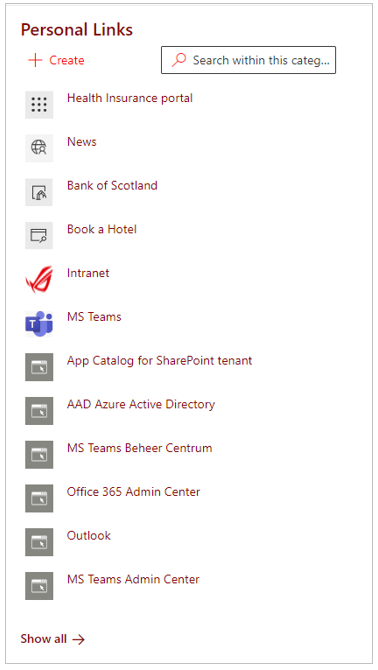
Image above - The PortalTalk web part displaying your personal links
Use a personal link
-
Navigate to the location in the intranet portal where your personal links are displayed.
-
Click on a personal link to open the linked site or online application in a new browser tab.
Create a personal link
-
Navigate to the location in the intranet portal where your personal links are available.
-
Click on the option +Create.
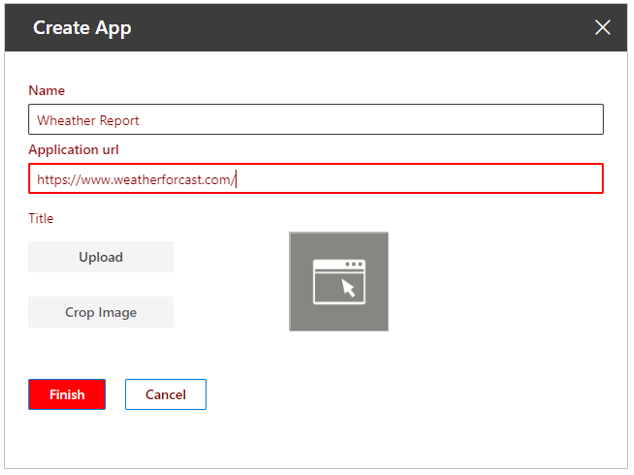
The Create App panel is displayed on the right side of the screen:
-
Name- Enter the display name for your new personal link.
-
Application URL - Enter the internet address of the concerned website or online application.
If you wish to have your own image for your new personal link, you can upload it now.
-
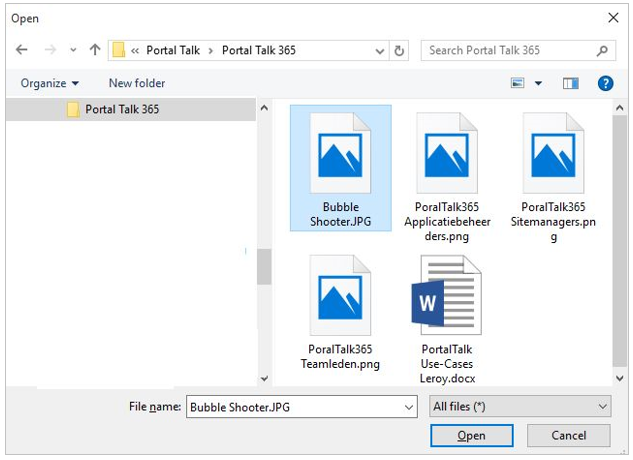
Click Upload to launch an explorer window in which you can navigate to a file with the desired image and upload it.
The supported image file types are JPG, JPEG and PNG.
-
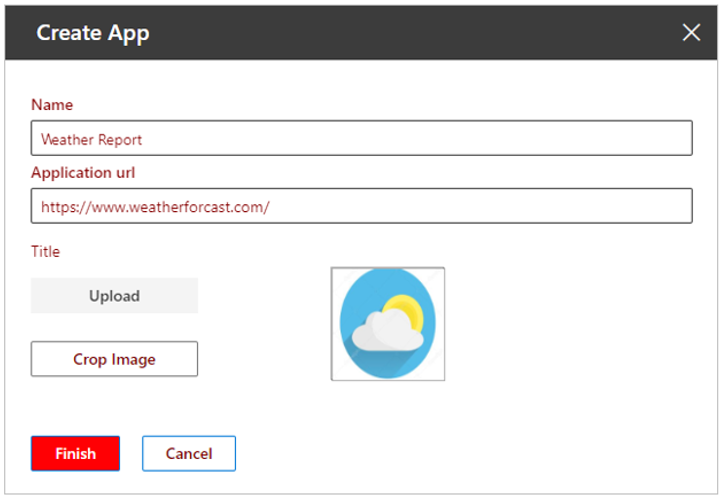
Select the file for the desired image and click Open to upload the image file and close the explorer window.
-
Crop Image - If necessary, use the option to crop the image for your new personal link.
-
Click Finish to save the personal link you just created and close the Create App panel.
Your newly added link is now visible to you (not to other users) and available for use.
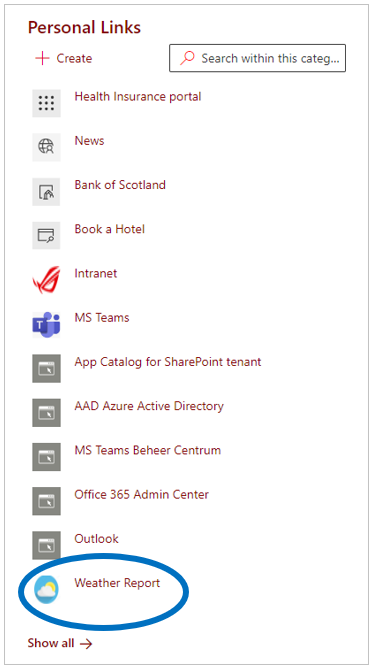
Your newly added personal link will be placed at the bottom of the PortalTalk web part.
If the number of your personal links exceeds the default display capacity of the PortalTalk webpart, you will not see a newly added link.
You need to move the link up the list in order to be included in the webpart's display. (see next chapter)
Edit, move or delete a personal link
If you have a large number of personal links, you will notice that only a maximum of the first twelve links are displayed in the intranet portal because the PortalTalk web part space is limited.
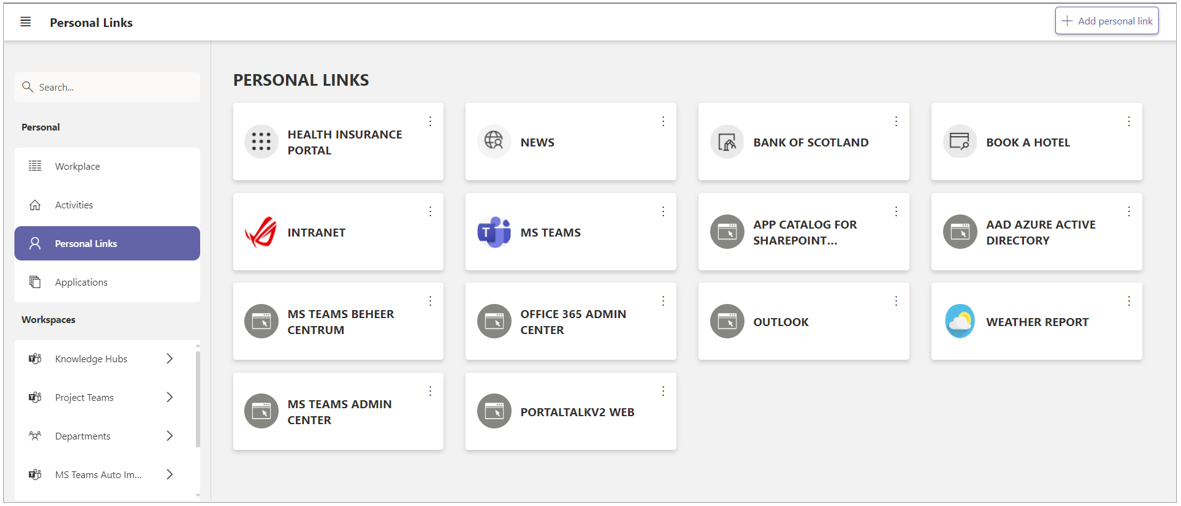
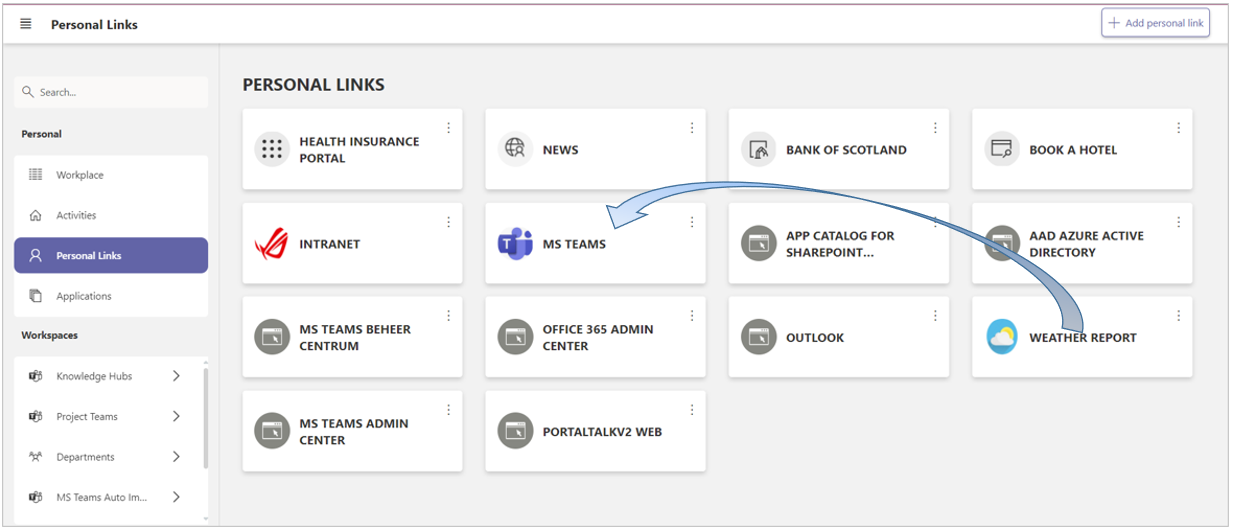
On the Personal Links page within the PortalTalk web application you can see all your personal links.
Also from the PortalTalk web application you can use your personal links by clicking on the links. In addition, you can move, edit and delete your personal links here.
To edit, move or remove links you have already created, you must first access the PortalTalk web application via the Show all→ link.
-
Navigate to the location in the intranet portal where your personal links are available.
-
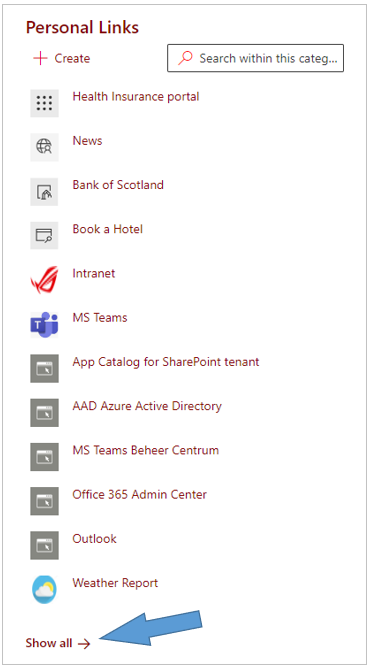
Click on the option Show all→.
The PortalTalk page with all your personal links will open, in a new browser tab:
-
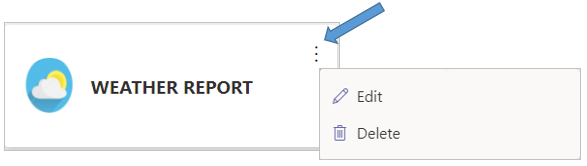
Click the ellipsis menu button of a personal link and select the Edit or Delete option.
-
Click a personal link and hold down the mouse button while dragging the tile to any other position on the page.
The tile is then also displayed in its new position within the intranet portal - by the PortalTalk web part.