.png)
Navigate to a workspace
From the PortalTalk Workspaces web parts, you can navigate to all workspaces of which you are a team member and to all public workspaces.
The links within the PortalTalk Workspaces web parts provide access to the workspaces to which you have access rights.
For the workspaces of which you are a team member, the links are displayed within the My subcategory.
If the owner of a workspace has set access permissions for the organization (usually Read Only), then all intranet users within the organization or within the relevant organizational unit, will find the link to this workspace within the Public subcategory.
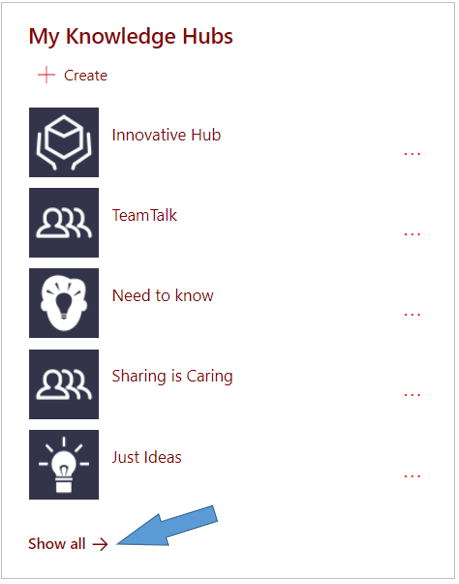
If the workspace you are looking for is not displayed in the PortalTalk Workspaces web part, you need to click the web part’s Show all option to have the links to all workspaces displayed in the PortalTalk web application.
-
Find the link of the workspace to which you wish to navigate (if necessary, click the Show all option in the PortalTalk Workspaces web part to see all workspace links).
-
Click the workspace link.
If the clicked workspace link concerns a SharePoint site workspace, the site will open in a new browser tab:
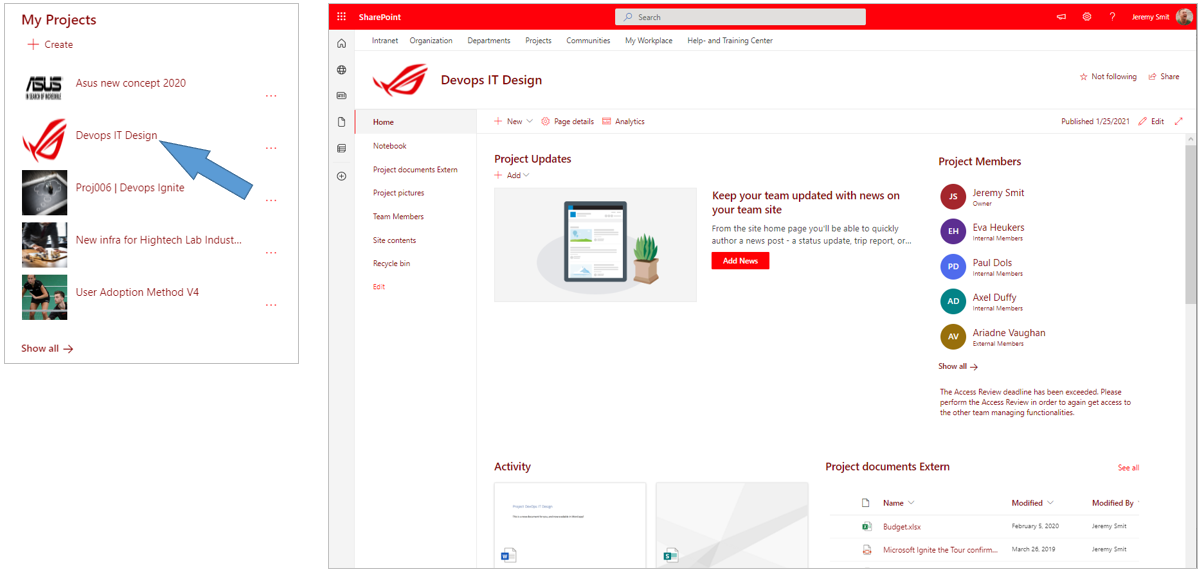
Image above: When you click on a SharePoint workspace link, the SharePoint site will open in a new browser tab. On the right side of the site's homepage, the PortalTalk Team Members web part displays the workspace's team members.
If the clicked workspace link concerns an MS Teams workspace, the team's General channel opens in MS Teams:
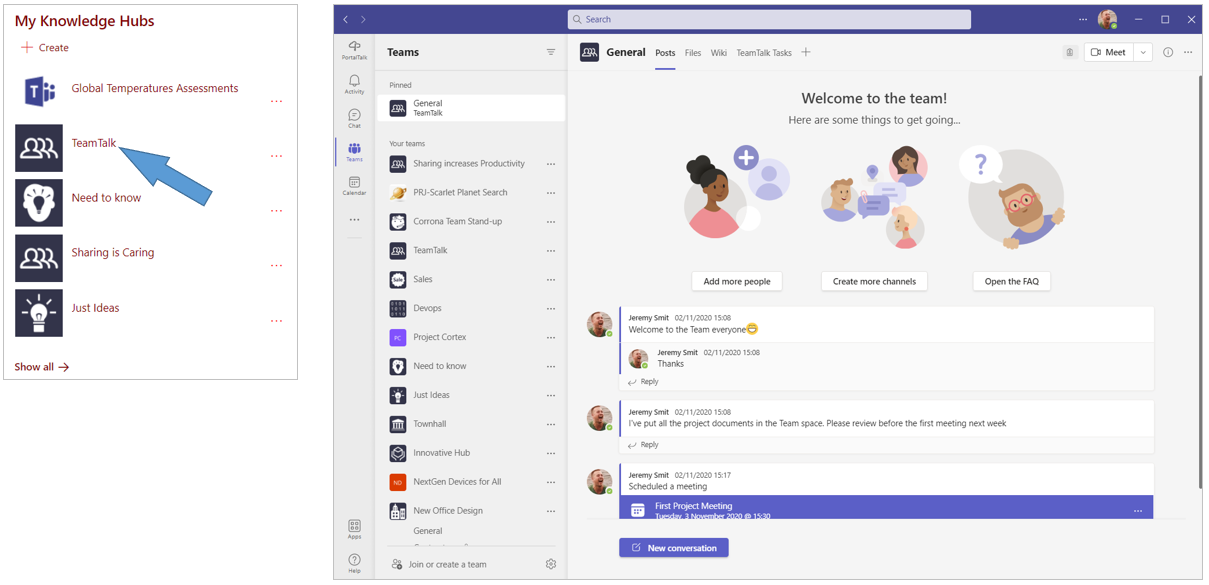
Image above: When you click on an MS Teams workspace link, the General channel of the workspace opens in MS Teams..
Find your workspace within the PortalTalk web application
In the PortalTalk Workspaces web part, the number of displayed workspace links is maximized by the SharePoint administrator.
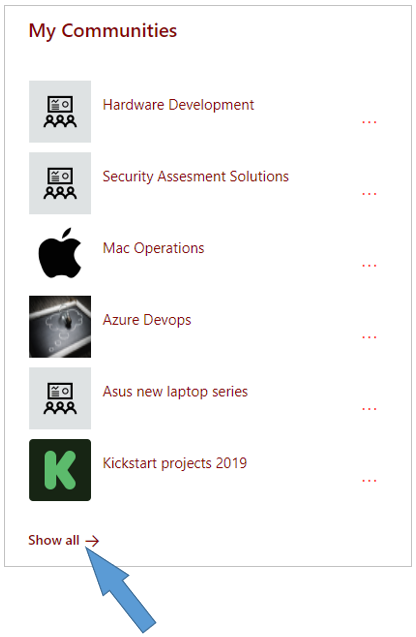
So, if you are a member of 14 workspaces, or have access to 40 public workspaces, but the PortalTalk Workspaces web part does not display more than the first 12, you will need to access the other workspaces elsewhere.
-
To do this, click the option Show all →.
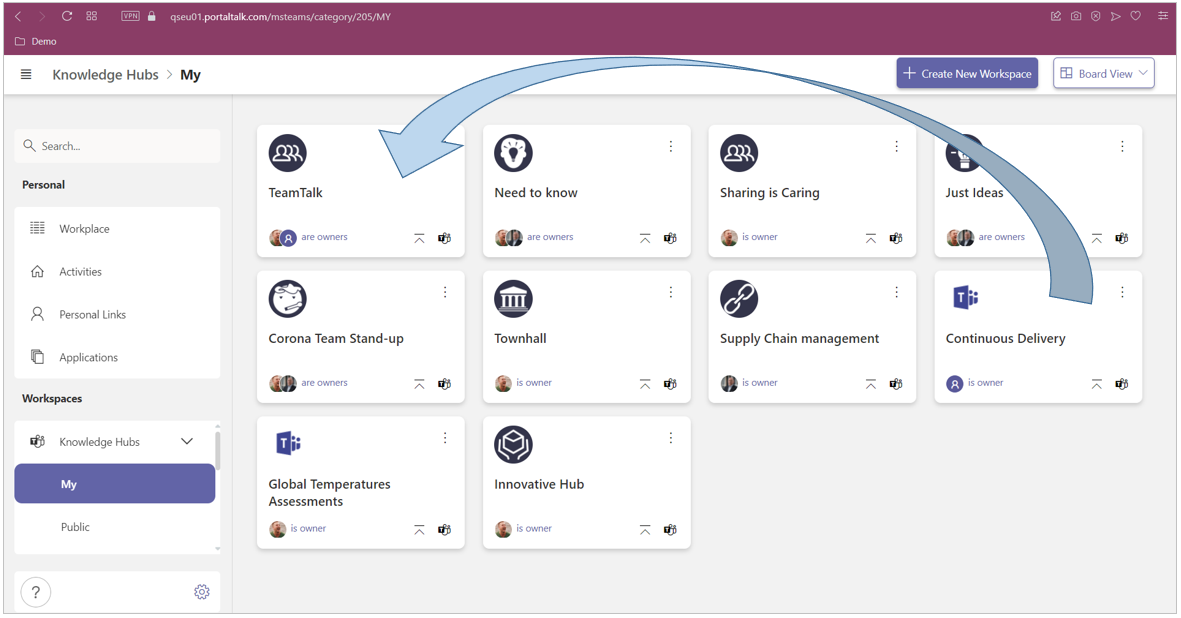
The PortalTalk web application is launched in a new browser tab, displaying the links to all workspaces:
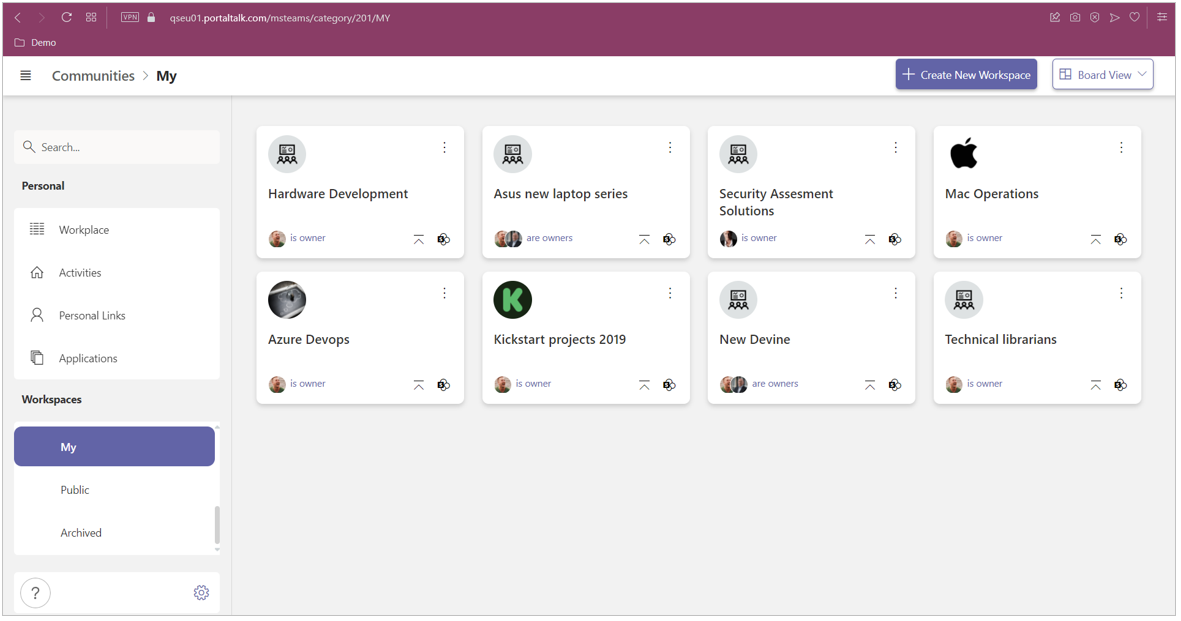
The PortalTalk web application displays the links to all the workspaces within the relevant subcategory.
You can navigate to a workspace by clicking its link.
If you wish to have a workspace link displayed within the PortalTalk Workspaces web part, you need to make sure that the workspace is placed sufficiently forward and high-up.
See the next chapter on organizing your workspaces.
Organizing your workspaces
It is useful to have the links for the workspaces you work with frequently, directly available within the PortalTalk Workspaces web part.
If you are a member of a large number of workspaces within for instance, the Communities category, and the SharePoint administrator has made a limited number of workspace links available within the PortalTalk Workspaces web part, you may very well find that a community within which you happen to work a lot, is not displayed in the web part.
This forces you to click the Show all option and open the PortalTalk web application every time you need to navigate to the community.
To get the links to the correct workspaces visible in the web part, you must position them so that they will be included within the web part.
In the PortalTalk web application, you can drag a workspace link to a more forward and higher up position, in fact to any position you wish it to be displayed in the web part.
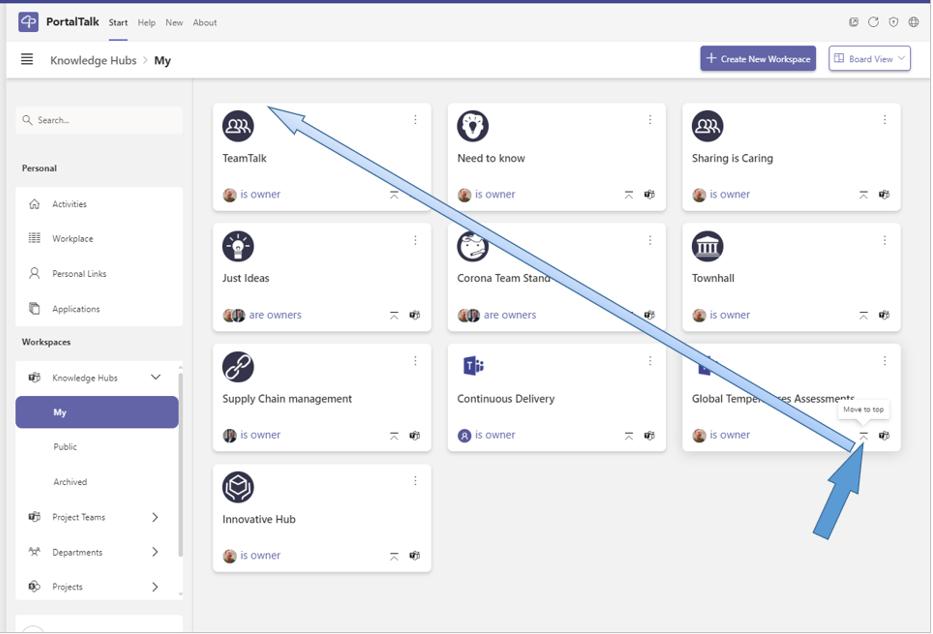
Alternatively, you can place a workspace link at the very front/top of the web part with a single mouse click.
-
Open de PortalTalk web application by clicking the Show all option.
The PortalTalk web application is launched in a new browser tab, displaying the links to all workspaces:
-
Click on the workspace link you wish to make visible in the web part.
-
Hold down the mouse button and drag the workspace link to the desired position. This will reposition the workspace link accordingly within the PortalTalk Workspaces web part.
If you wish to place the workspace link at the top of the web part, you can also do this with a single mouse click.
-
Click the Move to top icon of a workspace link, to position it on the far left of the top row within its category.
The workspace link will then be displayed at the top of the PortalTalk Workspaces web part.
Note: You can reposition the links to the business applications and your personal links in exactly the same way as described above.