.png)
Request the creation of a new workspace
You can submit a request a for a new workspace from the PortalTalk Workspaces web part.
You do this within the workspace category that the new workspace should belong to.
You need specific permissions within a workspace category to be able to request a new workspace. If you do not have permissions to request a new workspace, the option won't be visible to you either.
When you request a workspace, your request will be made known to the users with permission to create workspaces within the relevant category, by means of an automatic email message.
Once your request has been approved or denied, you will receive a corresponding automatic email confirmation. If necessary, refer to the manual page regarding approving or rejecting a workspace request.
-
Navigate to the PortalTalk Workspaces web part for the category in which you wish to request a new workspace.
-
Click on the +Request option.
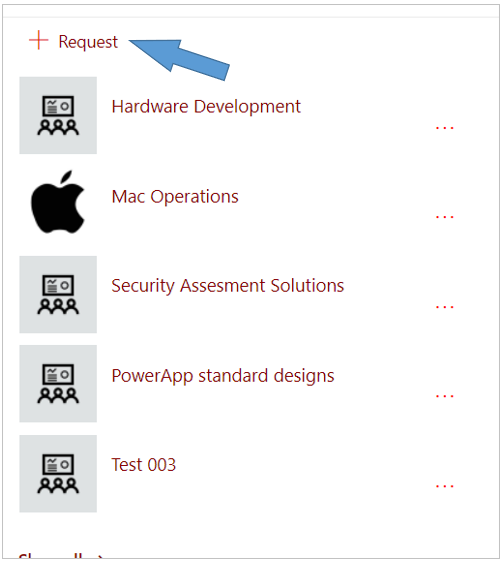
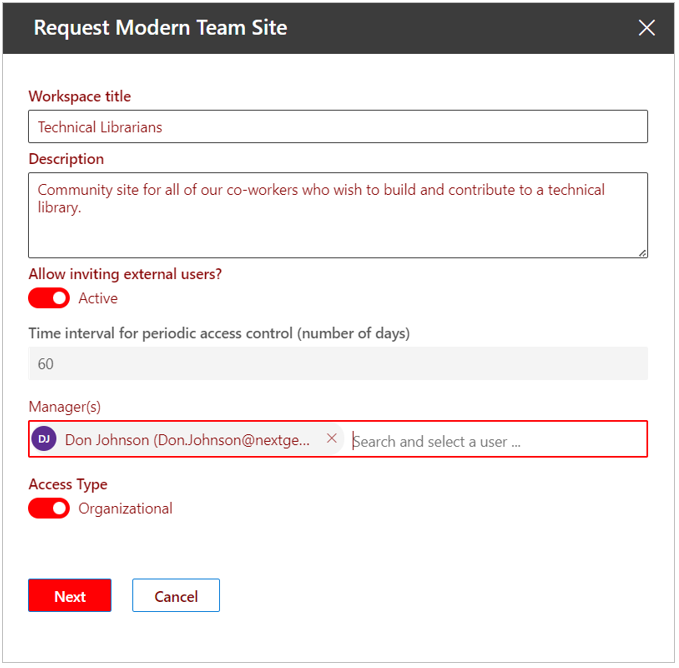
The Request Modern Team Site form is displayed on the right side of the screen:
-
Workspace title - Enter the title for the new workspace.
-
Description - If you wish, provide a description. PortalTalk's search functionality also searches within the workspaces' description.
-
Allow inviting external users? - Active or Disabled. Indicate whether it should be allowed to include external users in the new workspace's team.
-
Time interval for Access Review - This feature cannot be edited.
-
Metadata - If specific metadata apply to the workspace category, you can enter the relevant values for the new workspace in the following fields.
-
Manager(s) - Select the user to be the primary workspace owner.
-
Access Type – Members only or Organizational.
-
Click Next.
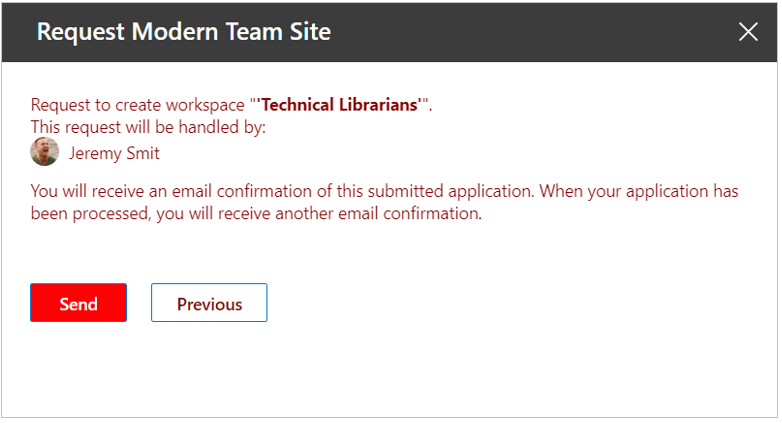
Your workspace request is confirmed and you will also see which users will handle your request:
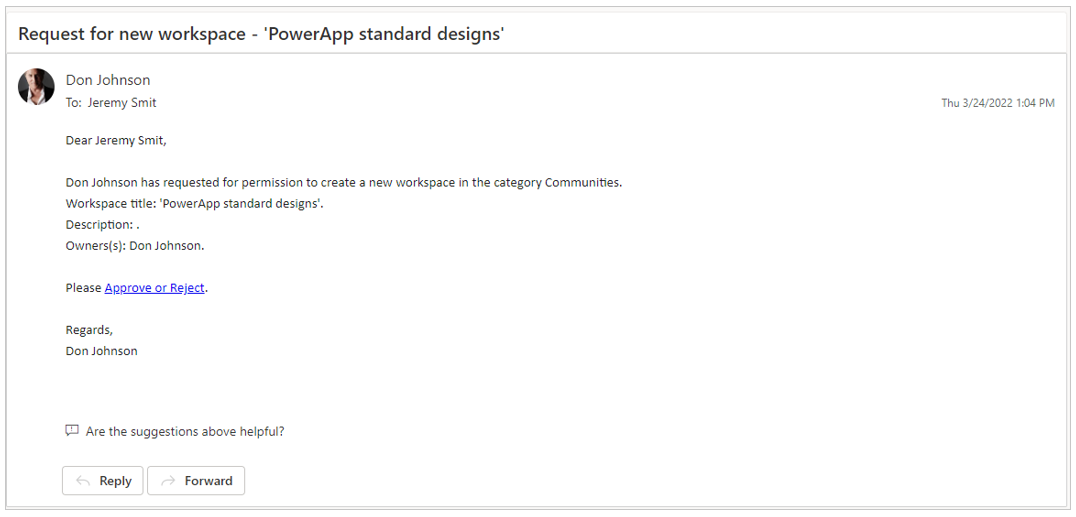
The users who have permission to review and approve your request will receive an automatic email notification of your request:
You will receive a confirmation by automatic email of the approval or denial of your request.
If your request is approved, the workspace is created.
The link to the newly created workspace will then appear in the My workspace subcategory of the users you had selected as the workspace owner.
As long as your request has not been approved or rejected, a PortalTalk administrator can find the requested workspace in the relevant PortalTalk application management function. (Pending workspace creation requests).