.png)
Manage the composition of your workspace team and it’s members' permissions
As a workspace owner, you can compose your workspace team by adding and removing users.
This, you do in the Team Members panel of your workspace which you can access from both the PortlalTalk Workspaces web part and the PortalTalk Team Members web part.
Access the Team Members panel from the PortalTalk Workspaces web part
-
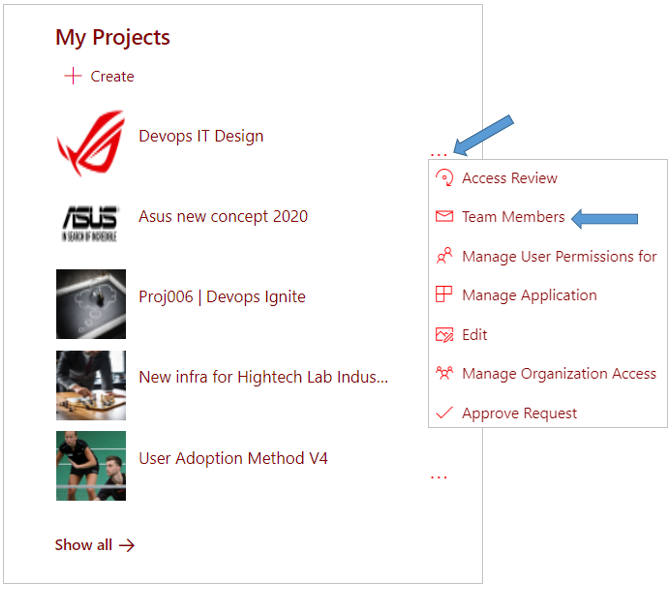
Locate the PortalTalk Workspaces Web Part that displays your workspace.
-
Click the ellipsis menu button at the workspace link and select the Team Members option.
The Team Members panel is displayed on the right side of the screen:
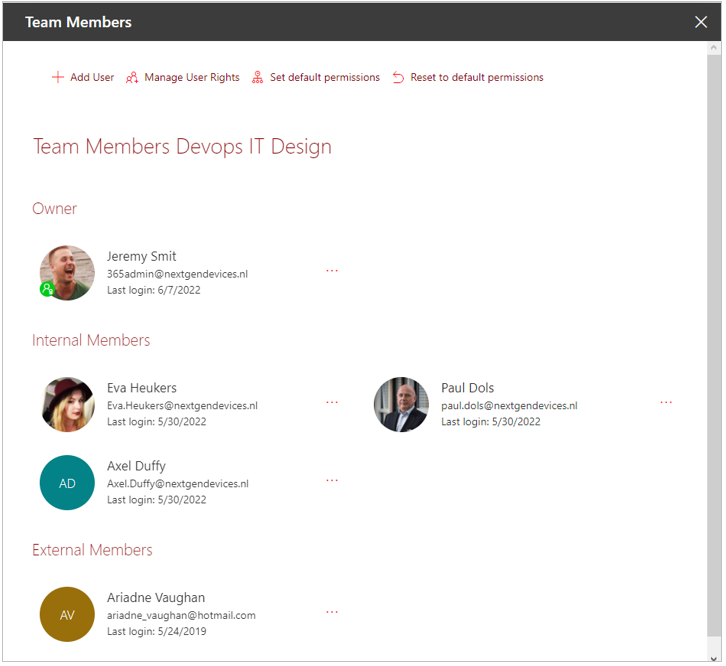
Image above: The owners are presented at the top of the Team Members pane. Below is a segment displaying the internal team members. The external team members are listed in the segment at the bottom of the pane.
Access the Team Members panel from the PortalTalk Team Members web part
-
Within the SharePoint site, navigate to the PortalTalk Team Members web part.
-
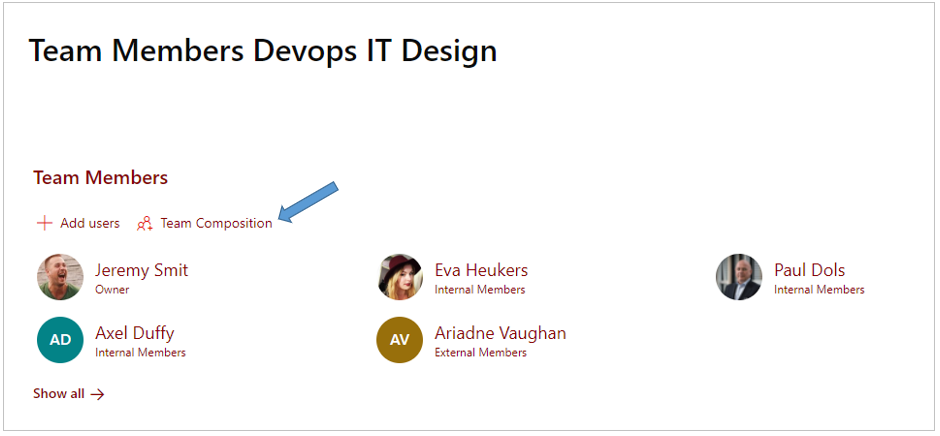
Click the Team Composition option.
The Team Composition panel is displayed on the right side of the screen:
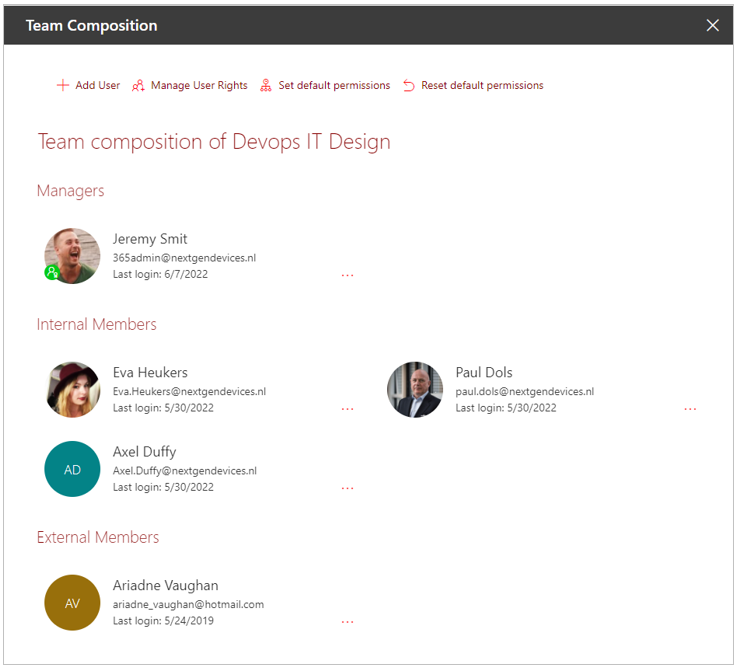
Image above: The owners are presented at the top of the Team Members pane. Below is a segment displaying the internal team members. The external team members are listed in the segment at the bottom of the pane.
The team member icons
On the various Team Members panels the owners, the external users and the deactivated users are indicated by icons.
The meaning of the various team member icons is explained in the table below.
|
Internal user. No icons are displayed for an internal team member. |

|
|
|
Internal user to whom the owner role is assigned. This user has all the ellipsis menu options of the workspace at his disposal. |

|
|
|
Internal user whose account has been deactivated, for example because the user has terminated their employment. This team member no longer has access to the workspace. |

|
|
|
External user to whom a PortalTalk-generated invitation email was sent. The user has not yet used the information in the invitation email to log in to PortalTalk.
|

Het linker icoon duidt erop dat het een externe gebruiker betreft die in PortalTalk al actief is binnen andere sites.
|
|
|
External user to whom a PortalTalk-generated invitation email was sent. The user has used the information in the invitation email to log in to PortalTalk.
|
Het linker icoon duidt erop dat het een externe gebruiker betreft die in PortalTalk actief is.
|
|
|
Deactivated external user to whom an invitation email generated by PortalTalk has been sent. The user has not yet logged into PortalTalk as a result of the invitation. Once the external user logs in, he is automatically activated and the “access forbidden” icon disappears. Note: An external user is automatically deactivated in PortalTalk the moment they are no longer part of any workspace team.
|
Het linker icoon duidt erop dat het een externe gebruiker betreft.
|
|
Team management activities
Add internal members to your workspace team
Add external members to your workspace team
Remove members from your workspace team