.png)
Opening or closing your workspace for the organization
As a workspace owner, you can make your SharePoint site workspace accessible to the entire organization. This concerns access for all non-team members within your organization.
A prerequisite for this is that, in the category settings of the workspace, an AAD group is assigned as OAG (Organization Access Group). This group is often called 'Everyone' or 'Intranet users'.
When you open your workspace to the organization, you can at the same time determine which permissions the organization members should have within your workspace - usually Read.
-
Find the workspace link within the PortalTalk Workspaces web part.
-
Click the ellipsis menu button at the workspace link and select the option Mana Organizational Access.
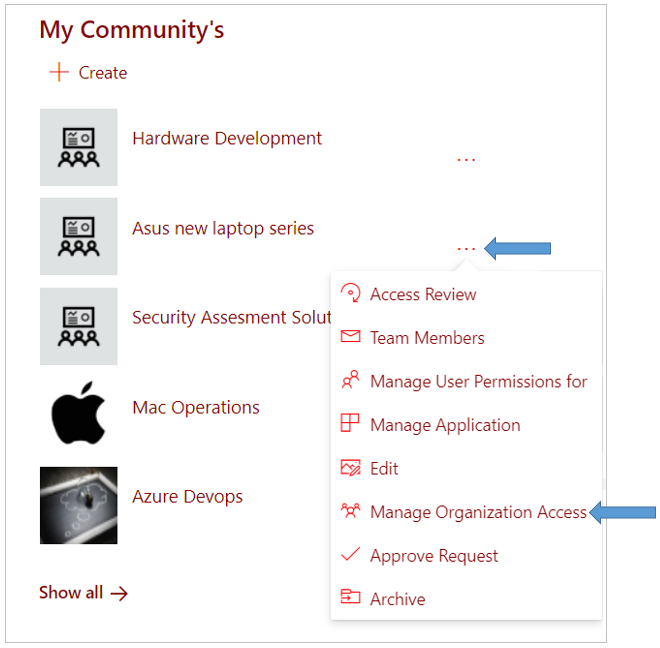
The Manage Organization Access panel is displayed on the right side of the screen:
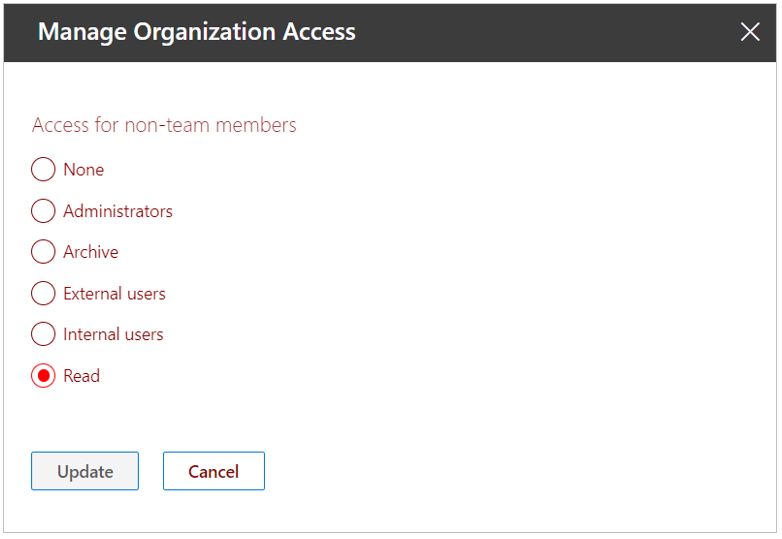
If the category in which your workspace was created already specifies an organization access role, you will see this role selected in the Manage Organization Access panel.
The roles listed here are limited to those set within the workspace category.
-
Select the role that organizational members should have within your workspace - often Read.
-
Click on Update.
The Manage Organization Access panel closes.
If your workspace is accessible to the organization, but you wish to undo this, you can select the option None as a role.