.png)
Create a new workspace
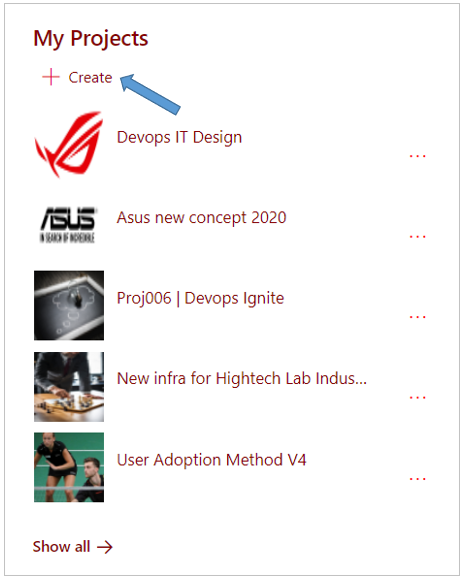
You can create a new workspace from the PortalTalk Workspaces web part.
You need specific permissions for this within the relevant workspace category.
The specifications you enter when creating the new workspace can be edited at any later point of time by the workspace's owner.
-
Navigate to the PortalTalk Workspaces web part for the category in which you wish to request a new workspace.
-
Click on the +Create option.
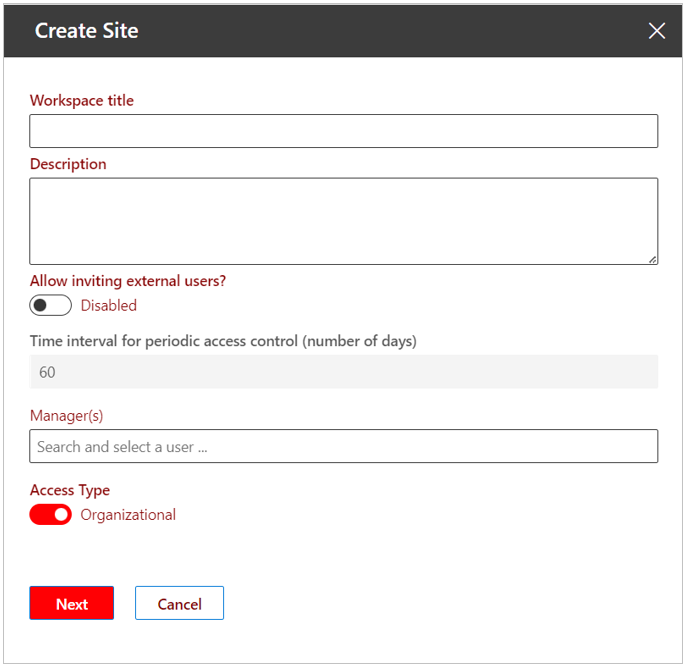
The Create Site panel is displayed on the right side of the screen:
-
Workspace title - Enter the title for your new workspace.
-
Description - If you wish, provide a description. PortalTalk's search functionality also searches within the workspaces' description.
-
Allow inviting external users? - Active or Disabled.
-
Time interval for Access Review - This feature cannot be edited.
-
Metadata - If specific metadata apply to the workspace category, you can enter the relevant values for the new workspace in the following fields.
-
Access Type – Members only or Organizational. If the workspace category setting allows for this, you can choose to open your workspace to the organization.
The permissions that the organization members will have to your workspace will default to what is set within the category.
If necessary, see the chapter on opening or closing your modern teamsite workspace for the organization, for an explanation of how to deviate from this default permission. -
Allow inviting external users? - Indicate whether it should be allowed to include external users in the new workspace's team.
-
Owner - Select an owner for the new workspace.
-
Click Next.
-
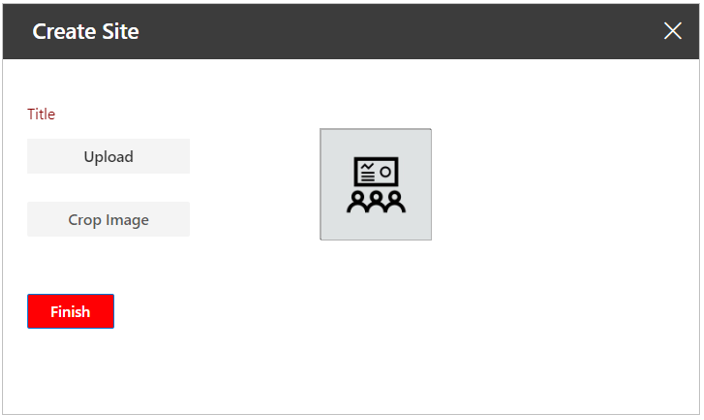
Click Upload if you wish to use a specific image for the new workspace.
-
In the filebrowser window that opens, navigate to the appropriate image file and open it.
-
Use the option to crop the image if necessary.
-
Click Finish.
The new workspace is created.
Once the workspace is created, the workspace link will appear in the PortalTalk Workspaces webpart, subcategoy 'My', of the workspace owner you selected.
Some of the choices you made and fields you filled in when creating the workspace can be modified later by the workspace's owner.