.png)
Add internal members to your workspace team
Adding internal members to your workspace is done on the Team Members panel of your workspace.
-
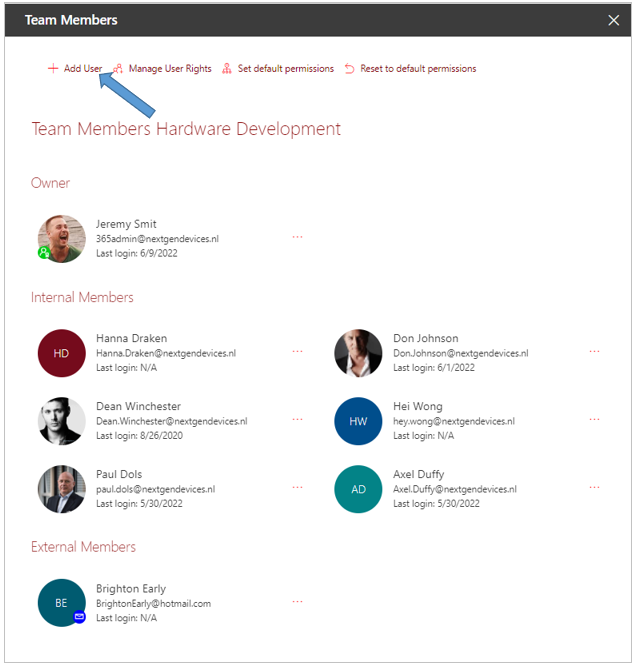
Access the Team Members c.q. the Team Composition panel for your workspace from the PortalTalk Workspaces web part or from the PortalTalk Team Members web part.
-
Click the +Add User option.
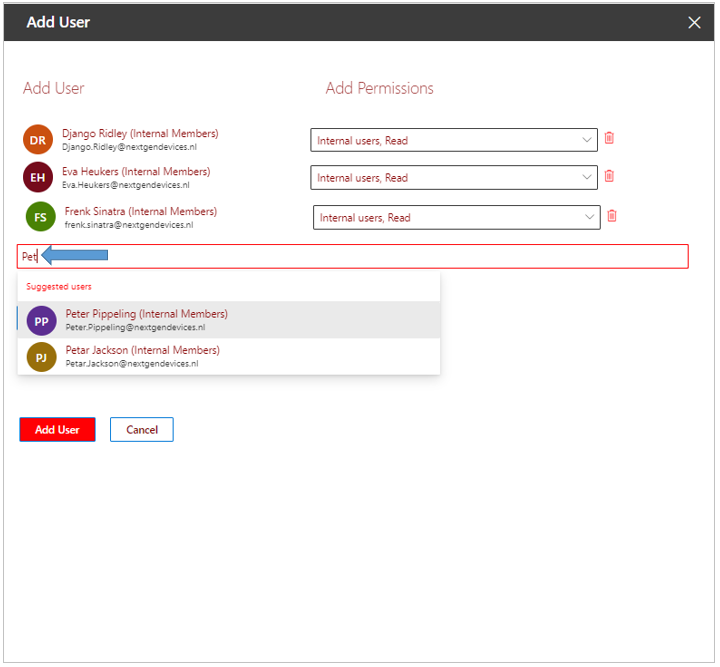
The Add User panel is displayed on the right side of the screen:
-
In the Find and select a user box, select the users you wish to add to your workspace team.
When you type the first three characters of a user's name, a list of matching existing intranet users appears, within which you can click the name of the desired user.
These are internal users, but also external users who are already known within PortalTalk.
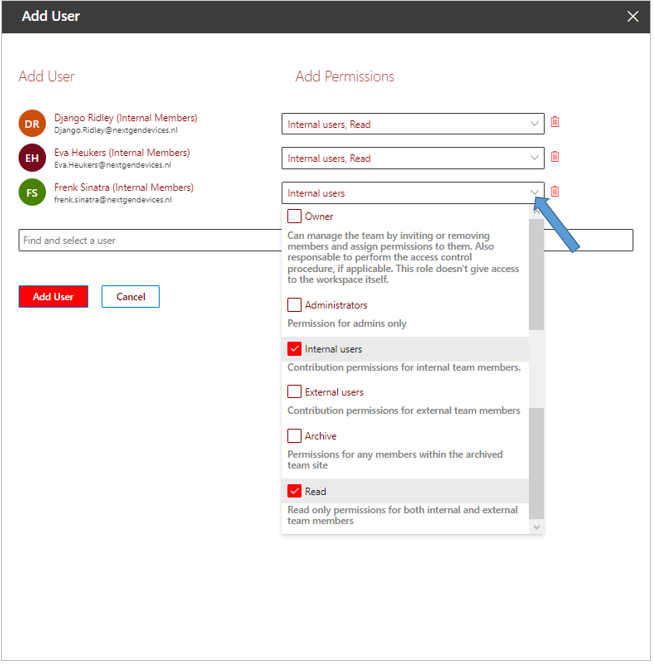
Upon adding a user, you can see what default permission* the user is assigned.
You can directly change or supplement the permissions for the user to be added.
-
Select the desired roles/permissions for the added users.
-
After you have selected all users and adjusted their permissions if necessary, click on the Add User button.
The Add User panel closes and the users you added are now visible within the Team Members or Team Composition panel.
These added users will now see the workspace’s link in the PortalTalk Workspaces web part, in the My subcategory.
*Note: You can change the default permissions for your workspace. See the page about managing the default permissions of your workspace.
Note: As soon as a PortalTalk user account is deactivated, for example because the user's employment has been terminated, the team member's image within the Team Members panel, will be marked with the "no access" icon.
This means that that user no longer has access to your workspace.
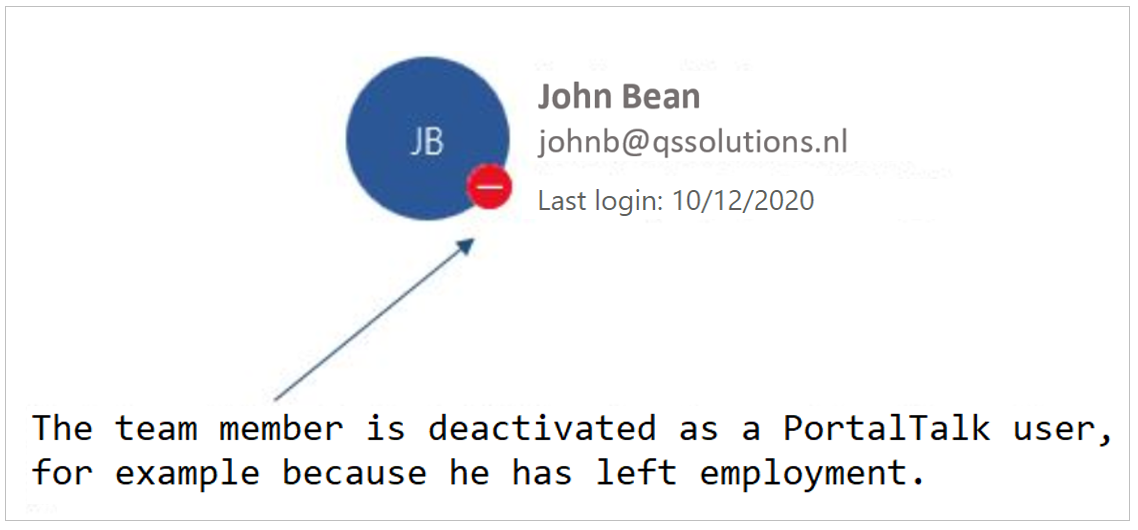
If so required, refer to the chapter on the team member icons and their meaning.
If accordingly configured by the PortalTalk administrator, the selected internal users will receive an email inviting them to log into PortalTalk and use the workspace to which you have added them as a team member.
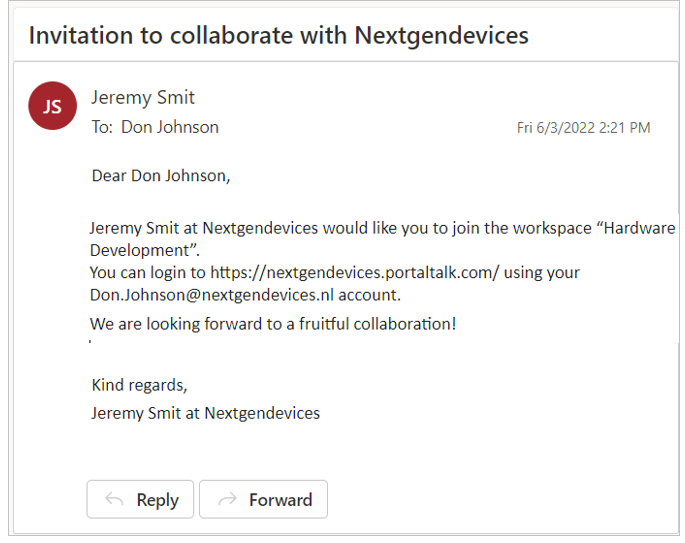
The text of these automatically generated email messages can be set/modified by the PortalTalk application administrator. See the manual page related to managing the PortalTalk email templates.