.png)
Handling permission requests from your team members
Existing team members within your workspace can request additional permissions to increase their scope of activity within the workspace.
As the workspace's owner, it is your task to review and approve or reject these permission requests.
Once such a request for additional roles related to your workspace is made, you as (one of) the owner(s) will be notified via an automated email:
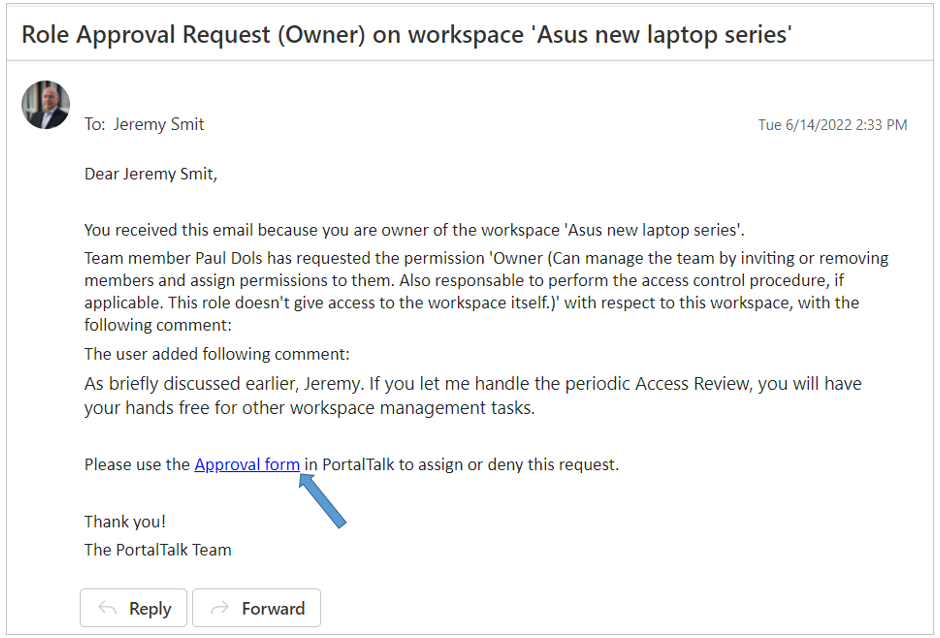
The text of these email messages can be set/modified by the PortalTalk application administrator.
If necessary, refer to the manual page related to managing the PortalTalk email templates.
-
Click the link in the email to start processing the request.
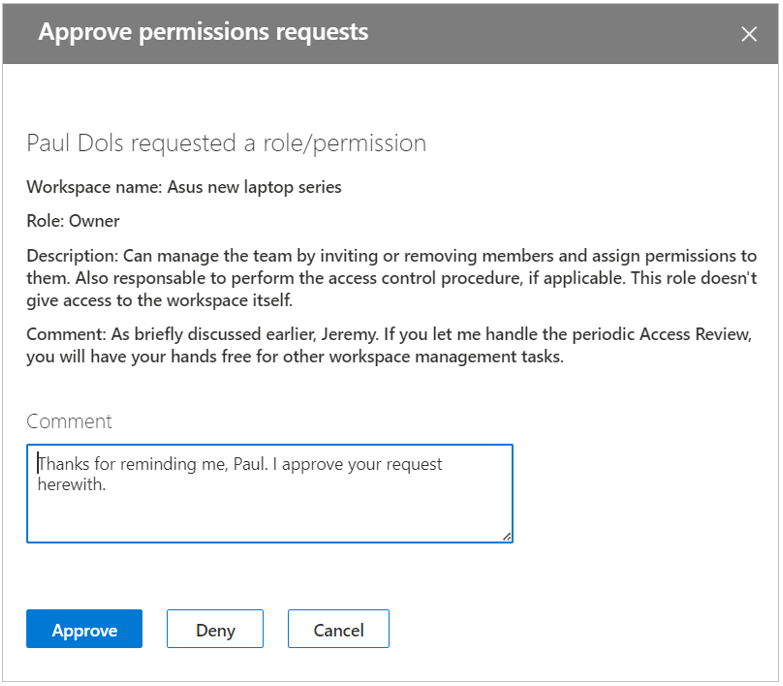
The PortalTalk web application is launched in a new browser tab with, on the right side of the screen, the Approve permissions requests panel.
-
Comment - Your comment will be sent to the requester in an automated email.
-
Click either Approve or Deny.
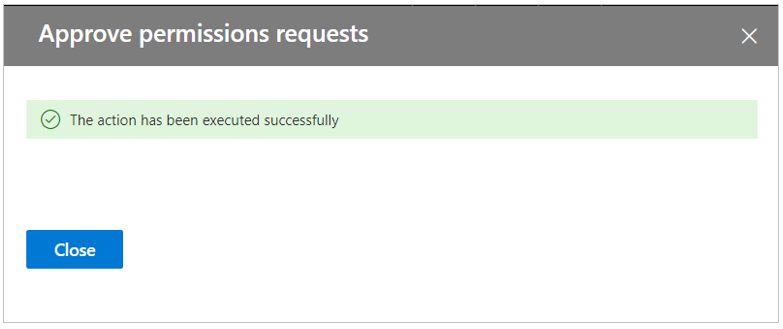
-
Click Close.
The requester will receive an automated email message informing them of your response:
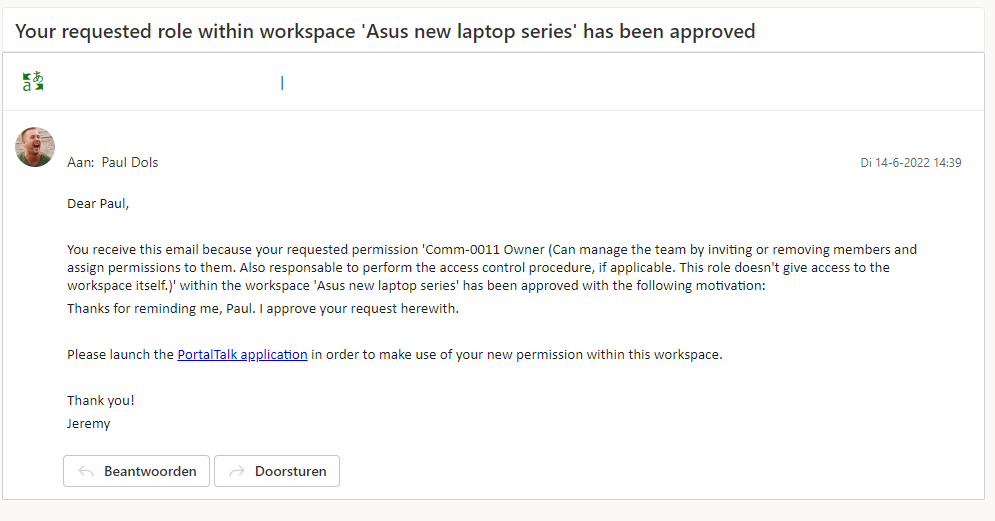
The text of these email messages can be set/modified by the PortalTalk application administrator.
If necessary, refer to the manual page related to managing the PortalTalk email templates.
If approved, the requester will have access to the new permissions as soon as he has logged in again on the intranet portal.