.png)
Add internal users to your workspace team
You can add internal members to your workspace on the Members page of your workspace.
-
In the Members page of your workspace, click the Add Member option.
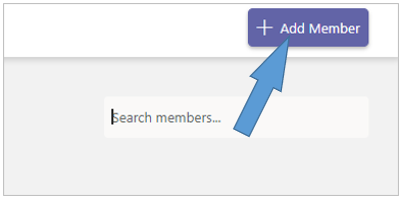
The Add Members form is displayed:
-
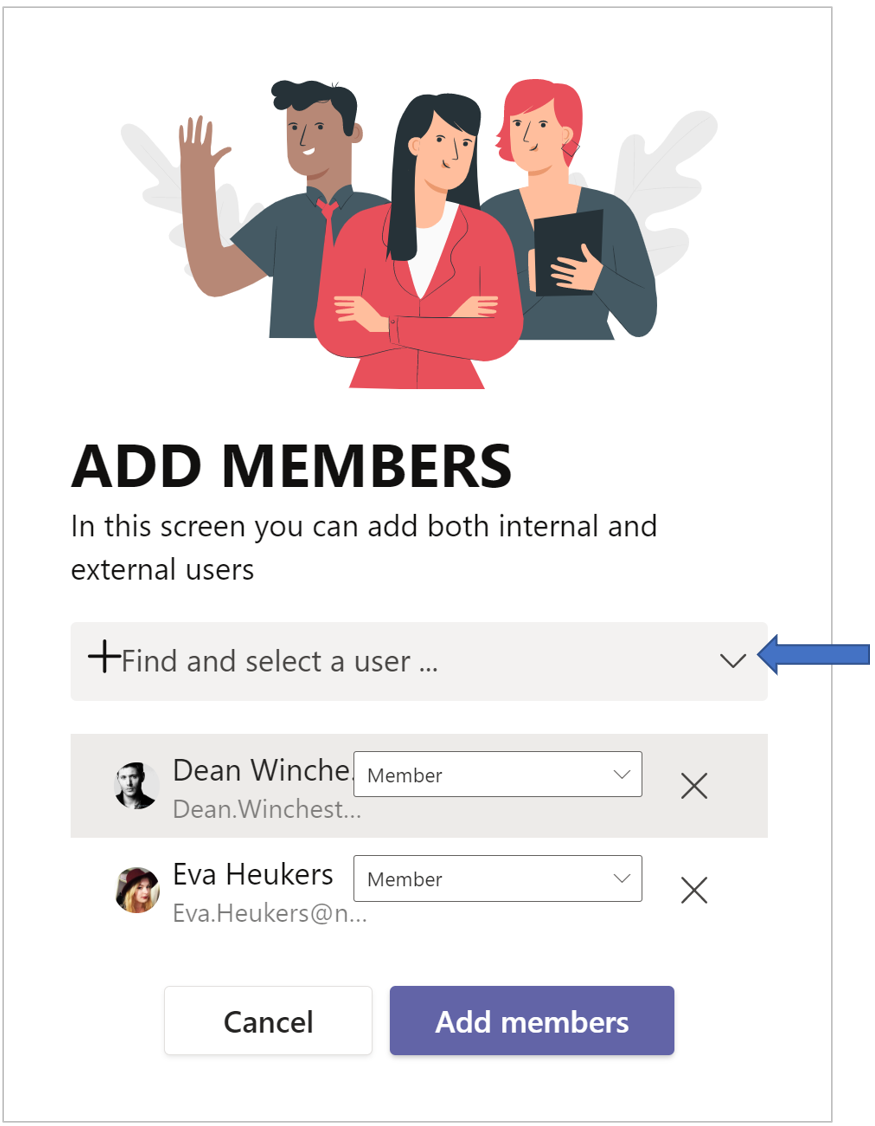
In the Find and select a user... box, select the users you want to add to your workspace team.
When you start typing a user's name, a list of matching existing users will appear, in which you can click on the name of the desired user.
Once you've selected a user, you'll see what default permission the user is assigned.
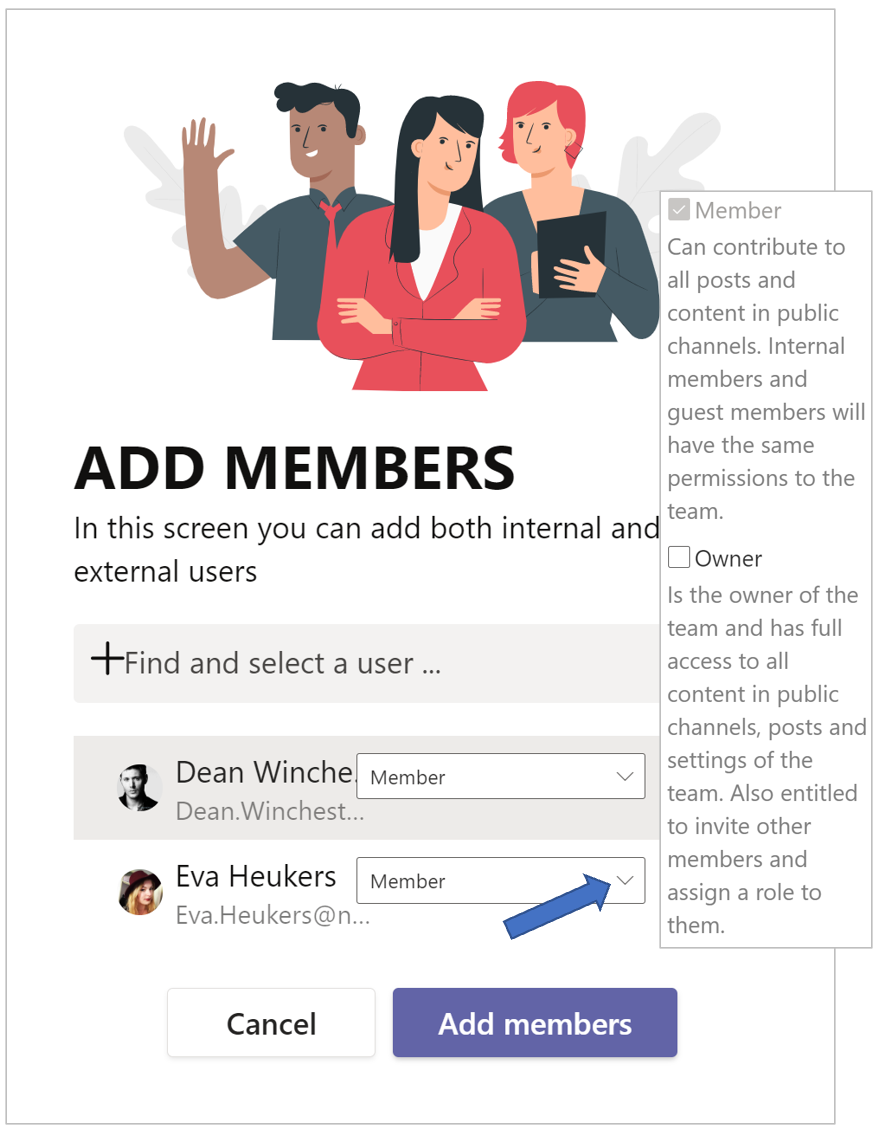
You can change or add to the permissions for the new team members.
-
Select any desired additional roles/permissions for your chosen users.
-
After you have selected all the desired users and possibly adjusted their permissions, click the Add members button.
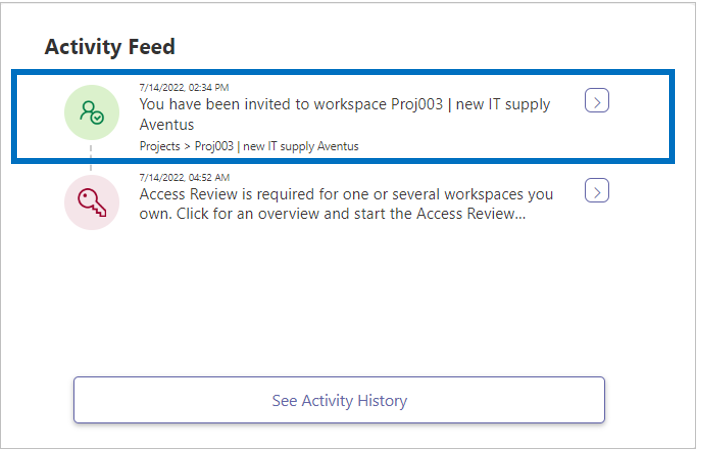
The newly added team members will receive a notification on their dashboard, in the Activity Feed:
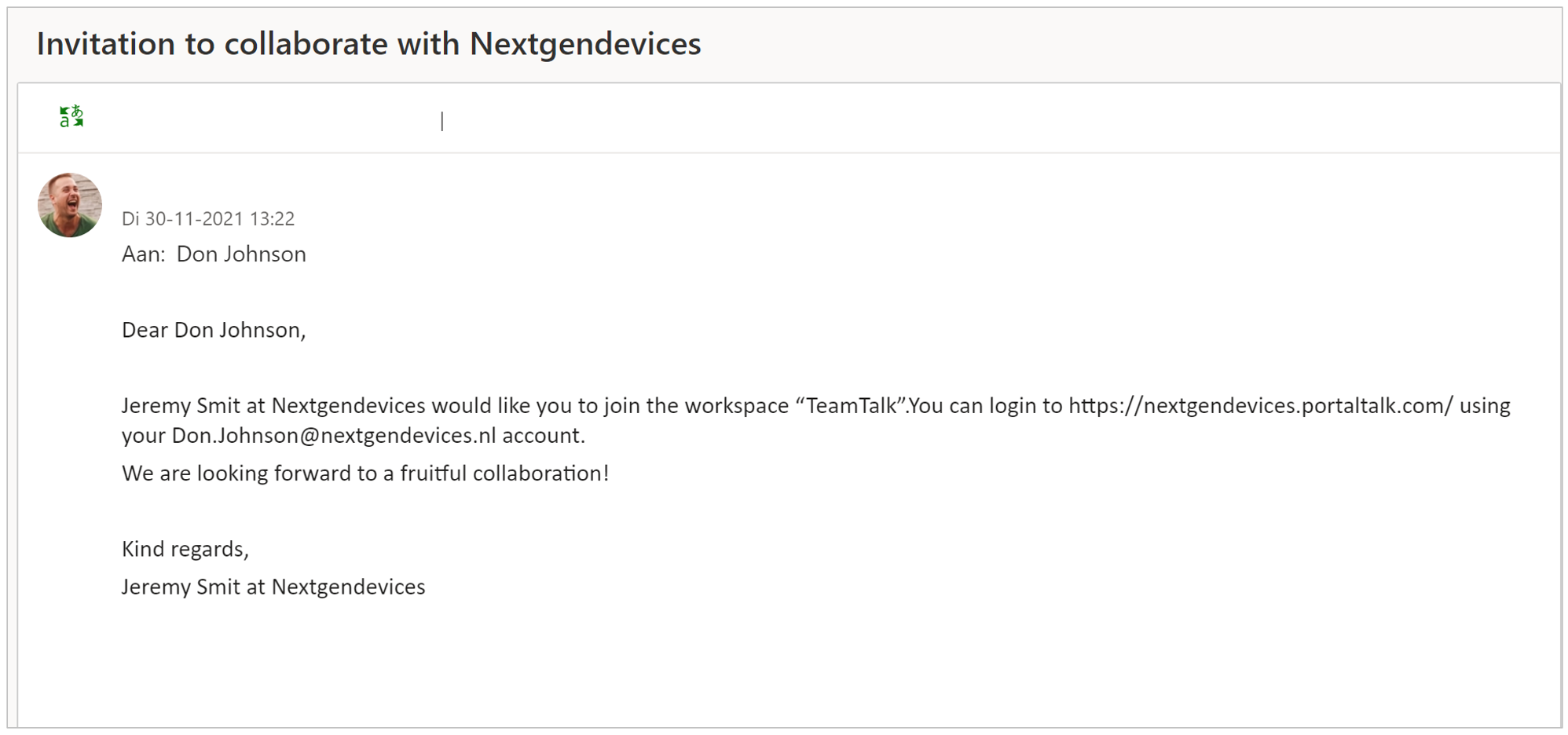
They also receive an email inviting them to log into the PortalTalk web application and use the workspace to which you have added them as a team member: