.png)
Edit your workspace link settings
As a workspace owner, PortalTalk allows you to edit your workspace link settings.
The settings you can adjust for your workspace are:
- Workspace name
- Workspace logo
- Description
- Public or Private workspace
- Workspace category MS Teams workspaces only)
-
Click the ellipsis menu button of the workspace link and select the option Edit.
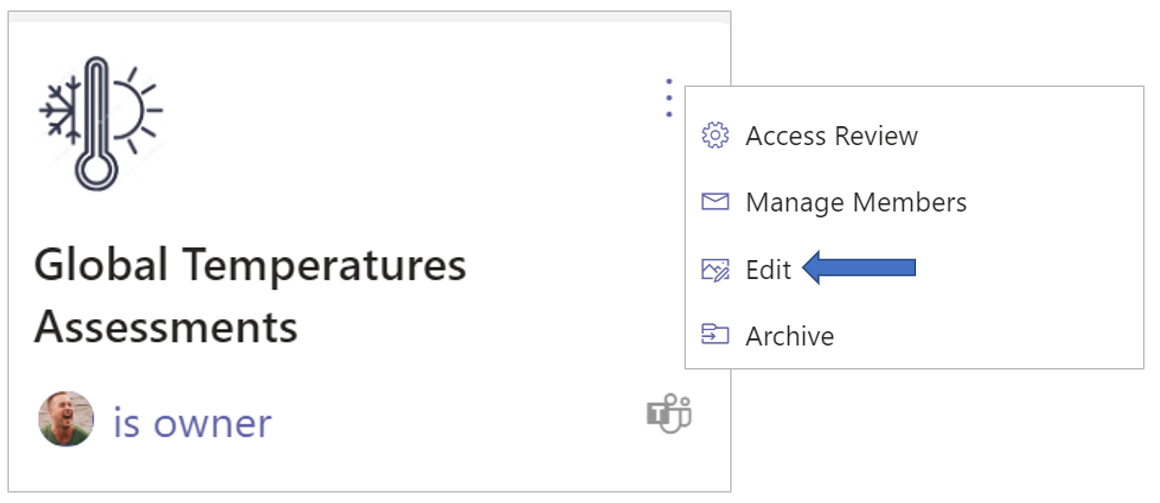
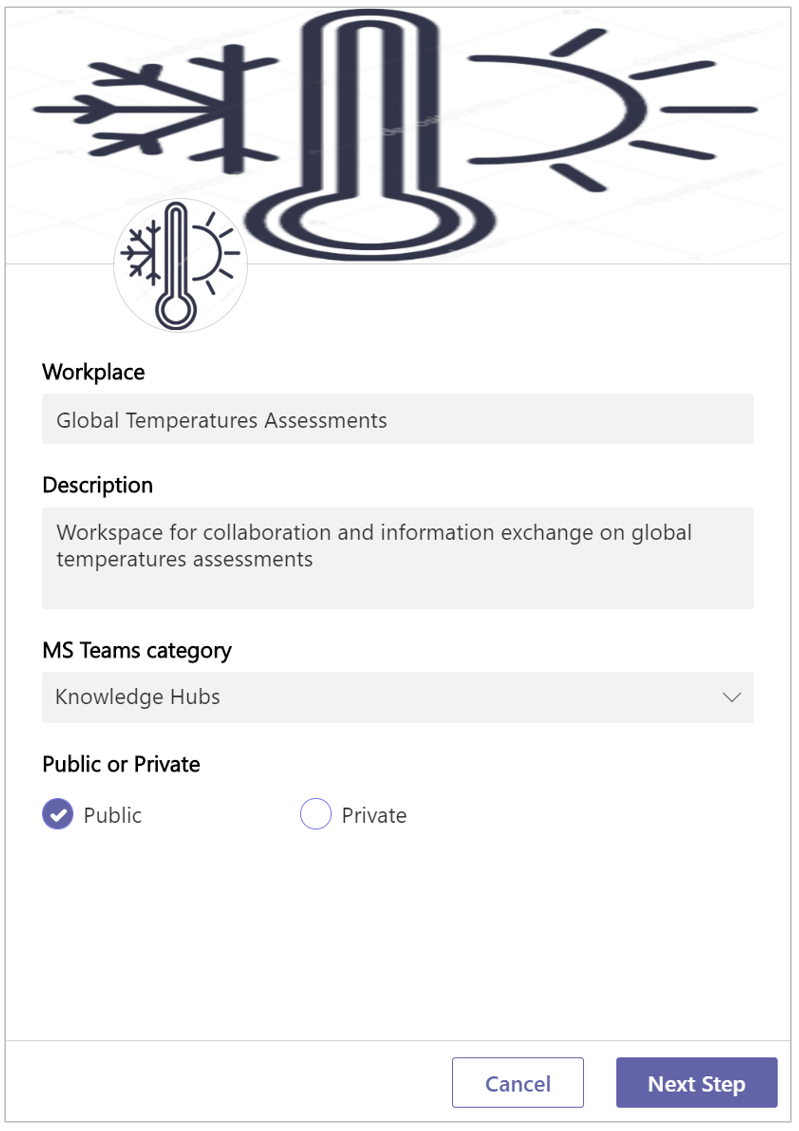
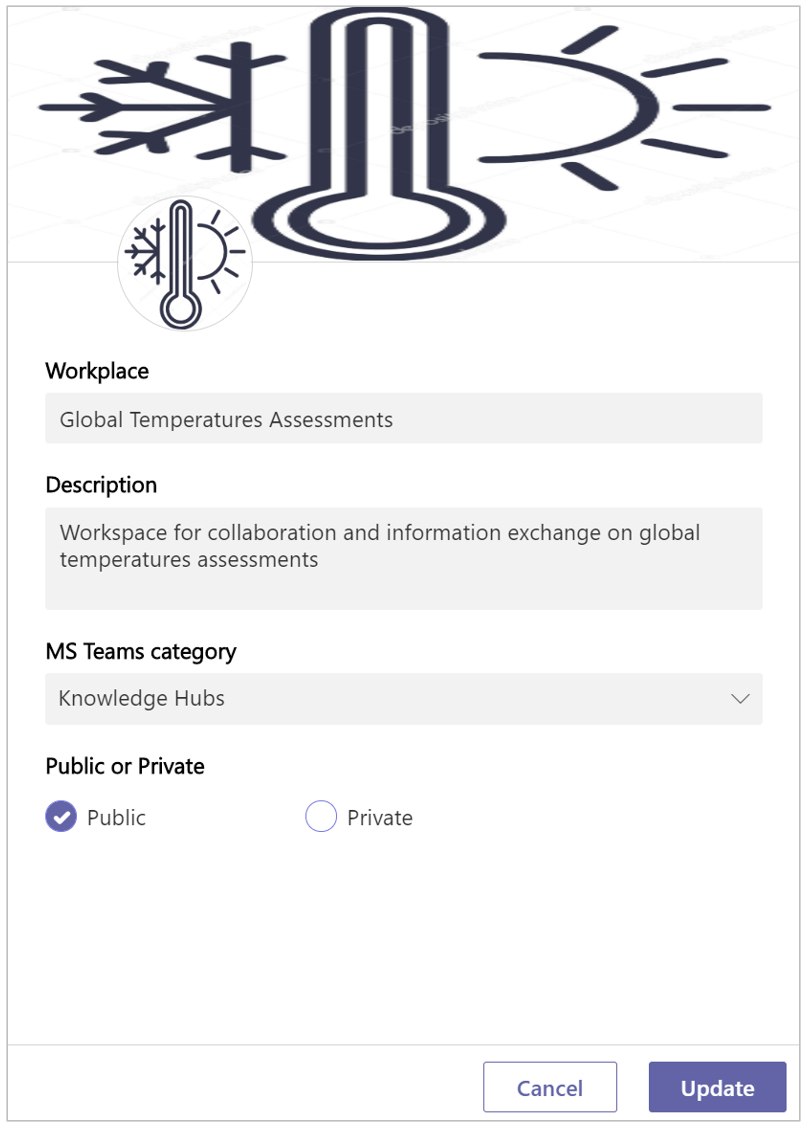
The panel for editing your workspace settings is displayed:
-
Workspace - Edit the content of this field to change the title of your workspace.
-
Description -Edit the workspace’s description
-
MS Teams category - (MS Teams workspaces only) Assign your workspace to another MS Teams workspace category.
-
Public or Private - Change this option from Public to Private or vice versa.
-
Metadata - If metadata applies to the workspace category, you can edit the various metadata values here.
-
Allow external users - Allow/Disallow. Select to either include or exclude external team users
-
Click Next Step.
-
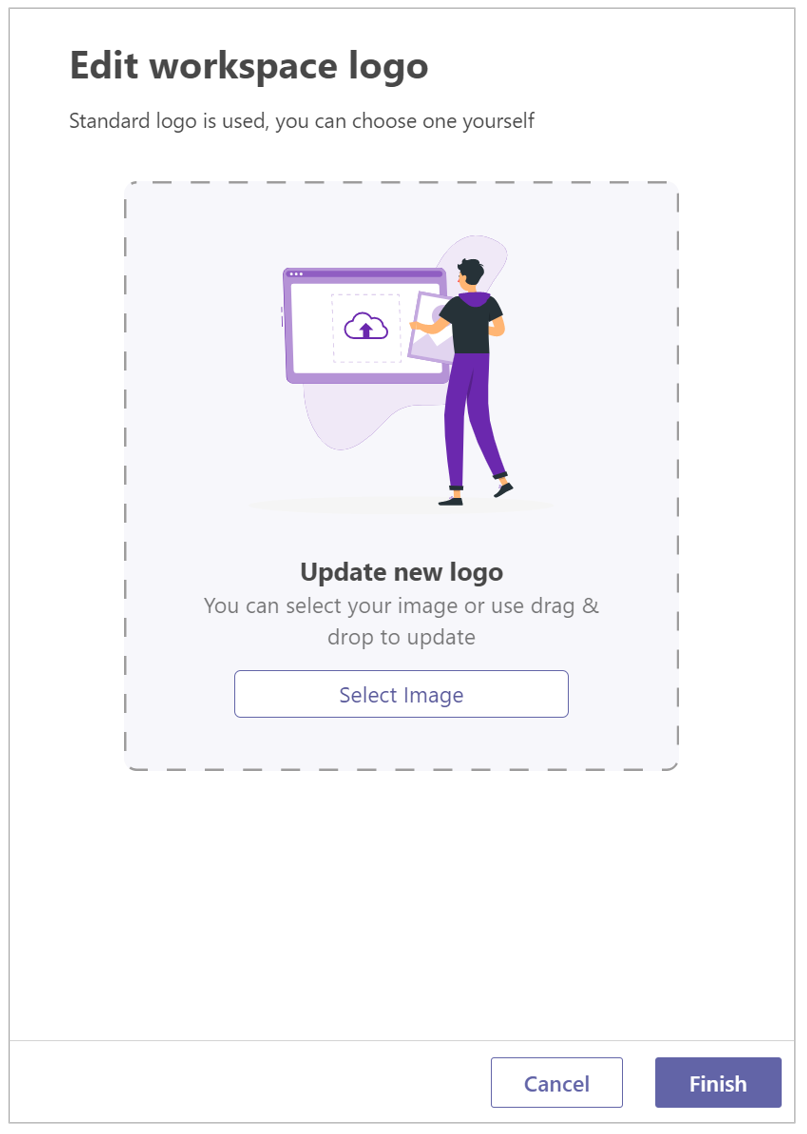
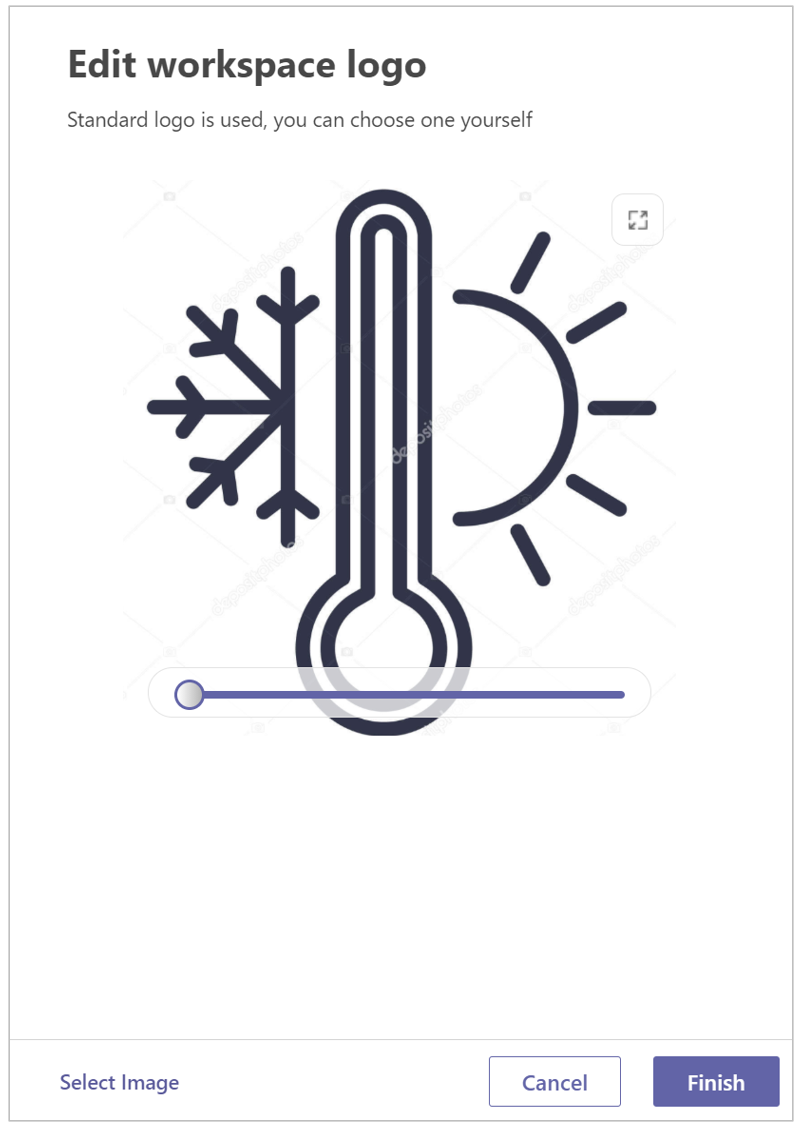
Update new logo - Click the Select Image option to to obtain a file browser window within which you can navigate to and upload an image file.
-
If so required, use the option to crop the image.
-
Click Finish.
-
Click Update to apply all changes made.