.png)
Request the creation of a Teams Controlled Members Create
Besides the standard Request workspace function, an additional option is available,
The MS Teams Controlled Members Create. This option is only available for MS Teams workspaces.
MS Teams Controlled Members Create offers some controlled options to request and create the teams workspace.
-
Only designated users are allowed to request a workspace.
-
Only approved members from a predefined limited group may be added to the workspace.
-
Approval must always be handled by specific owners—they confirm both the creation request and the membership.
-
This process ensures a closed loop of creation → approval → membership, ideal for educational or regulated environments.
Your organization should let you know if this option is available to you.
Example scenario
Please see this example to determine if this could be applicable to your organization. If you are not sure, please contact your IT service desk.
A student requests a project workspace and proposes classmates as members. A teacher (the designated approver) must approve both the workspace creation and the listed members. Only after approval will the workspace be created and members added.
Request a new workspace from your activity dashboard
-
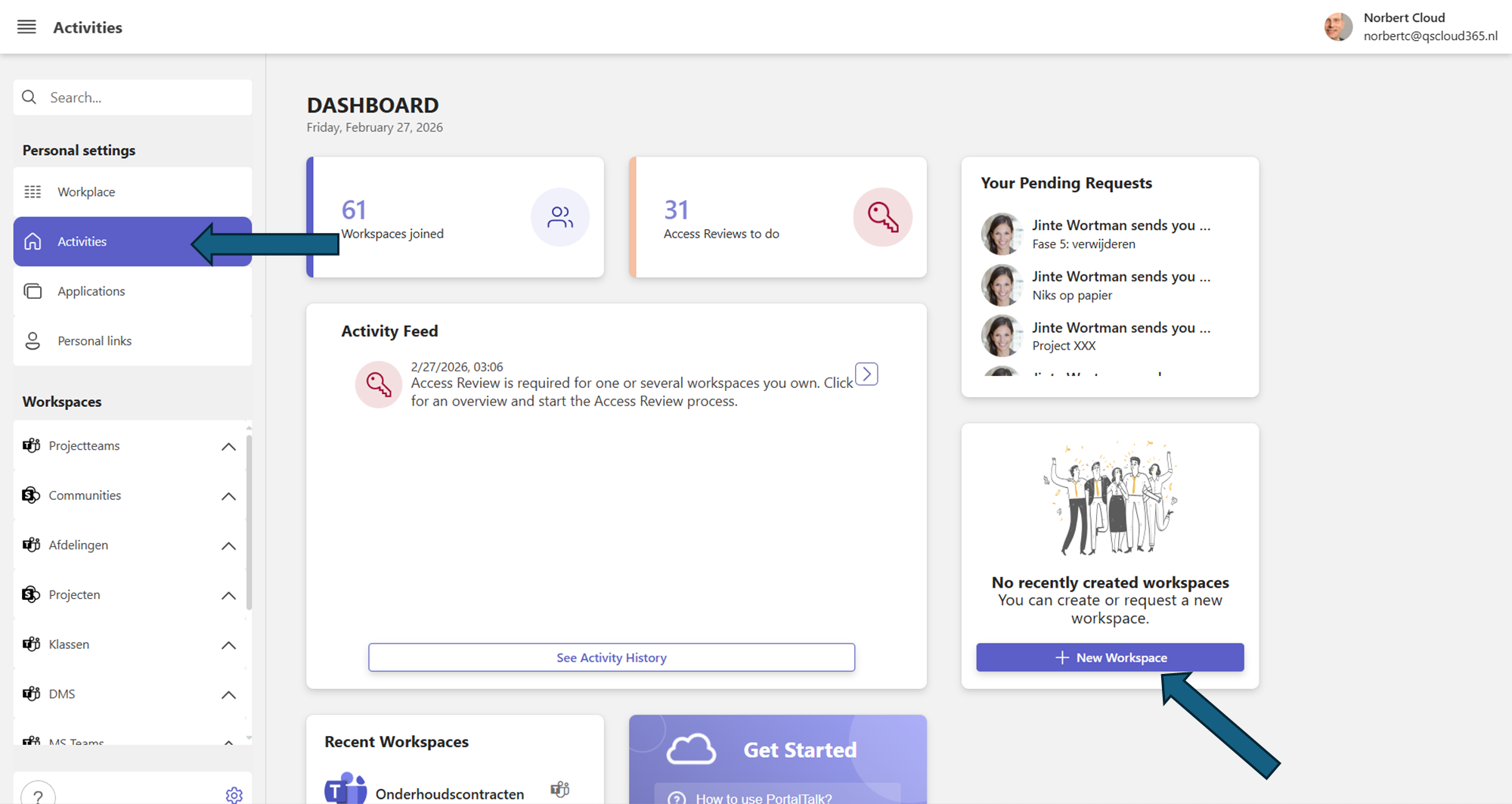
Select the Activities menu option to go to your activity dashboard.
The New Workspaces box lists the links to the workspaces recently created or requested by you.
In accordance with your permissions, you can create a new workspace from this box or submit a workspace request.
-
Click, in the New workspaces box, the +Create workspace option.
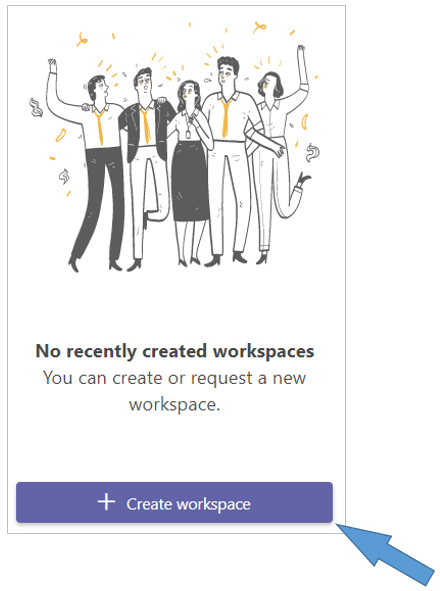
The Create New Workspace form is displayed:
-
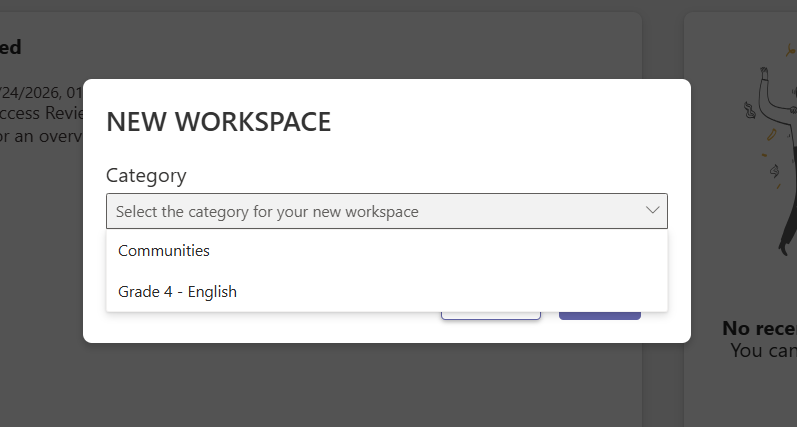
Category - Select the workspace category in which you want the new workspace created.
In this example, the category ‘Grade 4 - English', is the Request with the bespoke extra controlled members create. -
Click Next.
-
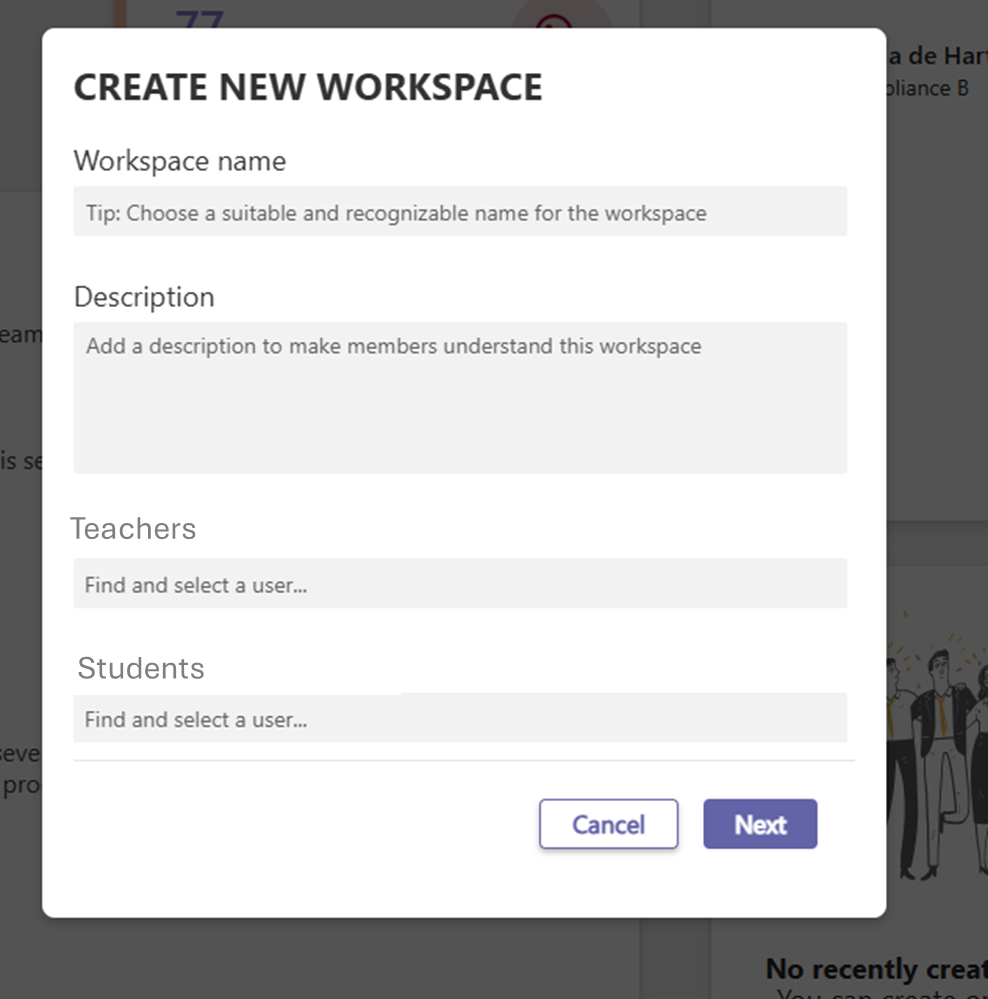
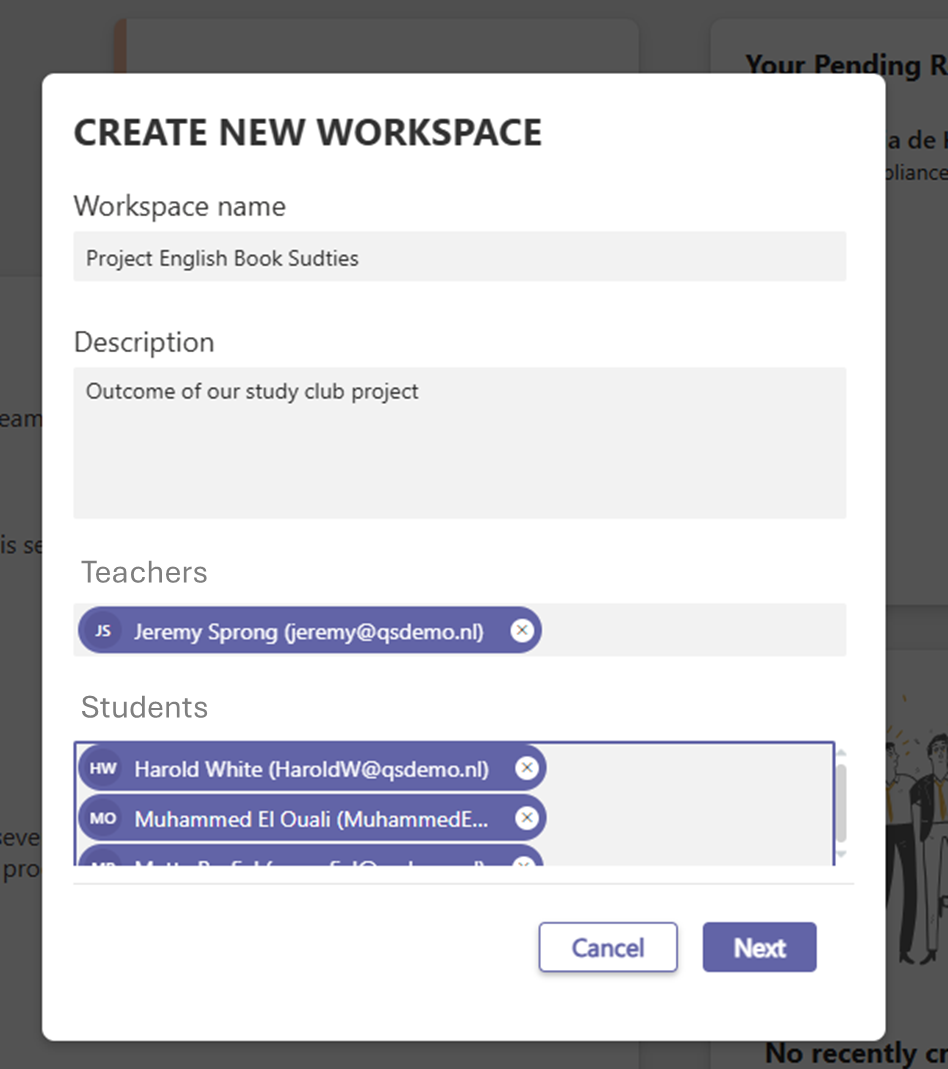
When you select a workspace category for which you have the request permission, the request form for the new workspace will now open:
You can see the Teachers and Students fields to enter the approver (Teacher) and proposed members (Students) for this team workspace.
-
You can choose from a controlled set of teachers, just only one.
-
You can also choose from a controlled set of students to propose as members of the team workspace.
-
This teacher who approves takes the decision if your proposed members are actually added to the workspace.
-
For teachers only one person can be chosen.
-
For students you can search and select several users, as long as they belong to the selected group of proposed users.
Note: please notice there is no option to set the privacy. or this category, it’s always set to private to respect the controlled members of this teams workspace.
-
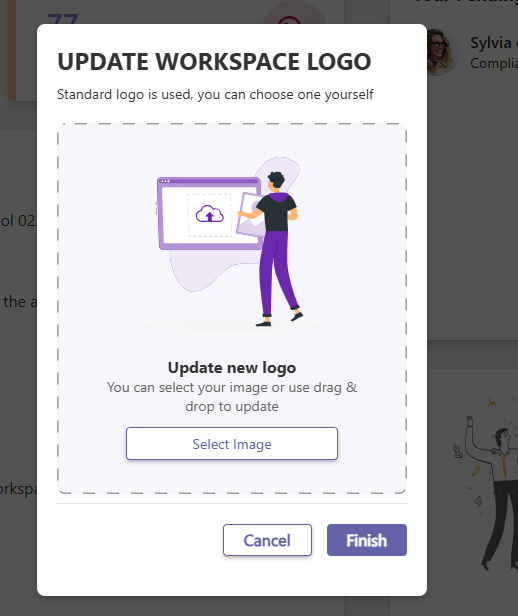
Optional, you can choose to upload a specific workspace logo.
-
If you do not upload an icon, the default one of the category will be used.
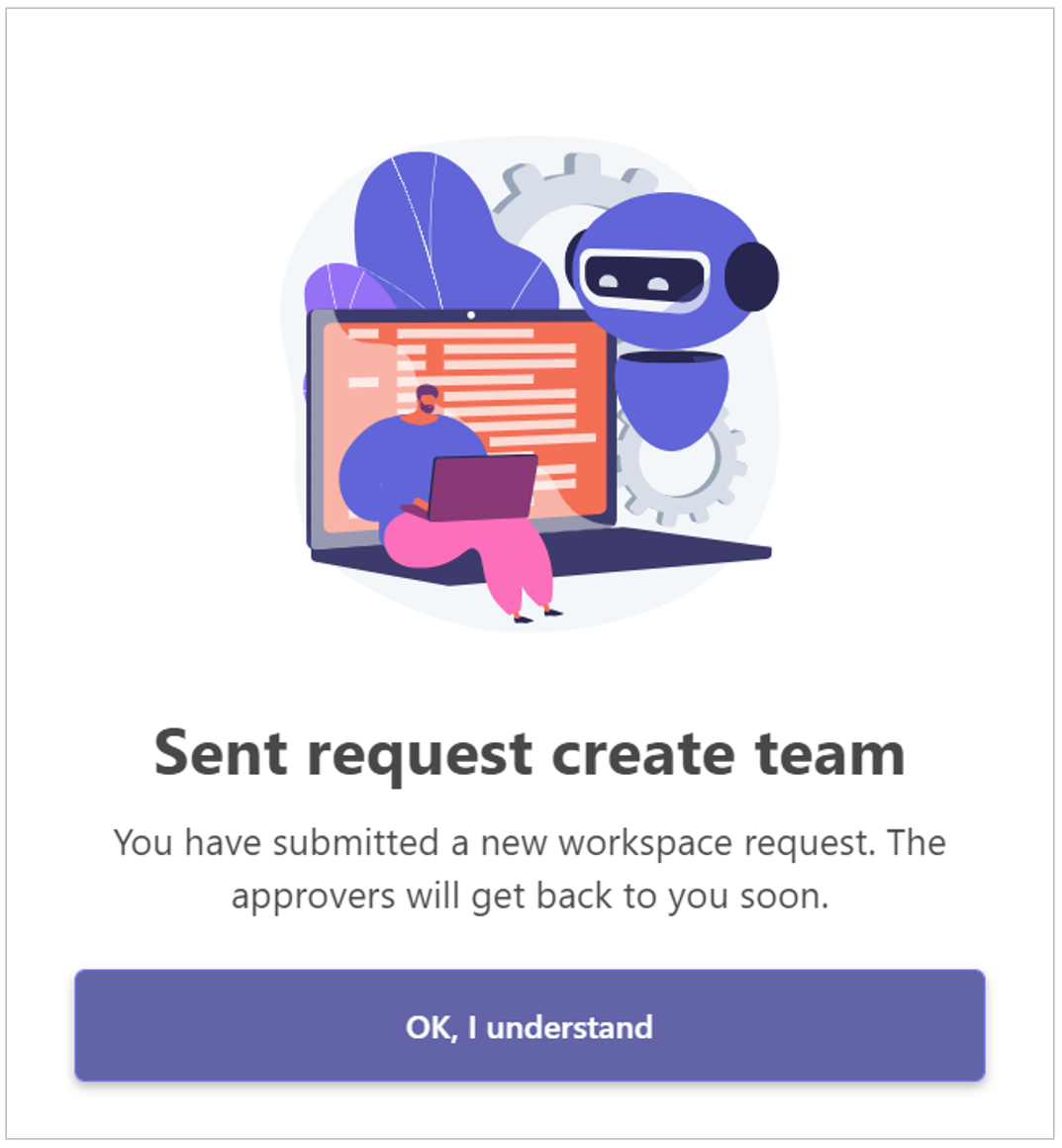
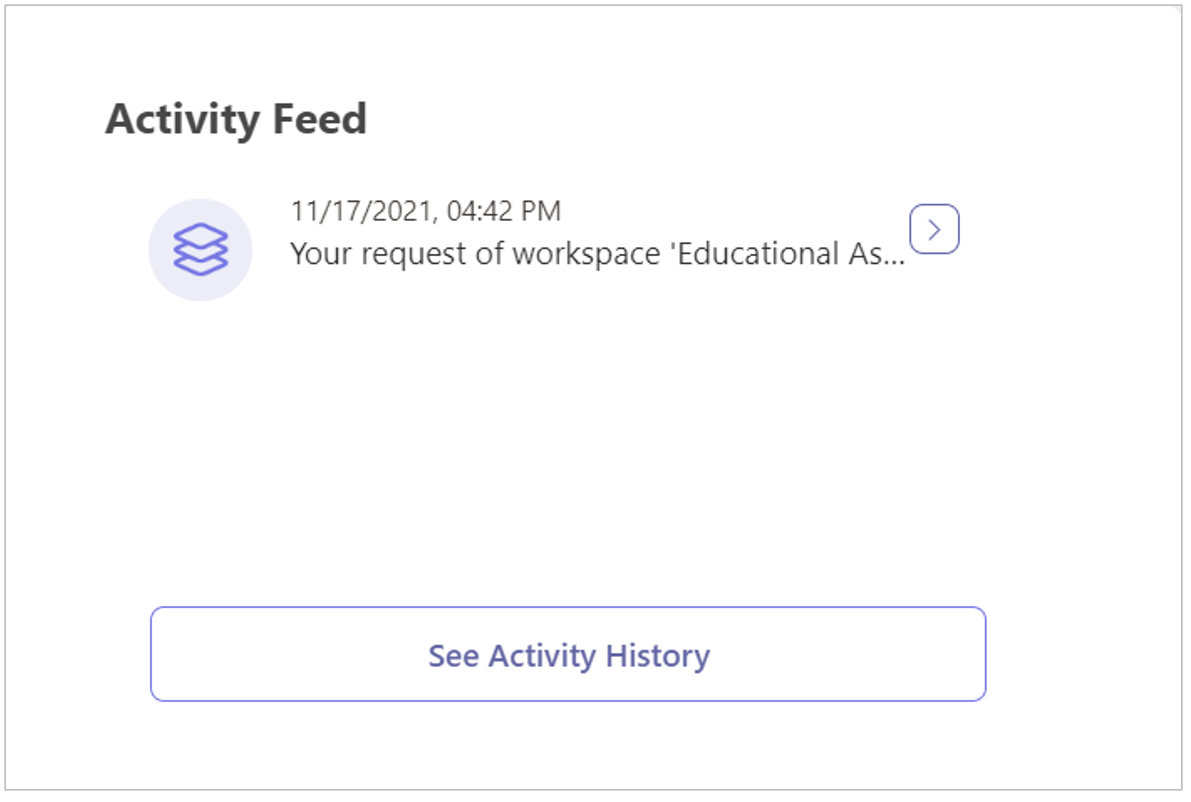
Your workspace request activity is logged in your Activity Feed:
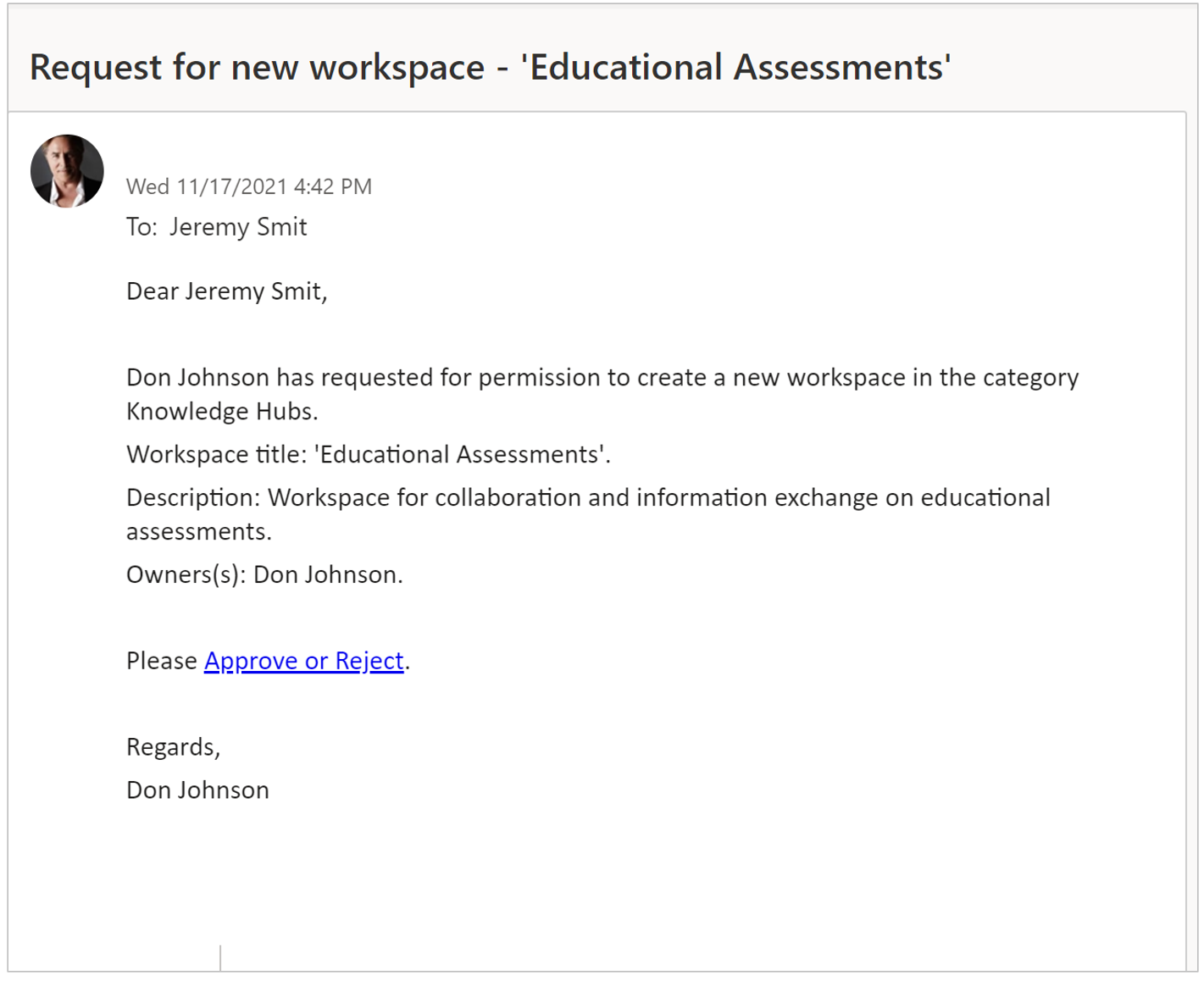
The users who have permission to review and approve your request will receive a notification by email:
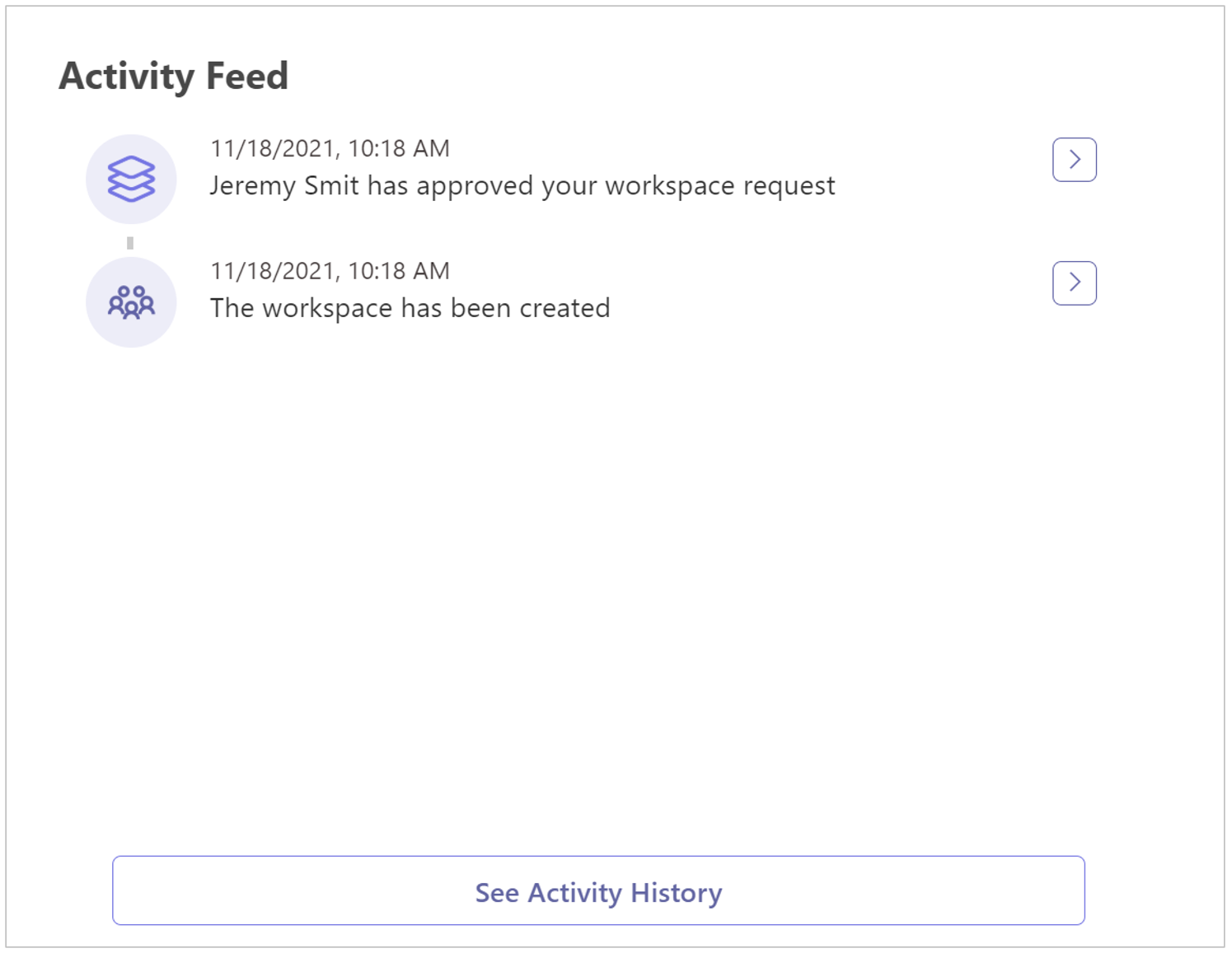
Within your Activity Feed you are notified of the approval or rejection of your request:
If your request is approved, the workspace is created and the appropriate workspace tile is displayed in the owner's PortalTalk app.
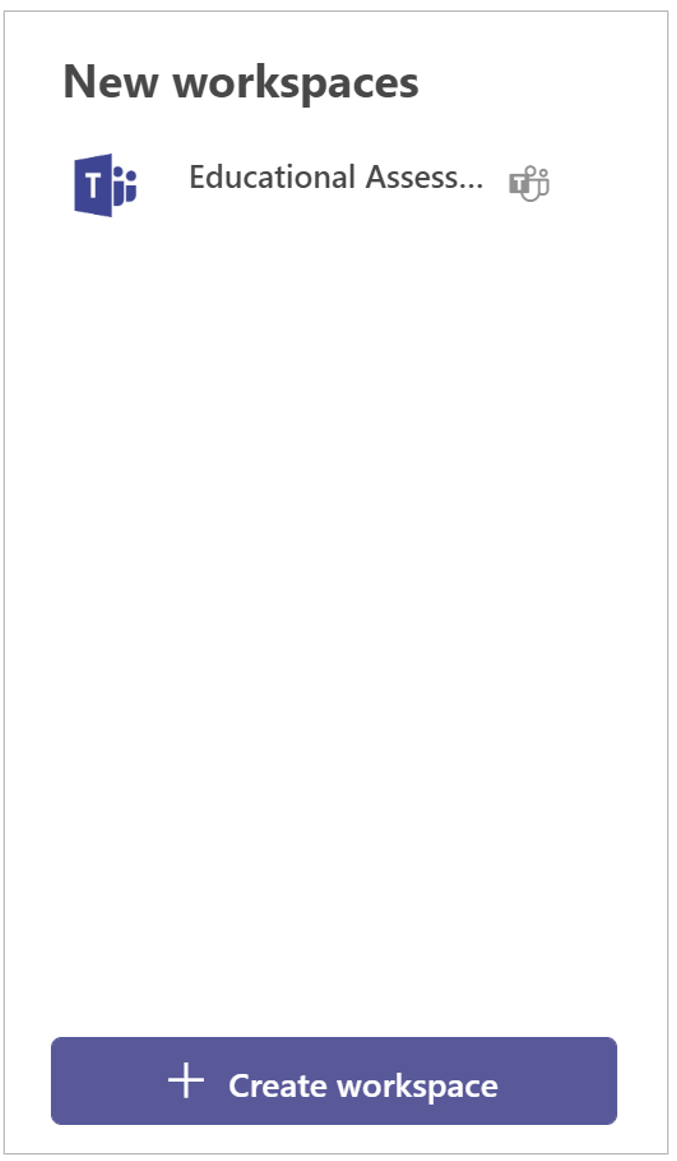
A link to the newly created workspace is also displayed in their New Workspaces box.
As long as the workspace request is pending, a PortalTalk administrator can find the request and handle it (see Manage Workspaces).