.png)
Manage the user permissions in your workspace
As a workspace owner you can grant permissions/roles to the team members within your workspace and also revoke them.
For SharePoint site workspaces, your application manager may have set per category, the permissions that are assigned to the team members by default.
As the owner of a SharePoint workspace, you can change these default permissions for your workspace.
Assign permissions to the team members within your workspace
As a workspace owner, you can assign and revoke roles (Read, Contribute, Full Control, Team Member, Owner, etc.) to the team members within your workspace.
You do this on the Members page of your workspace.
-
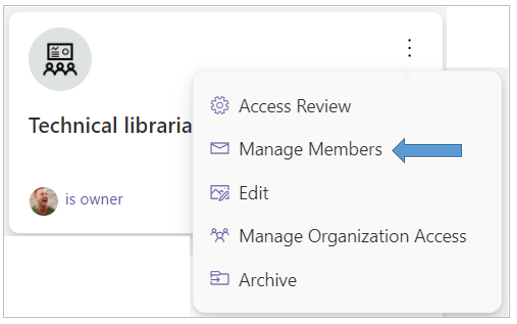
Click the ellipsis menu button of the workspace link and select the option Manage Members.
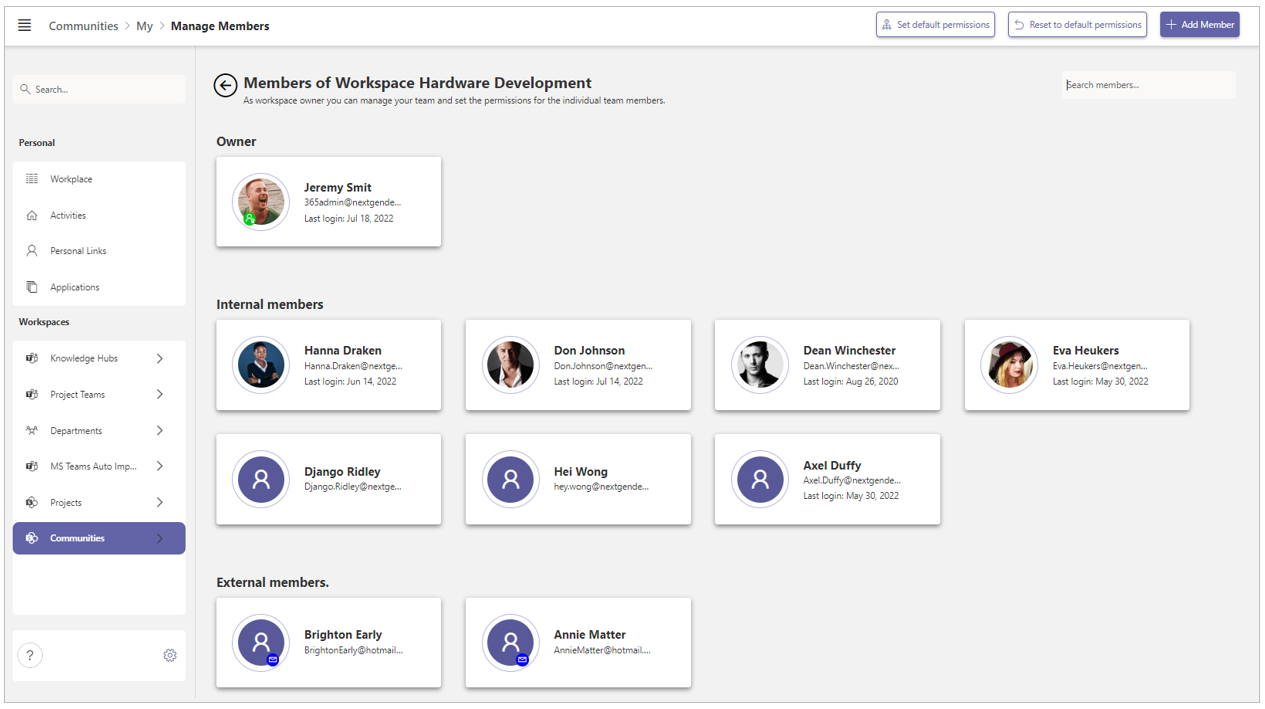
The Members page for your workspace is displayed:
-
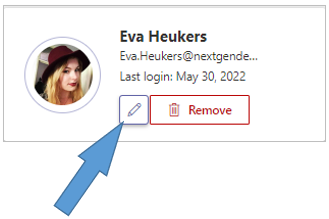
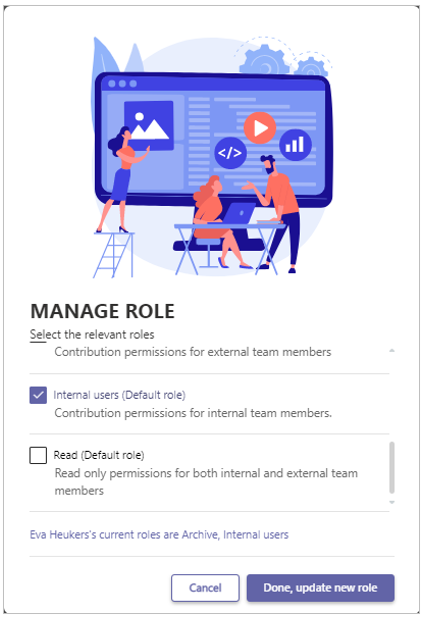
Hover the mouse pointer over the team member whose permissions you wish to manage and select the option Edit role.
The form Manage Role is displayed:
-
Make the desired changes and click the Done option to save the new permissions.
Transferring the Owner Role Between Team Members
In the General Settings for MS Teams workspaces in PortalTalk, the PortalTalk Administrator can configure the minimum and maximum number of owners allowed per MS Teams workspace. Based on these settings, PortalTalk ensures that each workspace complies with the defined ownership requirements.
Every owner of a workspace carries responsibility for its content and access permissions. To maintain clear accountability, we recommend assigning only one owner per workspace. However, in cases of temporary absence (e.g. leave or illness), a second, temporary owner may be added. For that reason, PortalTalk allows a maximum of two owners per workspace.
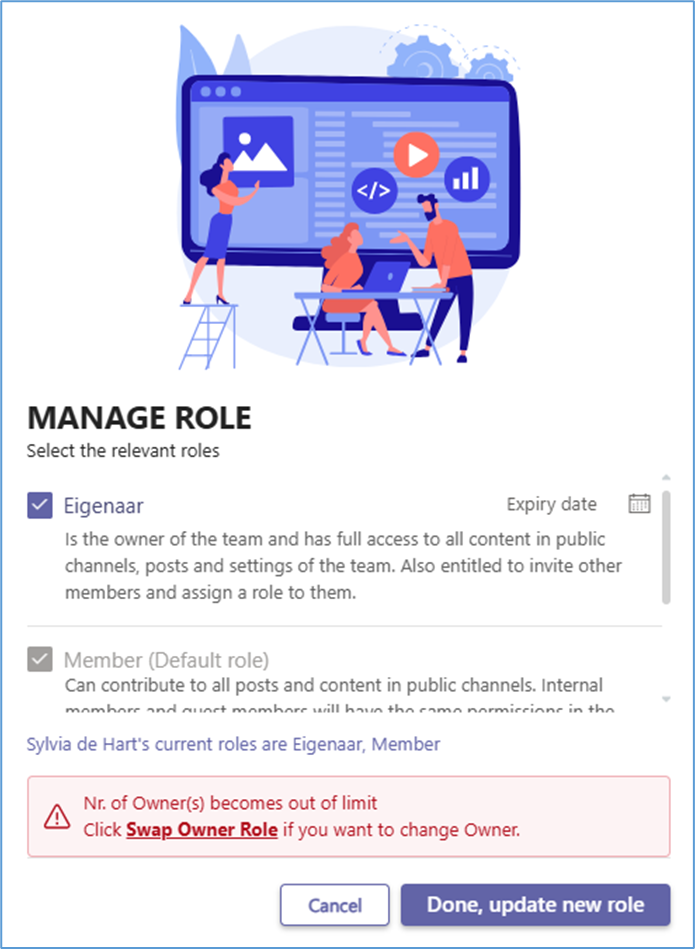
When the owner role needs to be handed over from one team member to another—for instance, due to role changes or staff turnover—PortalTalk provides a dedicated wizard to support and guide this transfer process smoothly and securely.
-
Uncheck the Owner role for the team member is to hand over this role.
PortalTalk will warn you with the prompt “Nr of Owners becomes out of limit. Click Swap Owner Role if you want to change Owner.”
-
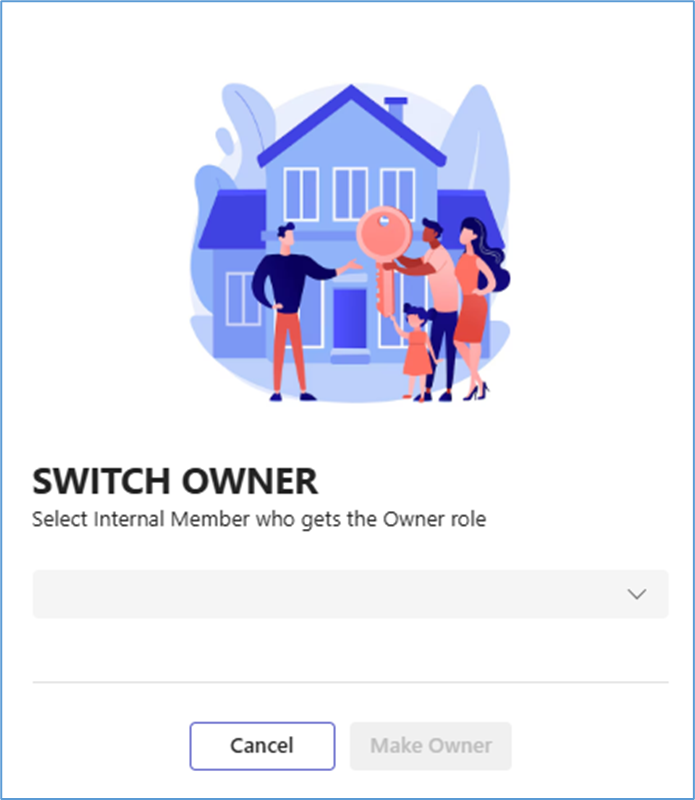
Click the option Swap Owner Role.
-
In the lookup-field, select the internal member who is to take on this owner role.
-
Click Make Owner.
Manage the default permissions for your workspace
For SharePoint site workspaces, your application administrator may have set per workspace category, the permissions that are assigned by default to the different user types.
There are three different user types: Owners, Internal Team Members, and External Team Members.
When you create a SharePoint site workspace, the default permissions that apply within the relevant category are adopted within your workspace.
The internal users and external users are assigned these default permissions as soon as you add them to the team.
An internal user gets the default permissions for an owner as soon as you assign this internal user the owner role.
As the owner of a SharePoint workspace, you can change the default permissions for your workspace.
You do this on the Members page of your workspace.
-
Click the ellipsis menu button of the SharePoint site workspace link and select the option Manage Members.
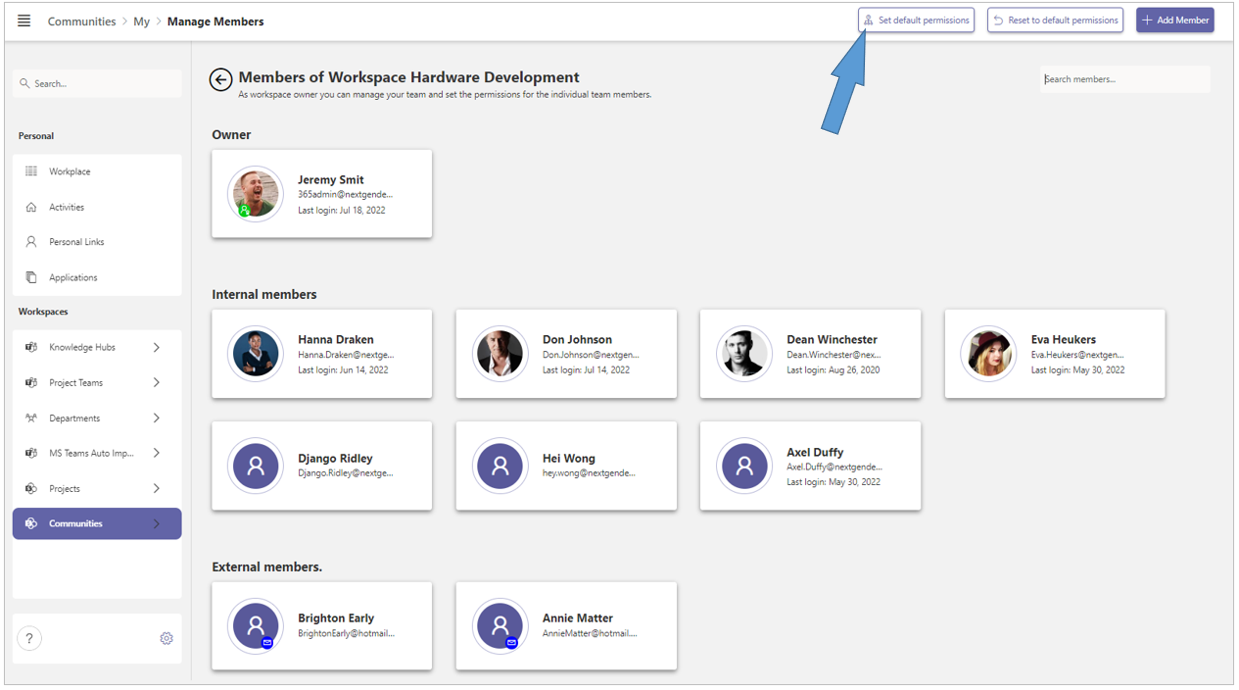
The Members page of your SharePoint site workspace is displayed:
-
Click, in the toolbar of the Members page, on the option Set default permissions.
The Set Default Permissions form is displayed:
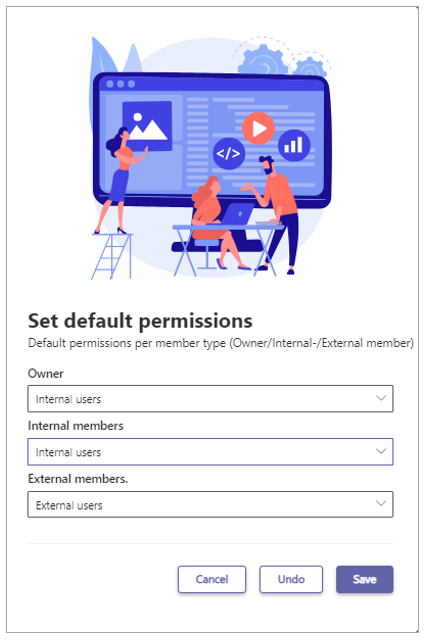
This form shows per user type (Owner, Internal and External members) which permissions/roles are assigned by default.
-
Click in the selection field below a user type to modify the default permission(s) assigned:
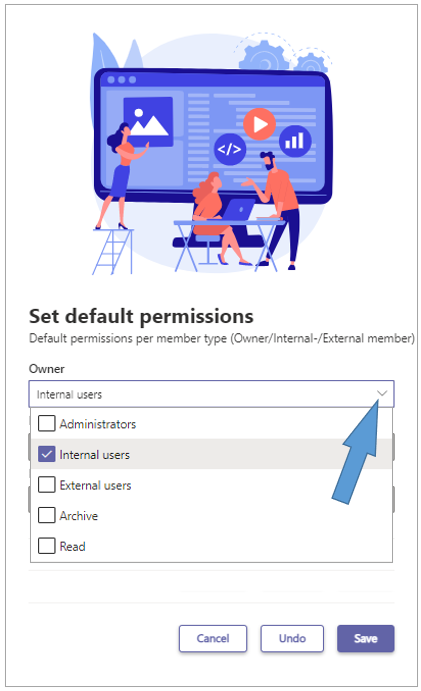
-
If necessary, use the Undo option to reset the default permissions to the previous setting.
-
Click Save to commit your changes.
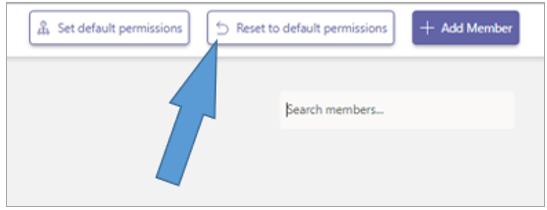
If you wish to undo your changes, you can click on the option Reset to default permissions in the menu bar of the Members page.