.png)
Open up your workspace to- or shield it from the organization
As a workspace owner, you can determine whether your workspace should be accessible to the entire organization (Public) or only to team members (Private).
With the Private setting, only team members can access your workspace.
With the Public setting, your workspace is accessible to the entire organization. All organization members can then see the link to your workspace in the Public workspace subcategory.
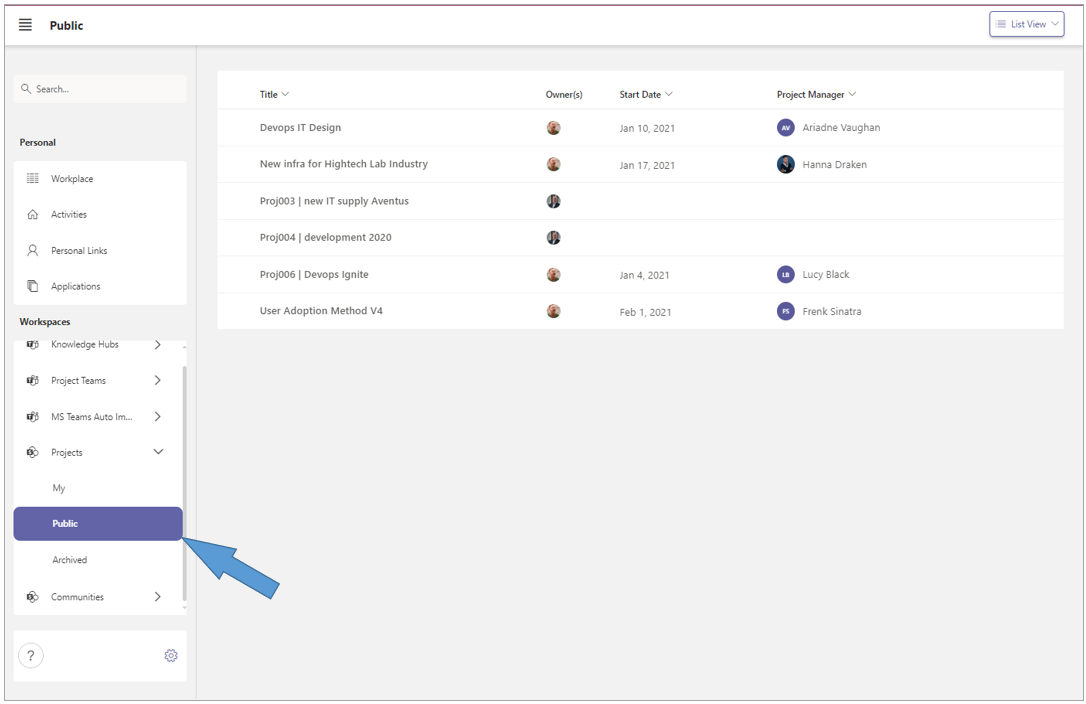
The screenshot above shows all public workspaces that are part of the ‘Projects’ category.
All organization members can see the links to these workspaces and access the workspaces.
-
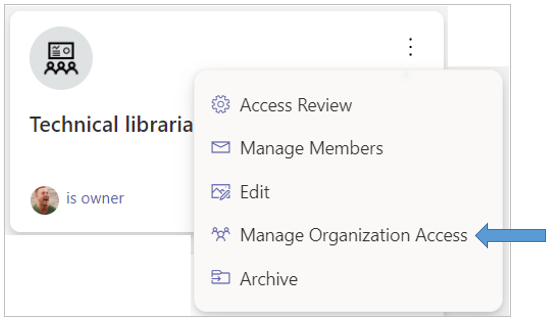
Click on the ellipsis menu button of your workspace and select the option Manage Organizational Access.
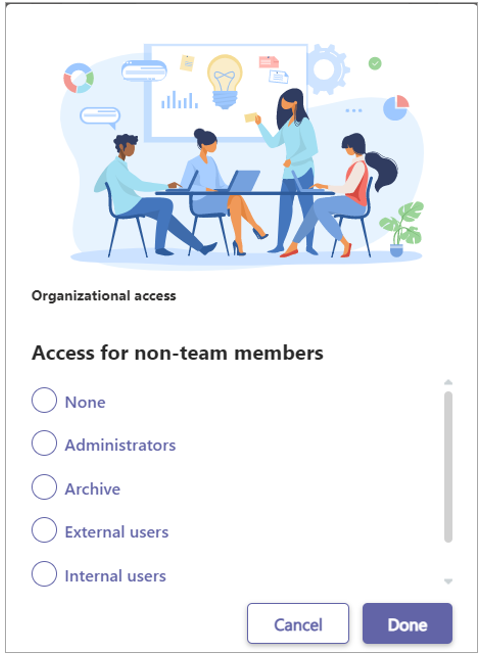
The Access for non-team members panel will open:
-
Se;ect the option None if you do not wish the organization to have access to your workspace.
The workspace link is then no longer visible within the Public workspace subcategory. -
Select a permission/role to assign same to all organization members.
-
Click Done to commit the change.