.png)
Manage the default permissions for your SharePoint site workspace
For SharePoint site workspaces, your PortalTalk application administrator may have set per workspace category which permissions are assigned by default to the different user types.
There are three different user types: Owners, Internal Team Members, and External Team Members.
When you create a SharePoint site workspace, the default permissions that apply within the relevant category are adopted within your workspace.
The internal users and external users are assigned these default permissions as soon as you add them to the team.
An internal user gets the default permissions for an owner, as soon as you appoint this internal user as a co-owner.
If necessary, refer to the Assign Roles/Permissions page for an explanation of how to assign owner permissions to an internal team member.
As the owner of a SharePoint site workspace, you can change the default permissions for your workspace.
For example:
If the default permission for external team members is Read, but within your workspace all external team members must have Contribute permissions, you can change that for your own SharePoint site workspace.
This chapter describes the following actions:
-
Consult the default permissions for your workspace;
-
Adjust the default permissions for your workspace;
What are the default permissions for my workspace?
-
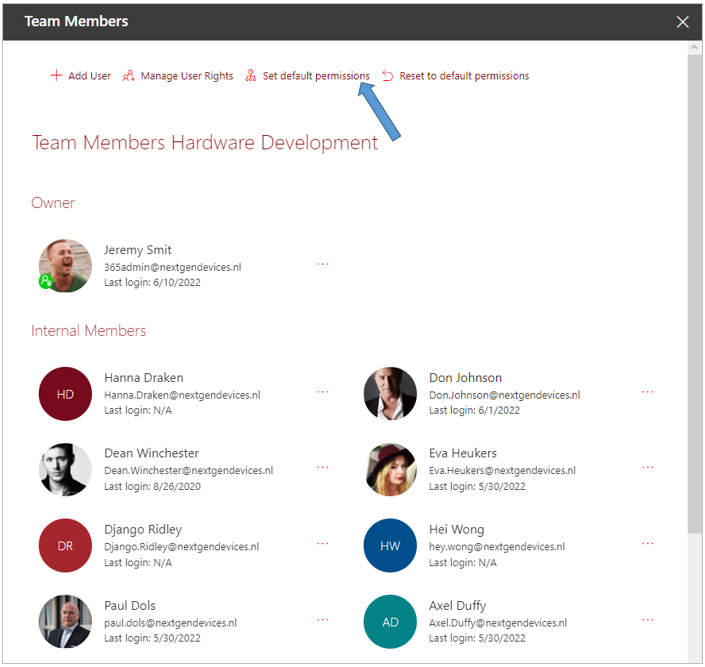
Access the Team Members or the Team Composition panel for your workspace from the PortalTalk Workspaces web part or from the PortalTalk Team Members web part.
-
Click the Set default permissions option.
On the right side of the screen is the panel is displayed within which you can consult and manage the default permissions of your workspace:
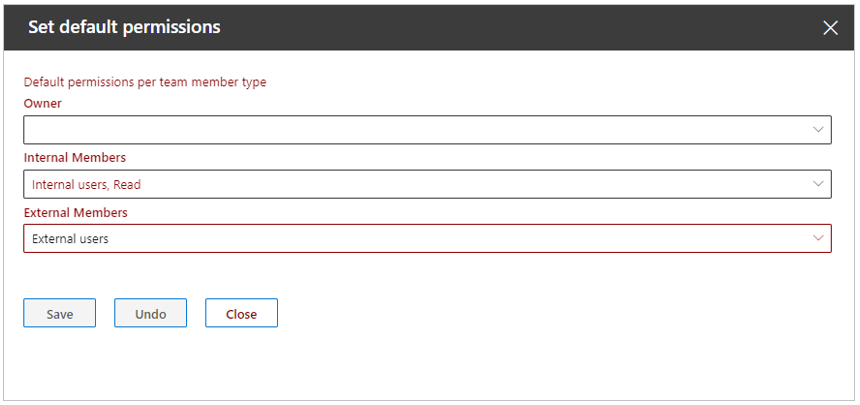
In this panel you can see which permissions are assigned by default to the various team member types.
Adjust the default permissions for your workspace
-
Open the panel where you can see the default permissions/roles of your workspace, as described in the previous paragraph.
-
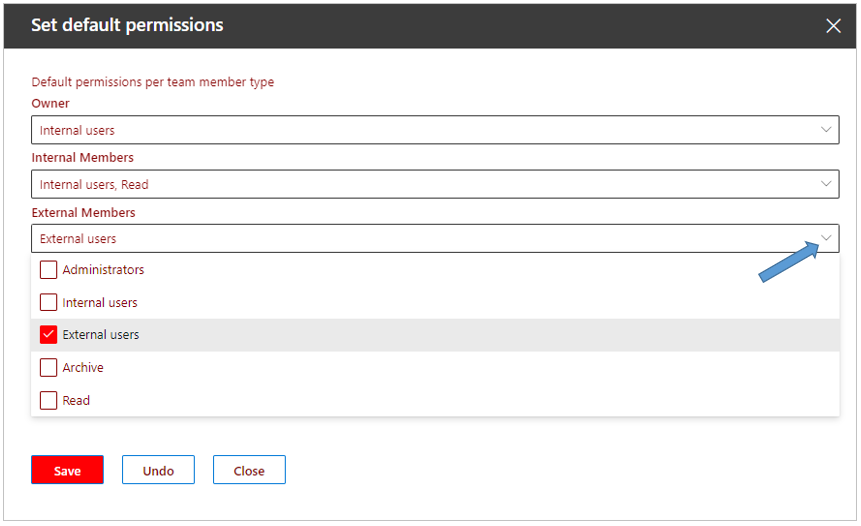
Click in the selection box below a user type to change the default assigned permission(s):
-
Make the desired changes.
-
Click on Save to save your changes.
-
If necessary, use the button Undo to reset the default permissions to the previous setting.
-
Click Close to close the panel.