.png)
Assign roles/permissions to individual team members
As the owner of a SharePoint workspace, you can grant and revoke permissions (for example, for contribute, read, or full control) to the team members within your workspace.
You do this in the Team Members or Team Composition panel of your workspace which you can access from both the PortalTalk Workspaces web part and the PortalTalk Team Members web part.
-
Access the Team Members or the Team Composition panel for your workspace from the PortalTalk Workspaces web part or from the PortalTalk Team Members web part.
-
Klik op de optie Gebruikerspermissies bewerken c.q. Gebruikers autoriseren.
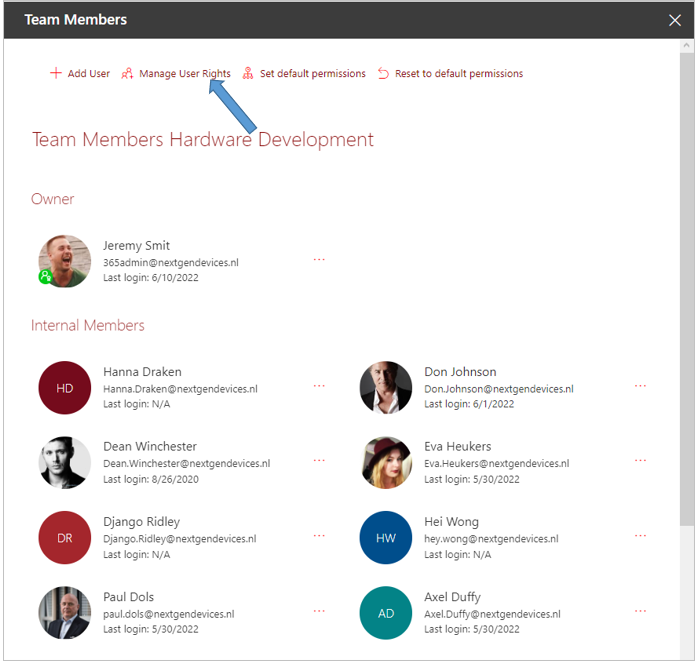
On the right side of the screen, the Manage User Rights panel is displayed:
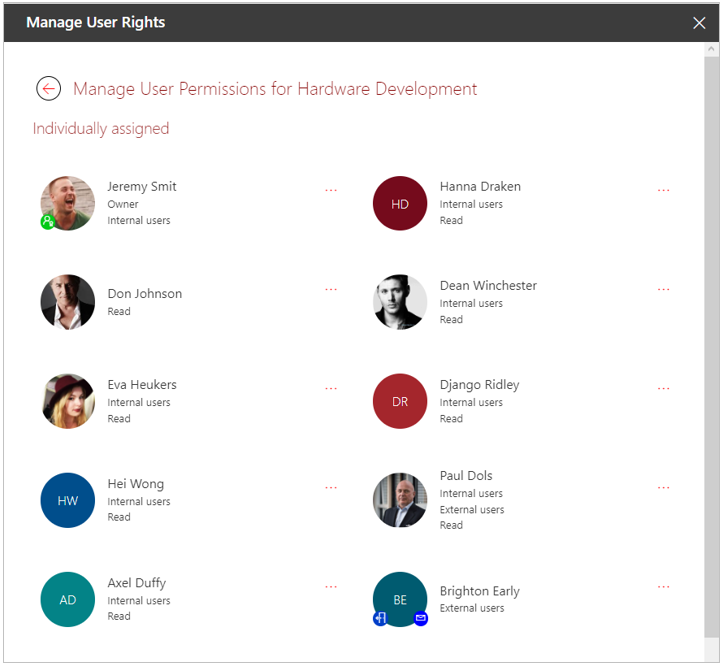
For each team member it is stated which permissions apply to the team member, for example Contribute, Read, Internal users or External users.
You can tell from the icons displayed with the team members whether it concerns a team owner or an internal or external team member. If necessary, consult the chapter on the icons displayed with team members for an explanation of these icons.
If you have not previously adjusted the permissions for individual team members, the permissions listed for all team members will be in line with the default permissions.
If necessary, consult the page with an explanation of how you can see what the default permissions are for your workspace.
-
Click the ellipsis menu button of a team member whose permissions you wish to manage and select the option Edit roles.
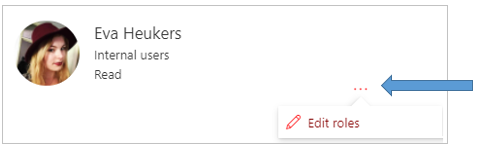
Het paneel waarin je de rollen/permissies van het teamlid kunt aanpassen wordt geopend aan de rechter kant van de pagina:
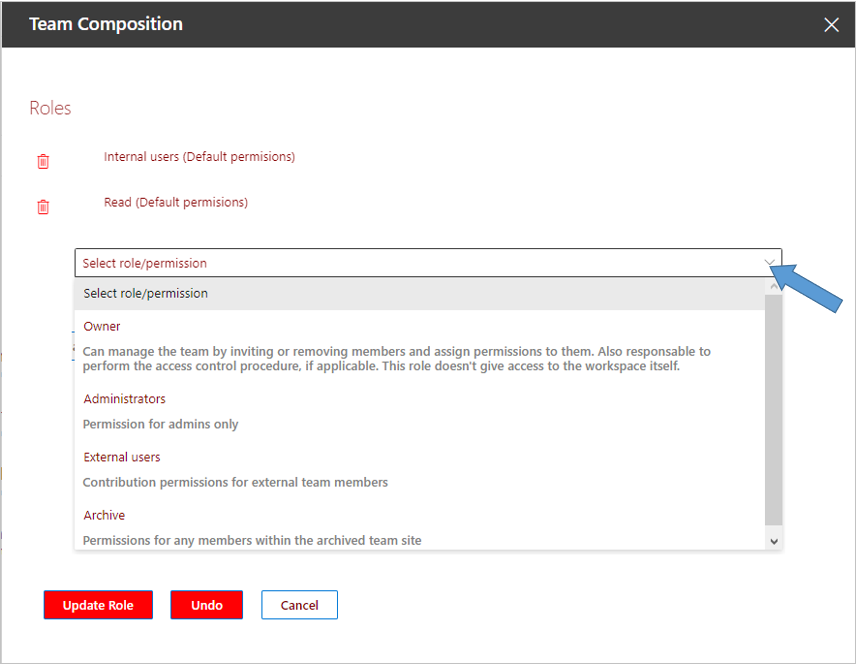
The selection field Select role/permission shows all available permissions within your SharePoint workspace that have not yet been assigned to the team member.
There are several roles that a team member can fulfill within a SharePoint site.
The list shown below may differ from the list from which you can choose within your organization, within the concerned workspace category:
-
Owner - this role is automatically assigned to the user whom is selected as owner within the workspace creation process. A user with this role can then assign the Owner role to more team members.
-
Read – this role allows a team member to access and download data within the workspace SharePoint site.
-
Full control– this role provides permission to manage the workspace's SharePoint site settings, such as creating site pages or lists.
-
Edit – This role allows a team member to change information within the site.
-
Contribute – this role allows a team member to add information to the site.
-
View only – this role allows a team member to access, but not download, the data within the site.
-
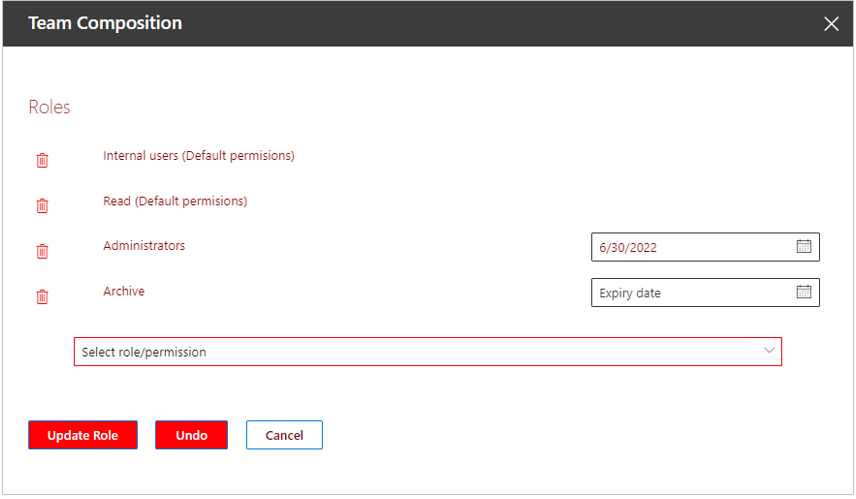
Select role/permission - Select the roles you wish to assign to the team member, or revoke roles by clicking the trash can icon for the role.
-
Expiry date - Optionally, select a date on which the additional assigned role should expire.
-
Remove - If so required, click on the trash can icon for an additional assigned role to remove the assignment.
-
Undo - If necessary, click this button to return to the previous situation.
-
Click Update Role.
The panel within which you can customize the team member's roles closes.
The additional permissions (in addition to the default permission) with any expiry date are listed with team member's image.