.png)
Cancel membership
After joining an MS Teams team, you can decide if you want to stay a member or leave the team.
You can leave a MS Teams team from your activity dashboard, but also from the workspace link.
Leave a MS Teams workspace
You can leave any public MS Teams workspace of which you are a member, except if you are (one of the) owners.
-
Click the ellipsis menu button from the workspace link and select the Leave workspace option.
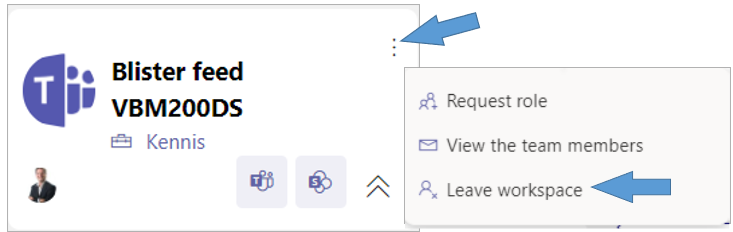
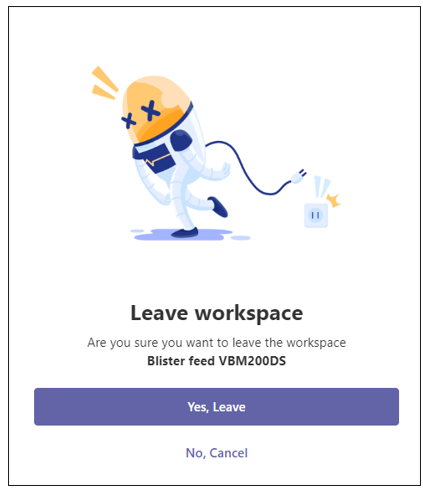
The Leave workspace panel is displayed:
-
Click the option Yes, leave.
Leave a MS Teams team from your personal activity dashboard
-
On your PortalTalk activities dashboard, click the Workspaces joined box to open the panel Workspaces you joined.
This list contains all the workspaces of which you are a member within the various workspace categories.
-
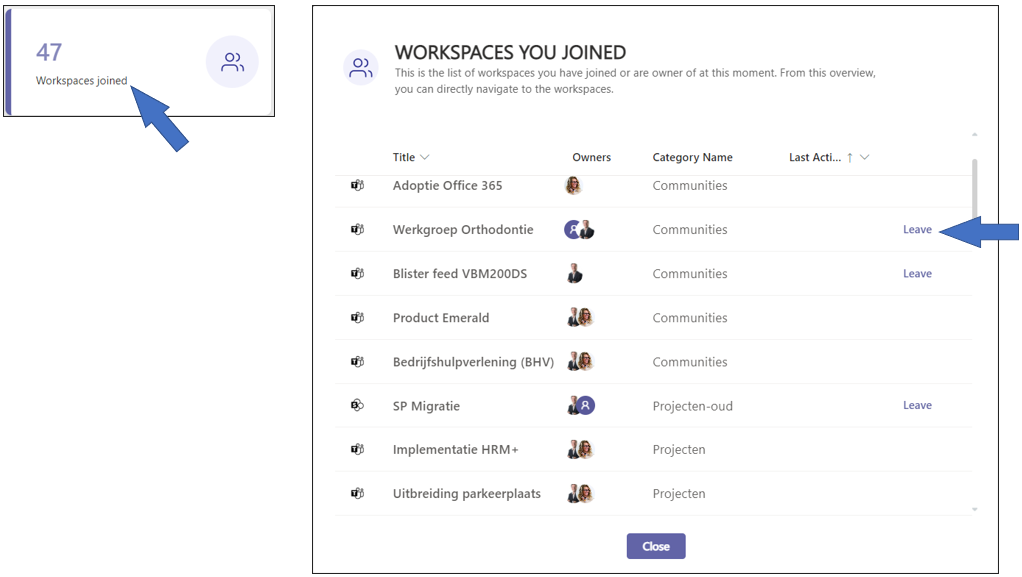
In the Workspaces you joined panel, click a MS Teams workspace’s option Leave to leave the workspace.
If you are also the owner of the MS Teams team, the Leave option is not available.