.png)
Requesting additional user permissions within a workspace
As a team member of a workspace, you can request additional permissions.
All workspaces displayed in the My subcategory are workspaces of which you are a team member. With respect to these workspaces, you have the option to request additional permissions. Upon approval of your request by the appropriate workspace owner, the newly assigned permissions will be activated when you restart PortalTalk.
-
Find the workspace for which you want to request additional permissions.
-
Click the workspace ellipsis menu button and select the Request role option.
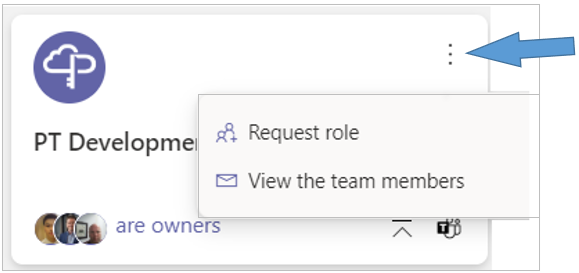
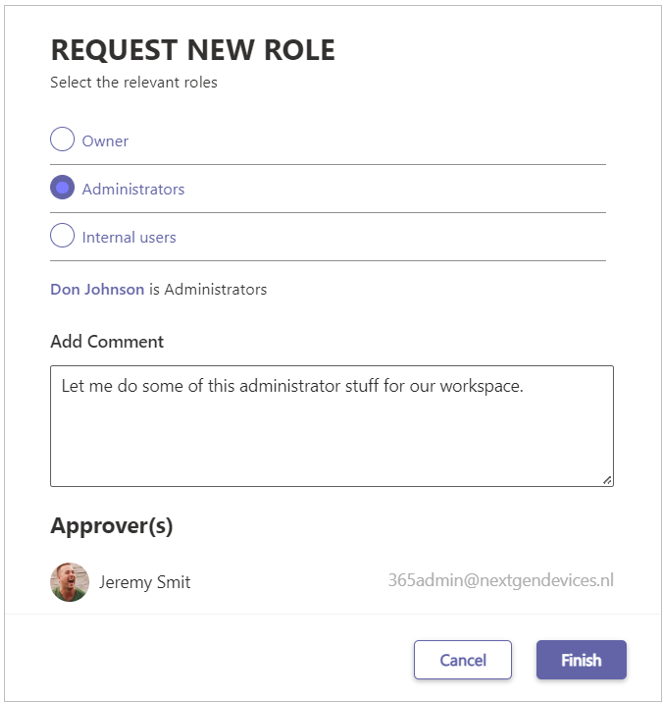
The Request New Role form is displayed:
-
Select the relevant roles – Select the role(s) you wish to request.
-
Add comment – Optionally provide a motivation for your request.
-
Approver(s) – These are the owners of the affected workspace to whom your request will be addressed.
-
Click Finish to submit your request.
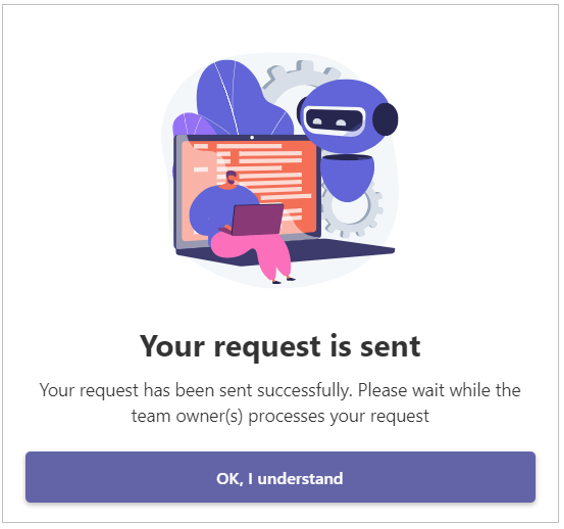
-
Click OK, I understand to close the confirmation panel.
-
Your Activity Feed will confirm that your request has been sent:
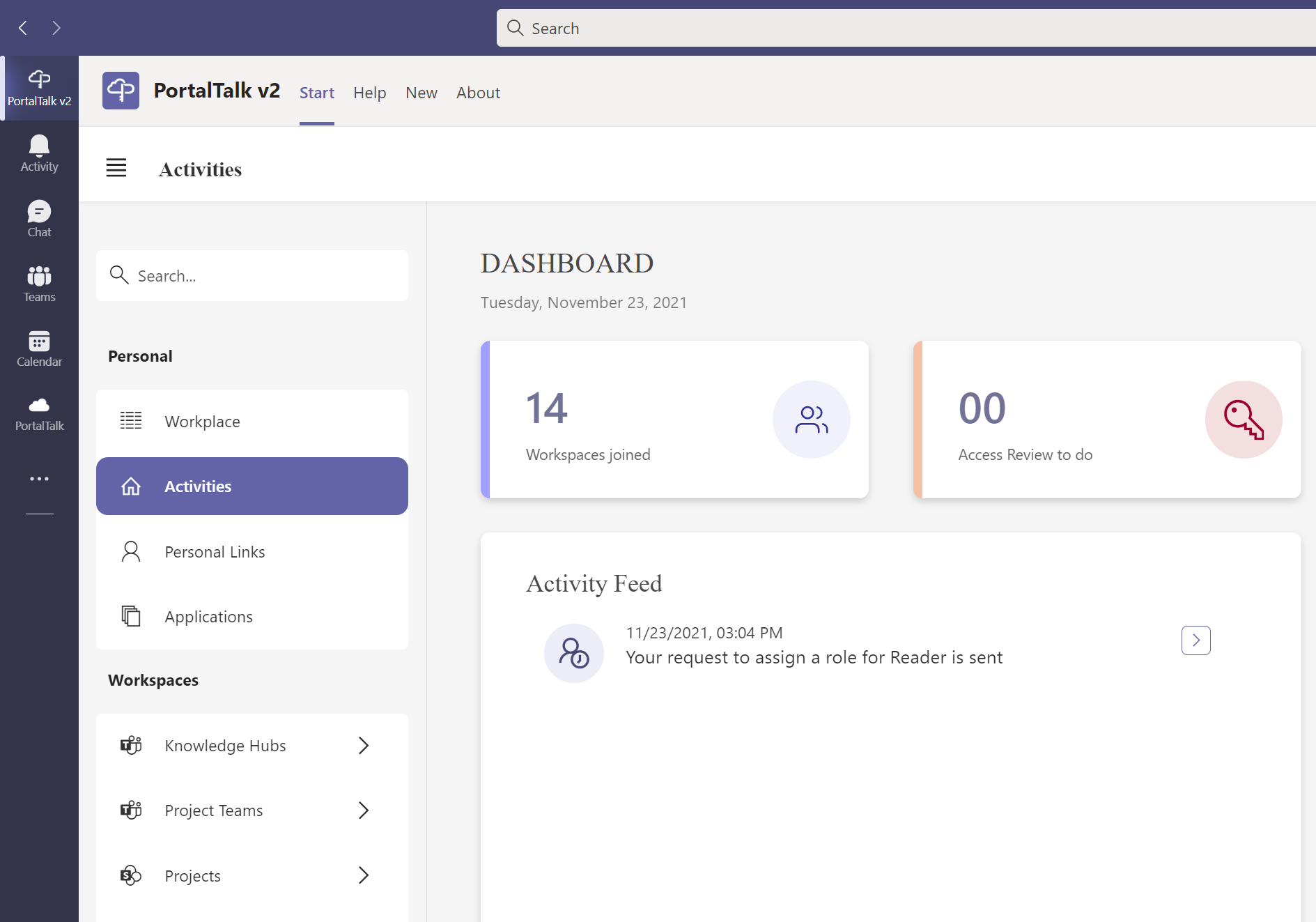
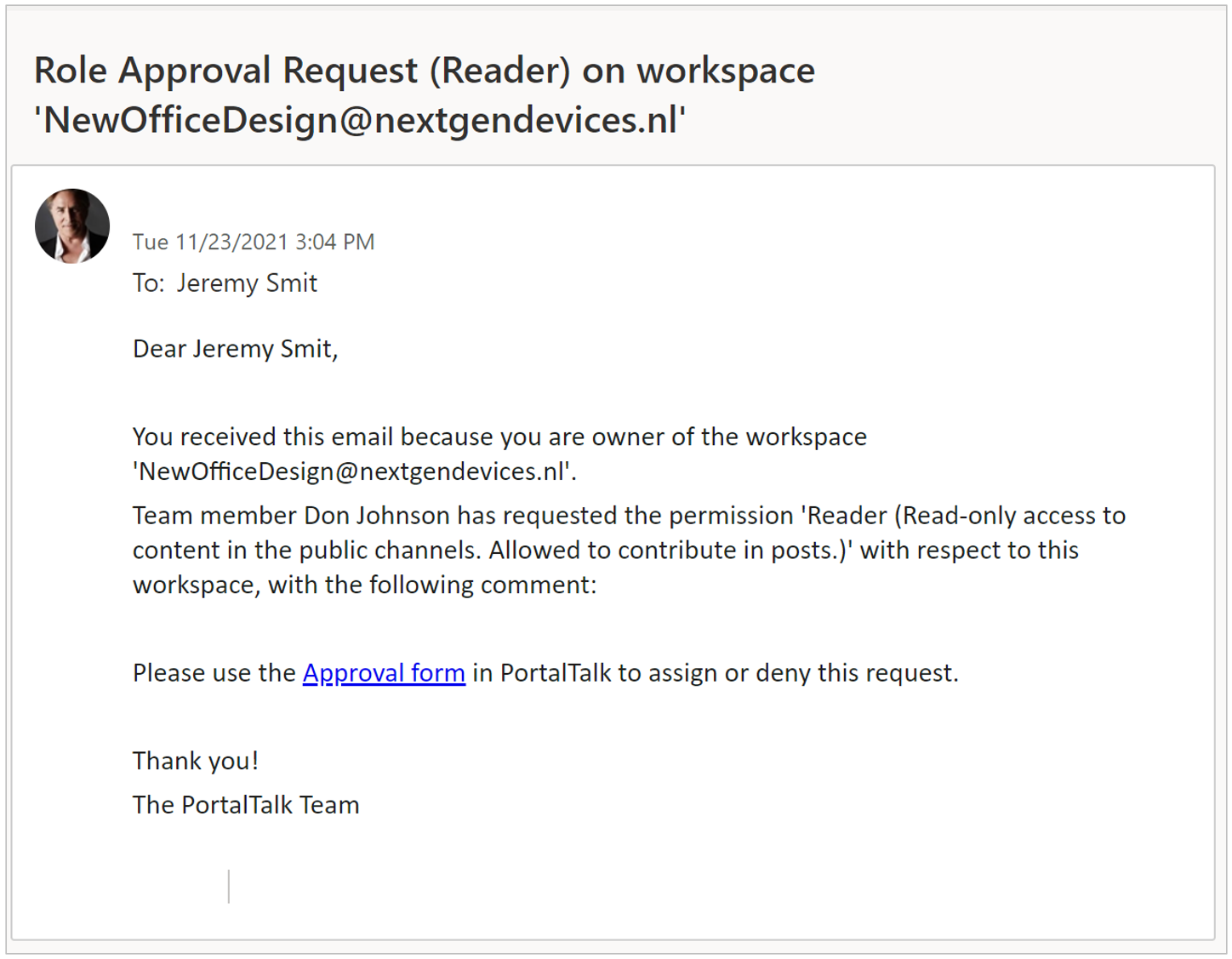
The workspace owners will be notified of your request by email:
As soon as one of the workspace owners has responded to your request, a notification of the approval or rejection will appear in your Activities timeline:
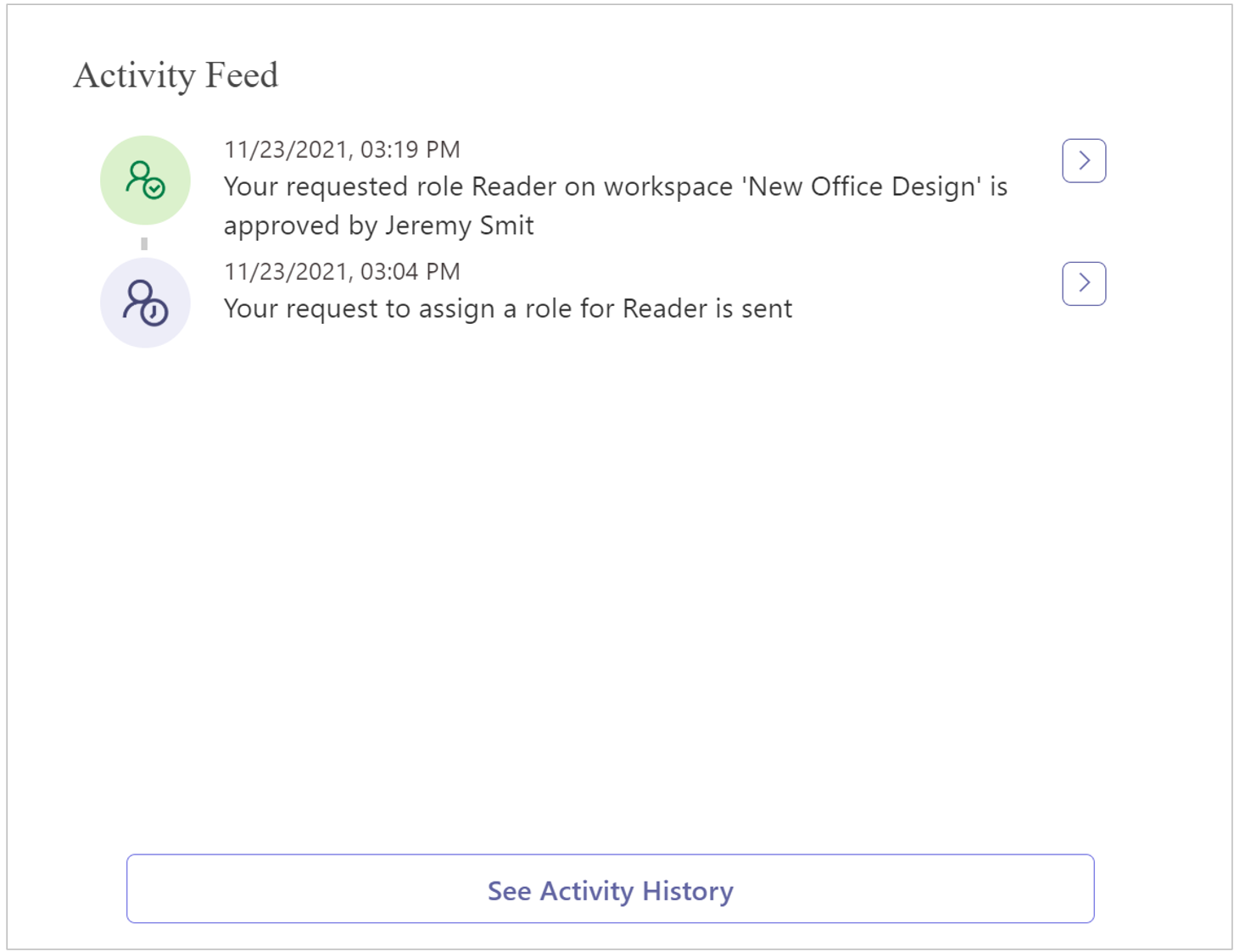
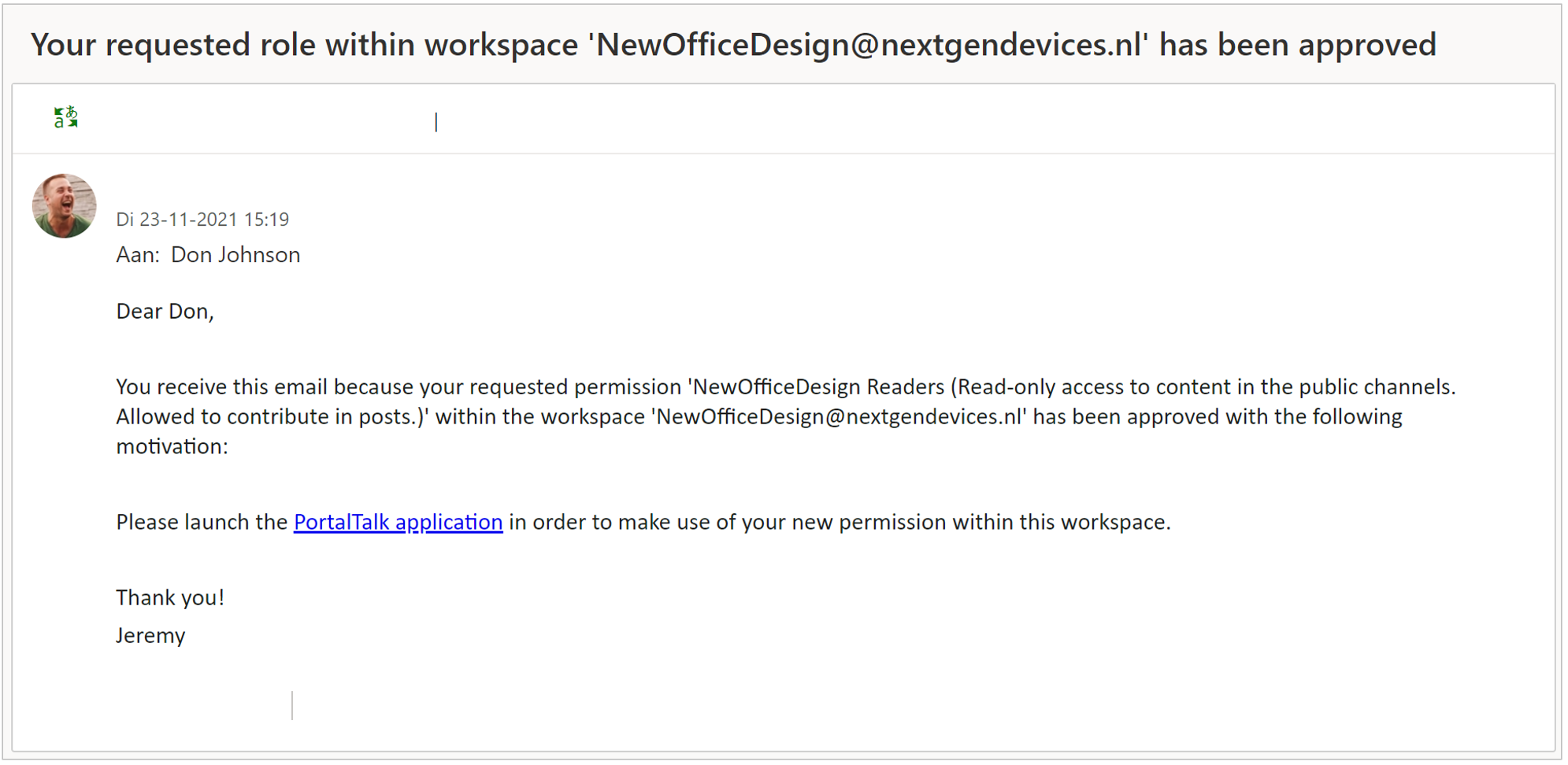
You will also receive a notification by email: