.png)
Apply for a membership to a public workspace
For all public workspaces, which you can see within the Public subcategory of the relevant workspace category, you can request team membership.
If it concerns a public MS Teams workspace, you can become a member without having to submit an application.
With regard to a SharePoint site workspace, your request will be submitted to the workspace’s owners.
Join an MS Teams workspace
You can join any public MS Teams workspace.
-
Click the name of the public MS Teams workspace.
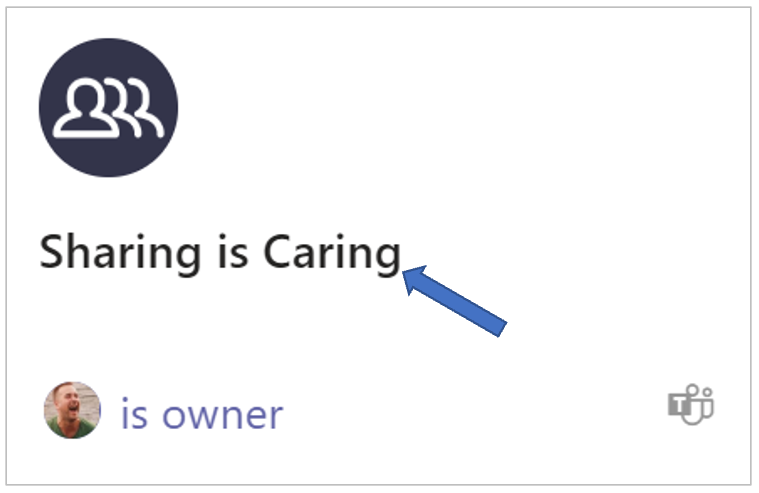
The Join Team panel is displayed:

-
Click the option Join team.
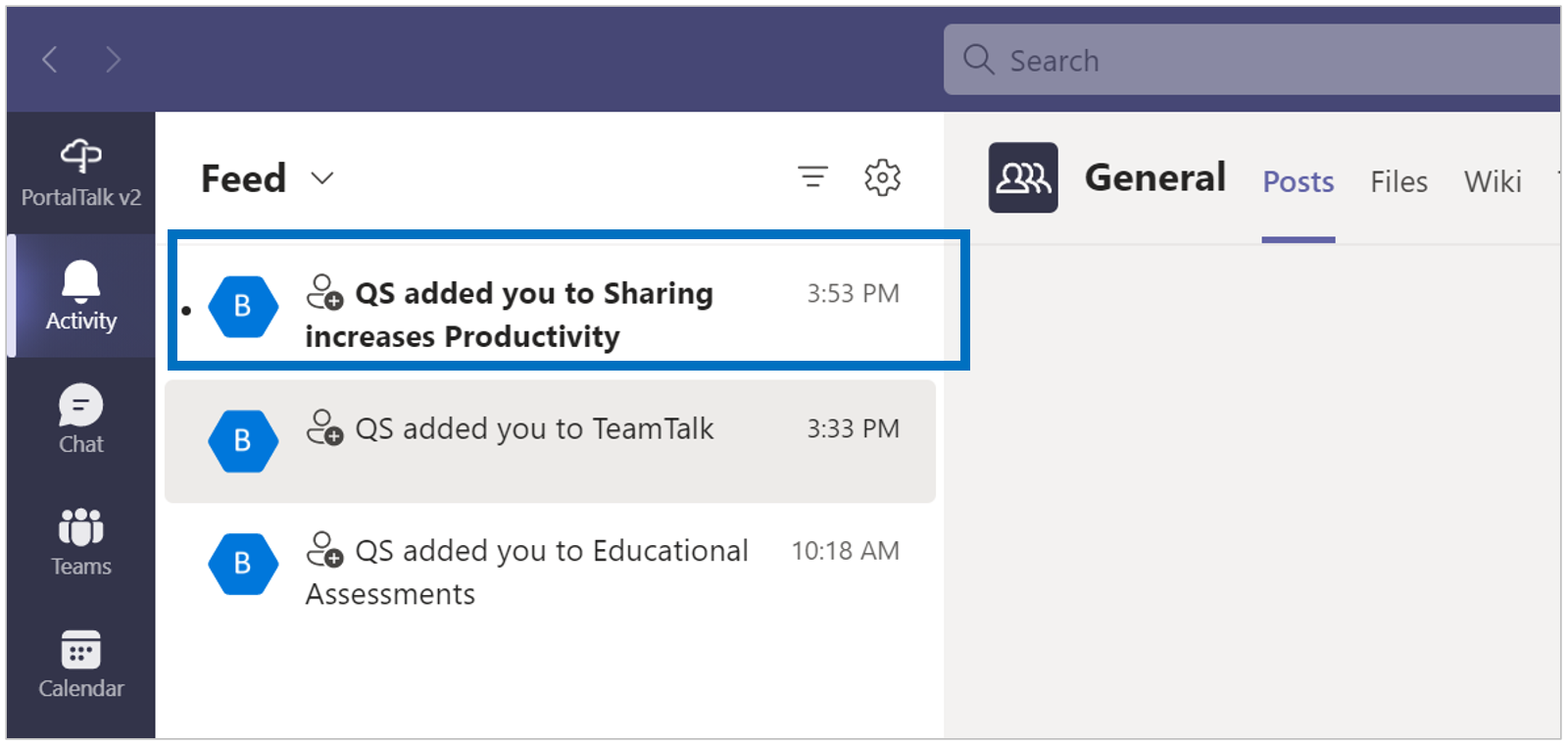
You are added to the workspace’s team as a member.
This is confirmed with a message in your MS Teams Activity Feed:
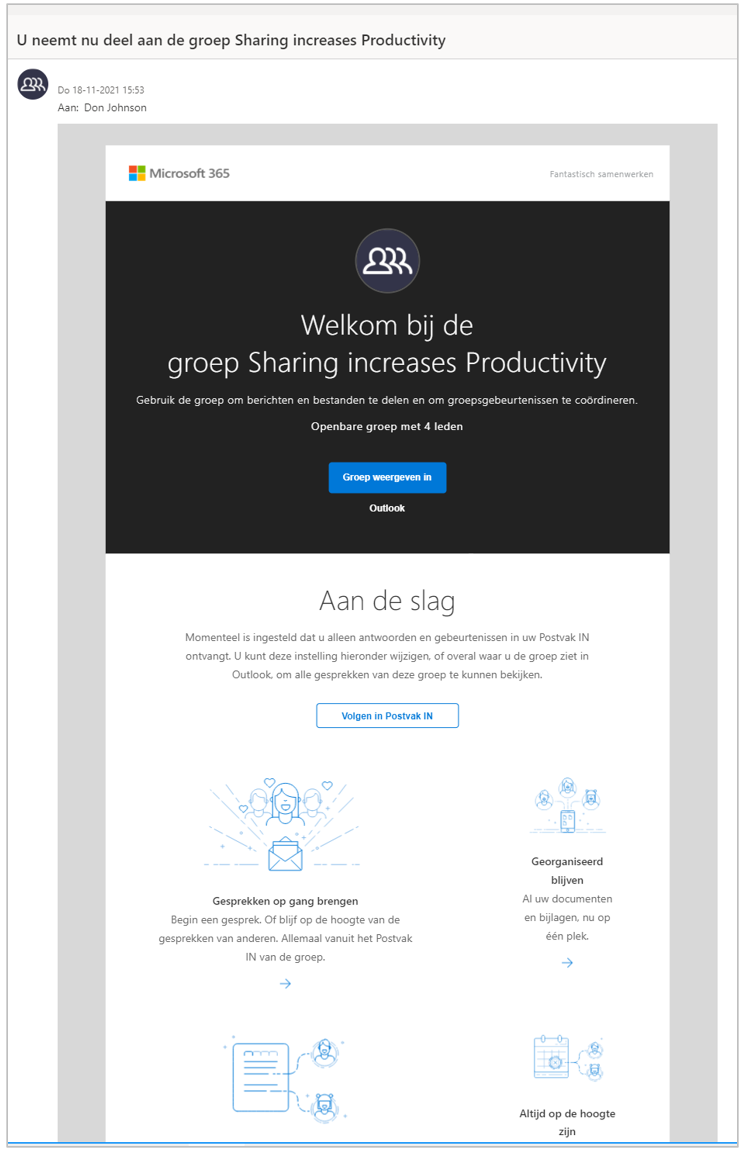
You will also receive a confirmation email from MS Teams:
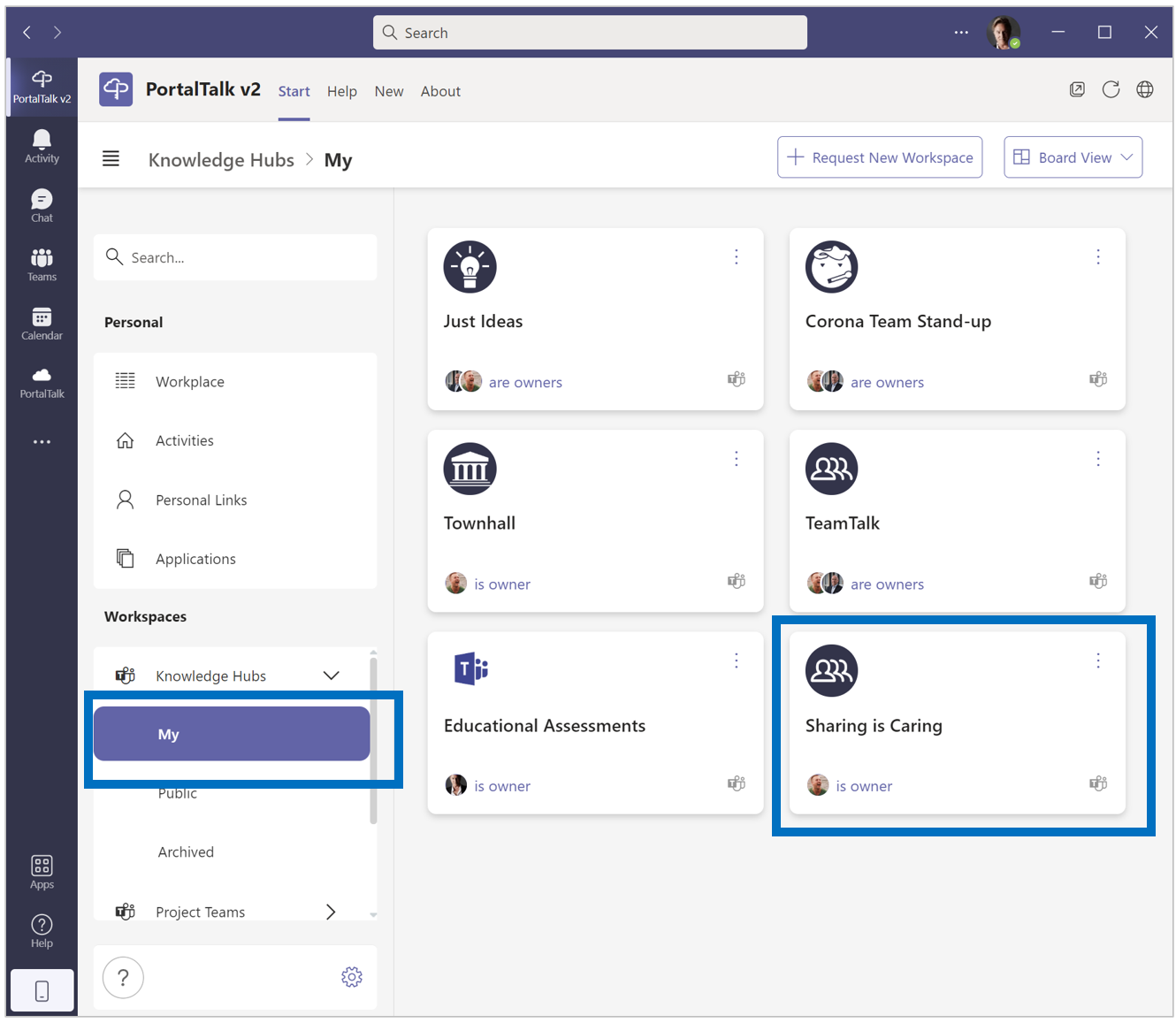
The workspace link/tile is no longer displayed in the Public subcategory, but in the My subcategory:
You can now navigate to the channels within this workspace.
Click on the workspace’s name to obtain a list of the workspace’s channels and click on a channel to navigate to same channel>
If so required, refer to the manual page on navigating to a workspace.
Tip: If you will be frequently active in this workspace, place the workspace link tile on the far left of the top tile row with the Move to top option.