.png)
Your personal activities dashboard within PortalTalk
Within the Personal block in the navigation panel, you will find the link to your personal activities dashboard.
As a team member and/or team owner, the activities dashboard keeps you informed of all activities related to your workspaces.
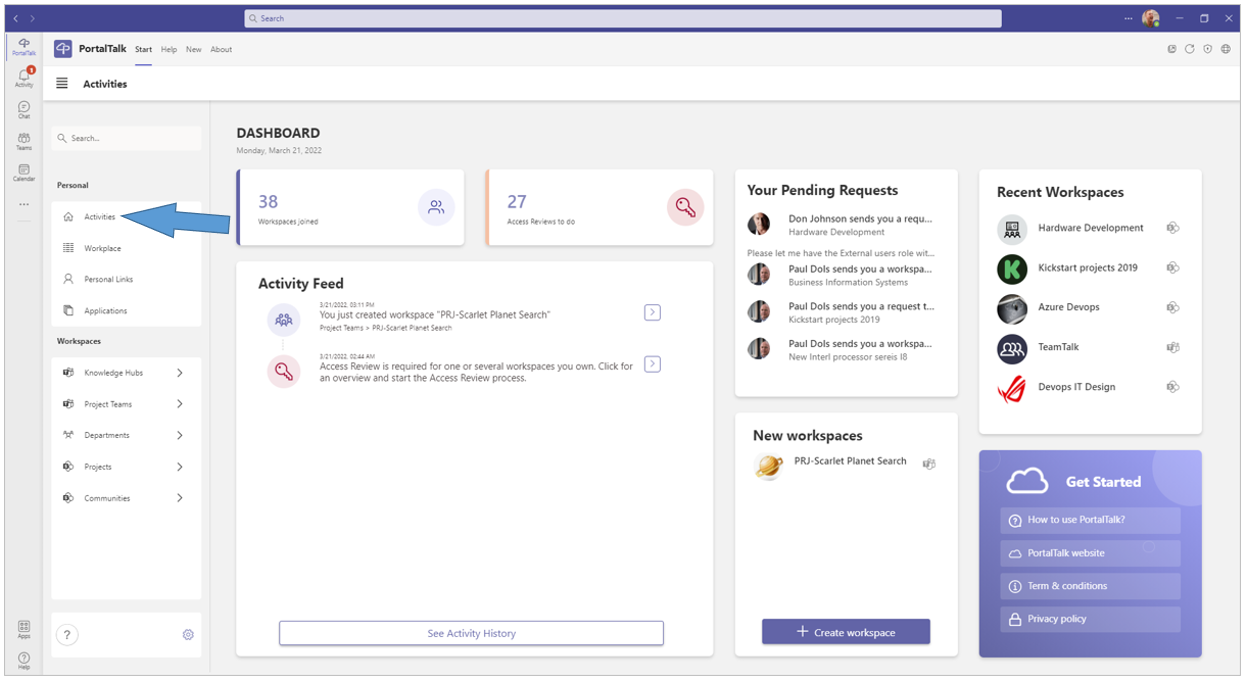
On your Activities Dashboard page, you'll find several boxes with the following information: Workspaces joined, Access Reviews to do, Pending requests, Activity feed, Recent workspaces and Newly created workspaces.
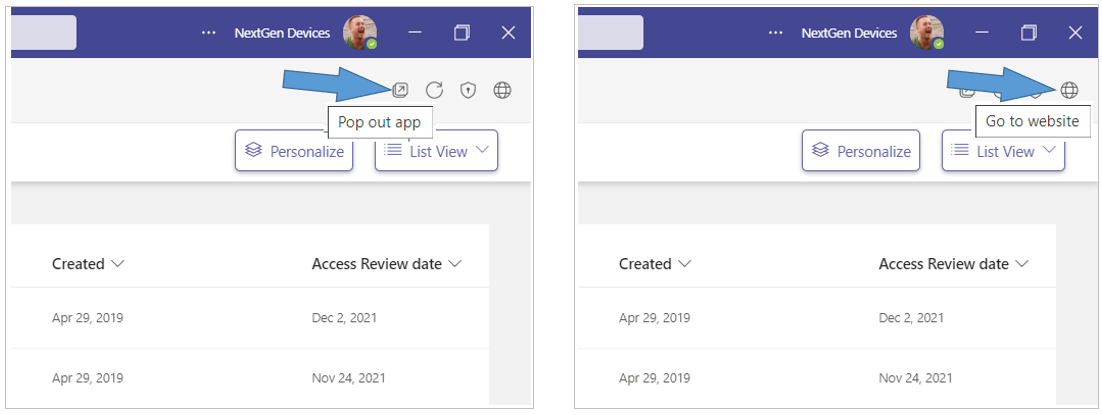
Tip: Open your dashboard in a separate MS Teams window or in the web browser to easily navigate between your dashboard and the various workspaces.
-
Click the Pop out app option to have the PortalTalk app available in a separate window.
-
Click the Go to website option to have the PortalTalk app available in a browser tab.
Workspaces joined
- Workspaces joined - This box indicates the number of workspaces you are a member of.
-
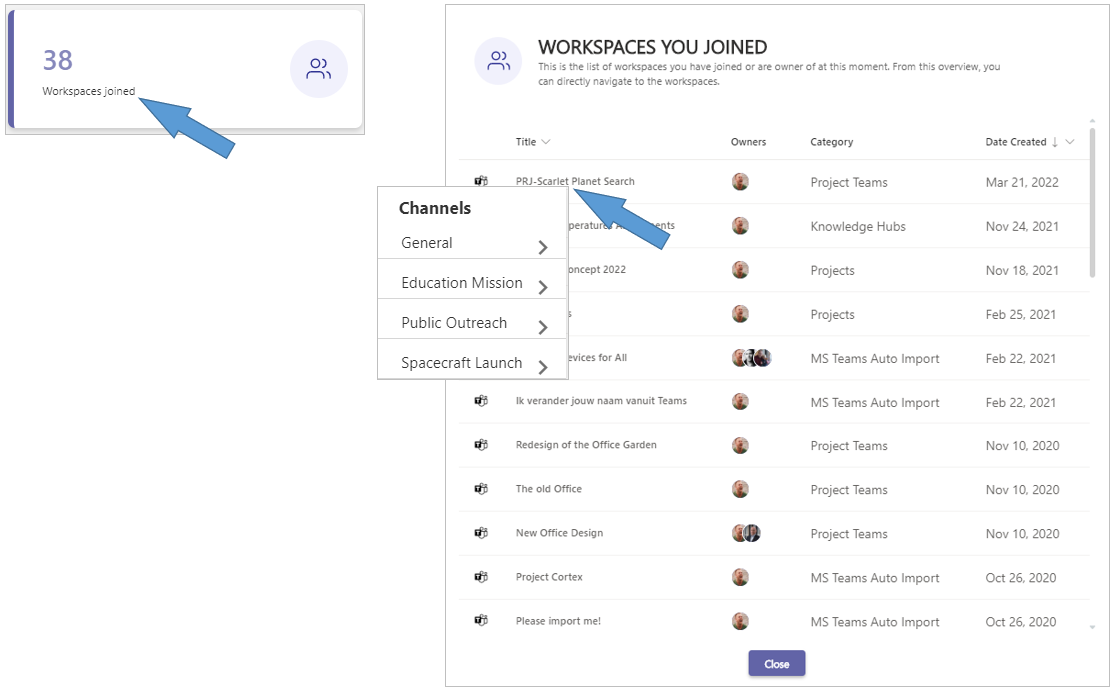
Click the Workspaces joined box to open the panel Workspaces you joined.
-
Click on a workspace name to obtain a list of the workspace's channels.
-
Click on a channel to navigate to same channel.
Access Reviews to do
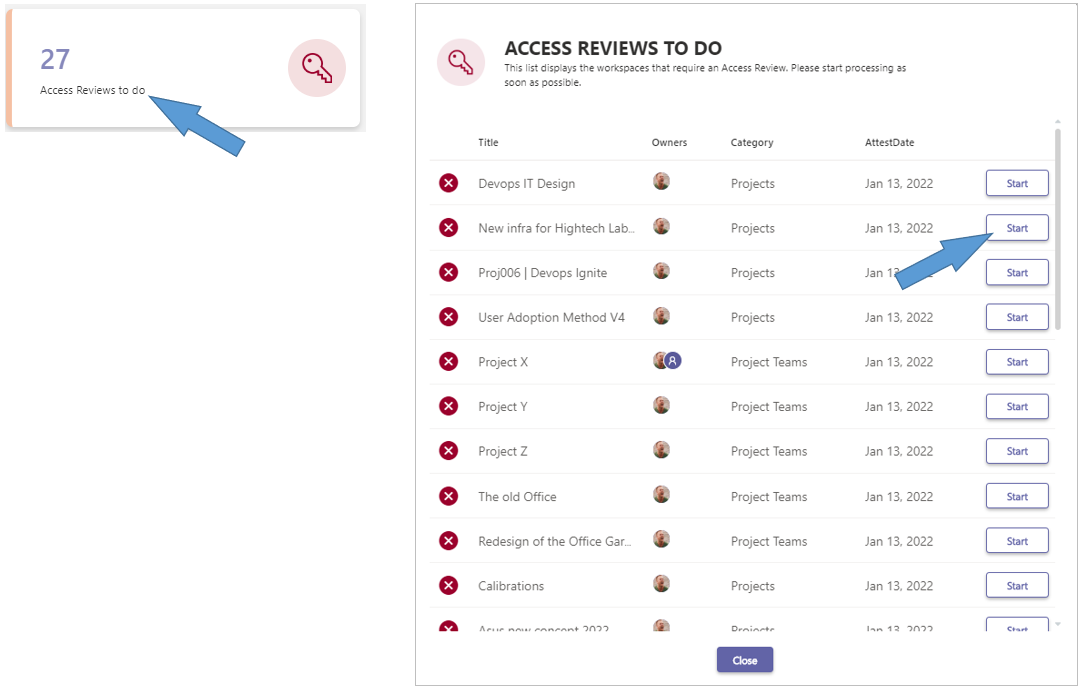
- Access Reviews to do - This box indicates the number of workspaces for which you or one of your workspace co-owners must perform the Access Review.
-
Click the Access Reviews to do box to open the corresponding panel containing a list of the workspaces concerned.
-
Click a workspace's Start button to start the Access Review process for same workspace.
If so required, refer to the workspace owners' manual, page Access Review for a detailed explanation.
Your Pending Requests
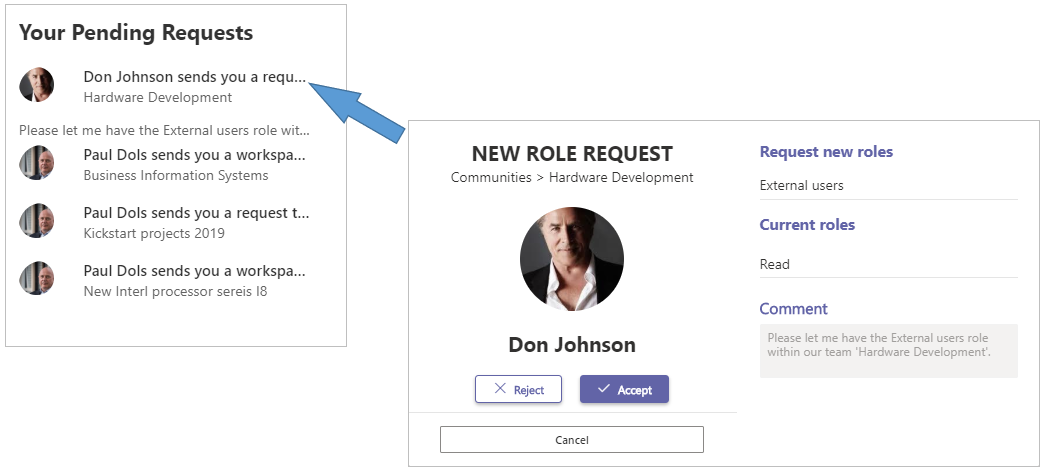
Your Pending Requests - This box displays a list of the requests submitted to you that you need to review
-
Click a request to open the screen within which you can verify the details and straightaway process the request.
PortalTalk users can submit the following types of request:
-
Creation of a new workspace;
-
Admission to your workspace team;
-
Being assigned a new role within your workspace.
-
Click on a pending request to start a workflow for assessing and processing the request, as displayed in the following image:
Activity Feed
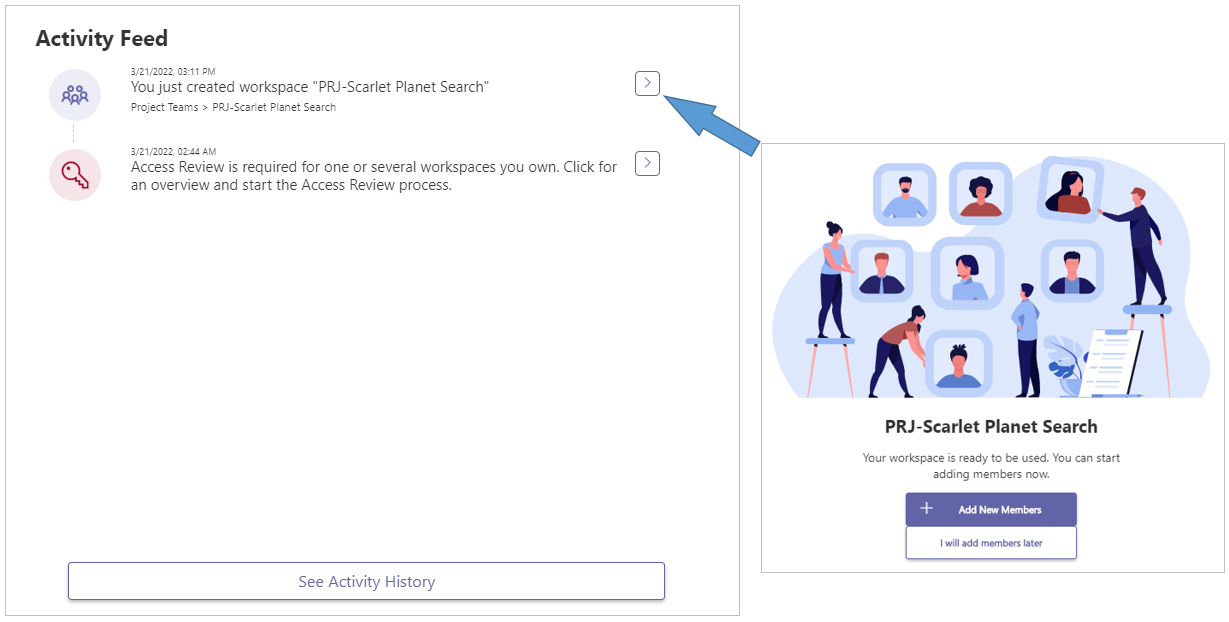
Activity Feed - This box displays a timeline of all activities pertaining to your workspaces
The following PortalTalk activities can be found in this activity timeline:
-
Workspace is requested
-
Workspace Approve
-
Approve or Reject Workspace
-
Workspace Created
-
You are Invited
-
You are Rejected
-
Request Role
-
Approve or Reject Role
-
Join team request
-
Approve or Reject team
-
Access Review due
-
Click an activity to open the screen within which you can verify the details and straightaway process the activity.
-
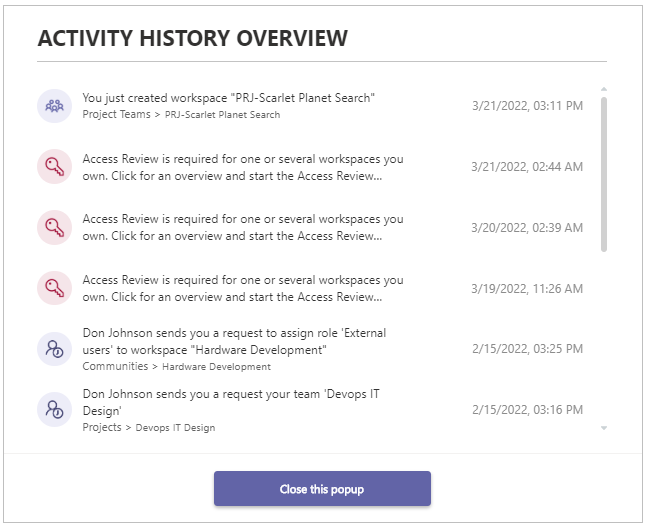
Click the option See activity history to obtain a list of activity-notifications of earlier dates.
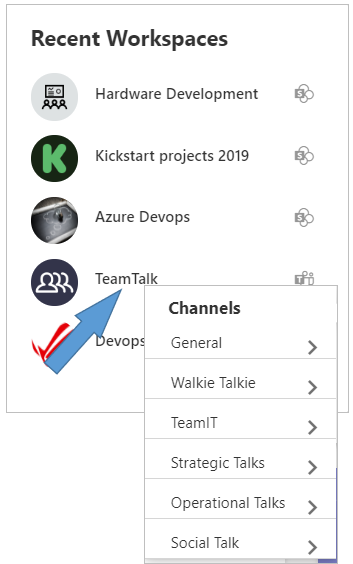
Recent Workspaces
Recent Workspaces - This box lists the links to the workspaces recently used by you
-
Click on a workspace name to obtain a list of the workspace's channels.
-
Click on a channel to navigate to same channel.
New Workspaces
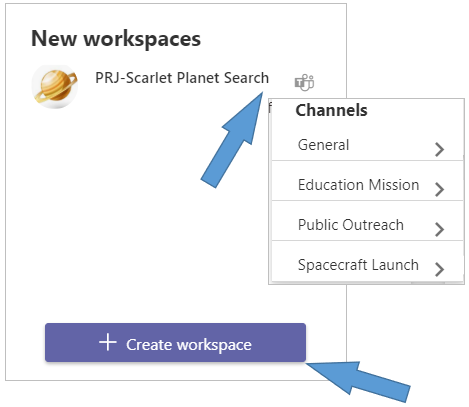
New Workspaces - This box lists the links to the workspaces recently created by you.
In accordance with your permissions, you can also create a new workspace right here or submit a request for a new workspace.
-
Click on a workspace name to obtain a list of the workspace's channels.
-
Click on a channel to navigate to same channel.
-
Click the option Create workspace to create a new workspace or to submit a request for the creation of a new workspace.
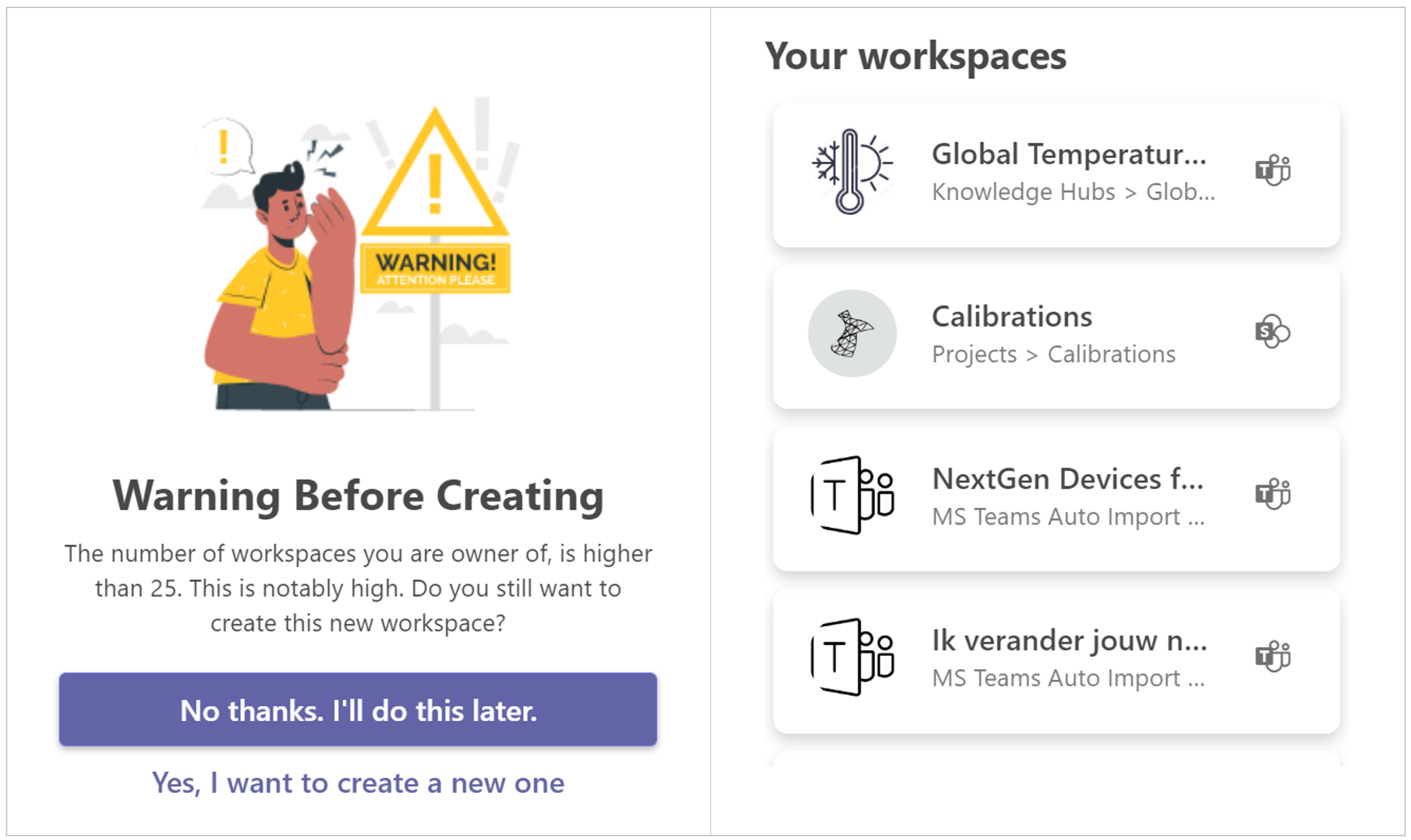
Portal talk helps to control the volume of the created workspaces.
If you create an unusually large number of workspaces, PortalTalk will notify you of same when you start or request the creation of yet another workspace: