.png)
The periodic Access Review of your workspace and workspace content
Your workspace may be subject to a periodic Access Review.
This means that PortalTalk regularly requests the workspace owner to verify the desirability/necessity of the user permissions assigned within your workspace and/or to monitor the shared folders/documents.
The workspace category settings determine which of the three parts of the Access Review must be completed for your workspace.
A few days prior to the Access Review due date, PortalTalk sends an email to the owners of the relevant workspace.
If the review has not been completed on the Access Review due date, PortalTalk will send a reminder email to the owners that day and an email to the PortalTalk security officer.
If the owners still fail to perform the Access Review, PortalTalk will begin sending reminder emails to workspace owners. It will keep repeating this until the user has completed all open Access Reviews.
Execute the Access Review
As a workspace owner, you are periodically requested to perform an Access Review for your workspace.
You will receive this request seven days prior to the Access Review expiration date by email and as a notification in your Activity Feed.
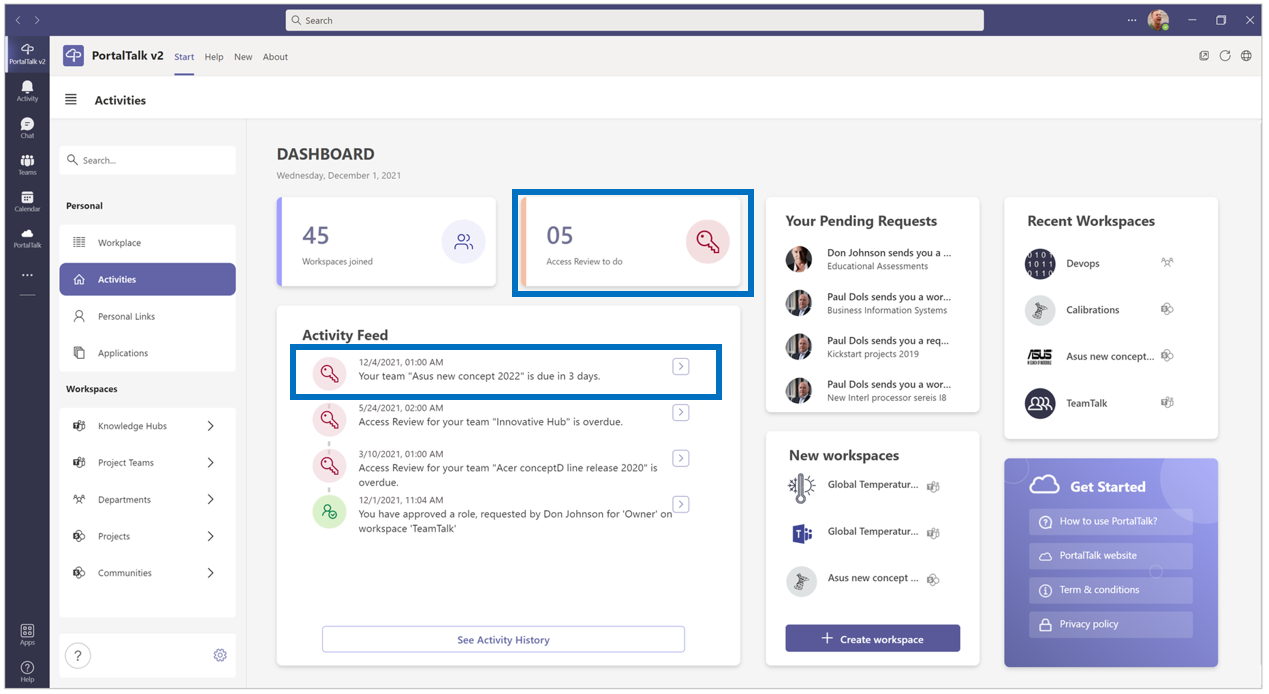
Additionally, in your activities dashboard, the Access Reviews to do tile indicates the number of workspaces waiting for an Access Review.

-
Click the Access Reviews to do tile or click the Access Review notification in your Activity Feed.
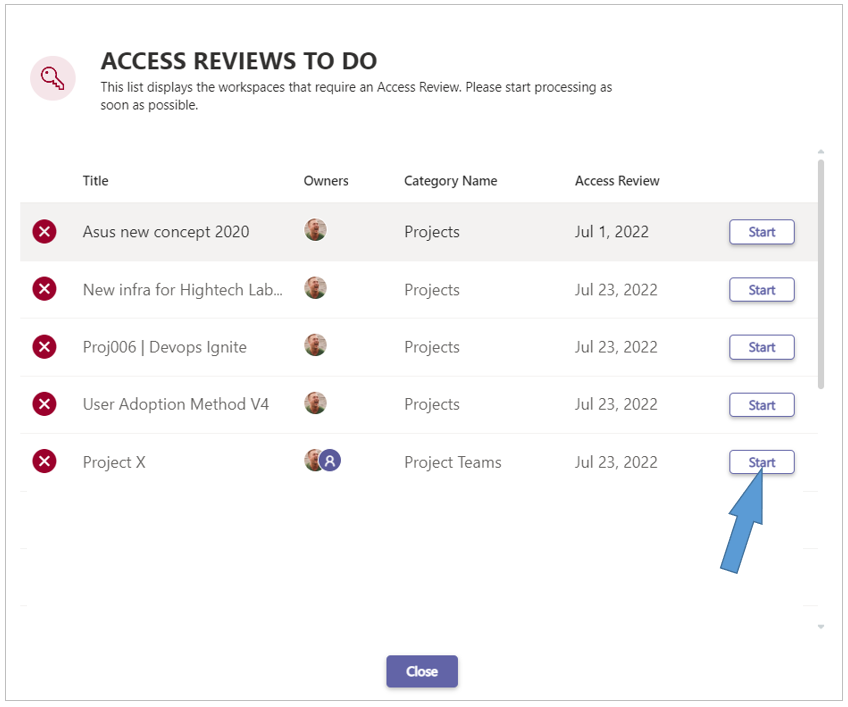
The Access Reviews To Do panel is displayed:
-
Click the Start option at a workspace name to start the workspace’s Access Review process.
-
Click the Activity Feed item to start the Access Review process.
-
Or click any of your workspaces' ellipsis menu button and select the option Access Review to start same process.
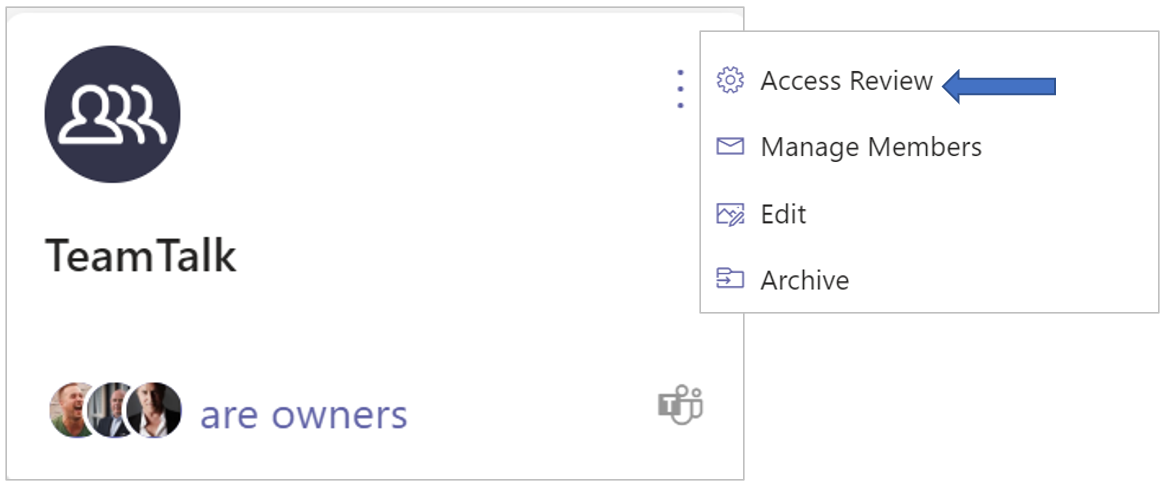
Note: If the deadline date for the periodic Access Review has passed, of the several ellipsis options, Access Review is the only available option.
You must then perform the Access Review before you can access the other options again.
Part 1 Review the team composition of the workspace
The Team Members of workspace page is presented*.
All team members currently present within the team are listed on this page. The external team members are displayed at the top of this list.
Per member, several details are stated - the date the user was added to the team, the user type (Owner, Member or Guest) and the date the user most recently logged in to PortalTalk.
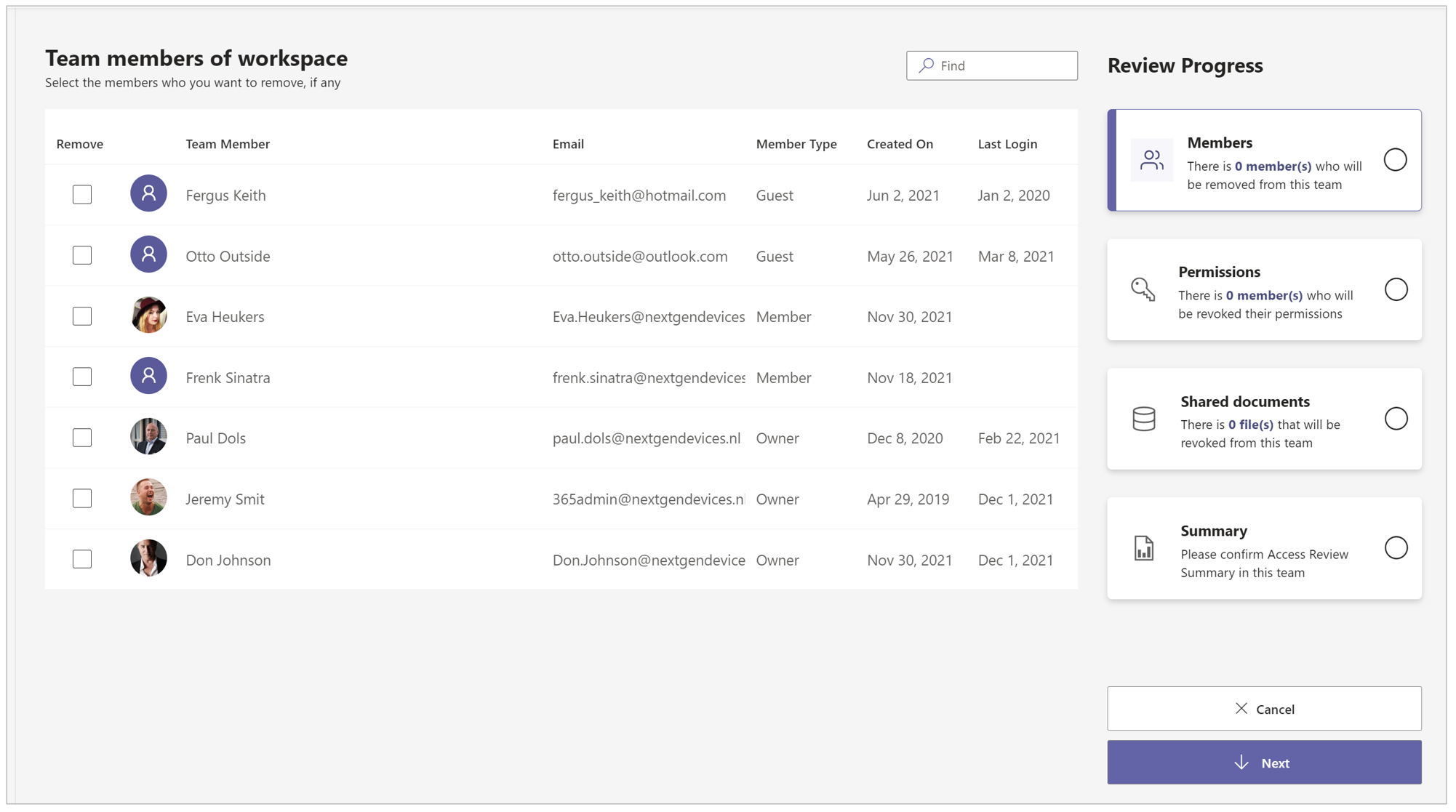
*This page is only displayed if the workspace’s category settings specify that the periodic access review includes reviewing the team composition.
-
Check if all listed users still need to access your workspace.
-
Select the Remove option for the team members who no longer need access to your workspace.
-
Click the Next button at the bottom right corner of the page.
Part 2 Review the team members' permissions
The Member permissions in workspace page is presented*.
This page shows, for the remaining team members, all additional permissions assigned. This concerns permissions that are assigned in addition to the default permissions.
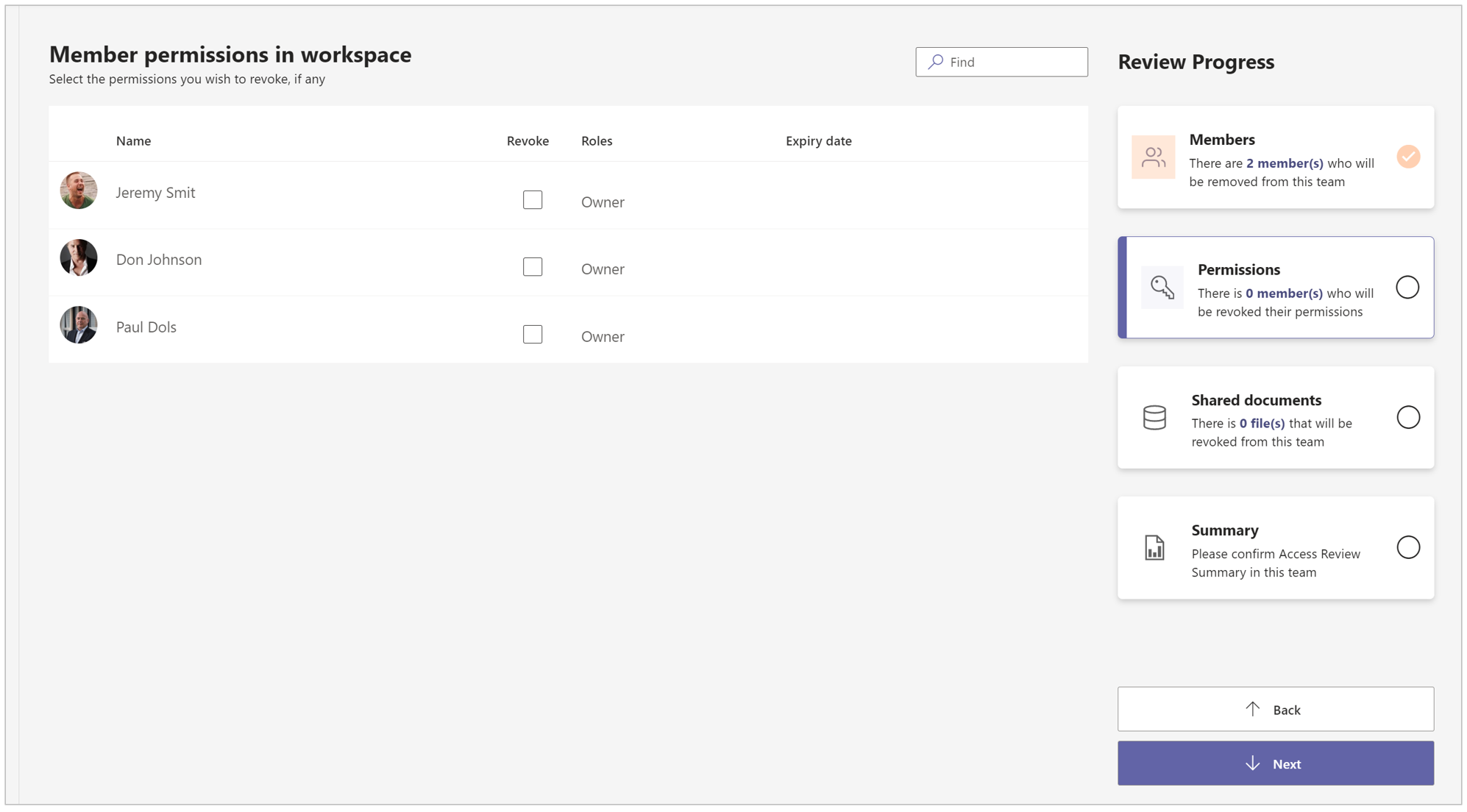
*This page is only displayed if the workspace’s category settings specify that the periodic access review includes reviewing the team members' permissions.
-
In the Revoke column, select the permissions that the concerned team members no longer require.
-
Click the Next button at the bottom right corner of the page.
Part 3 Review the shared documents
The Shared Documents page is presented*.
This page shows all the documents within your workspace which have been shared.
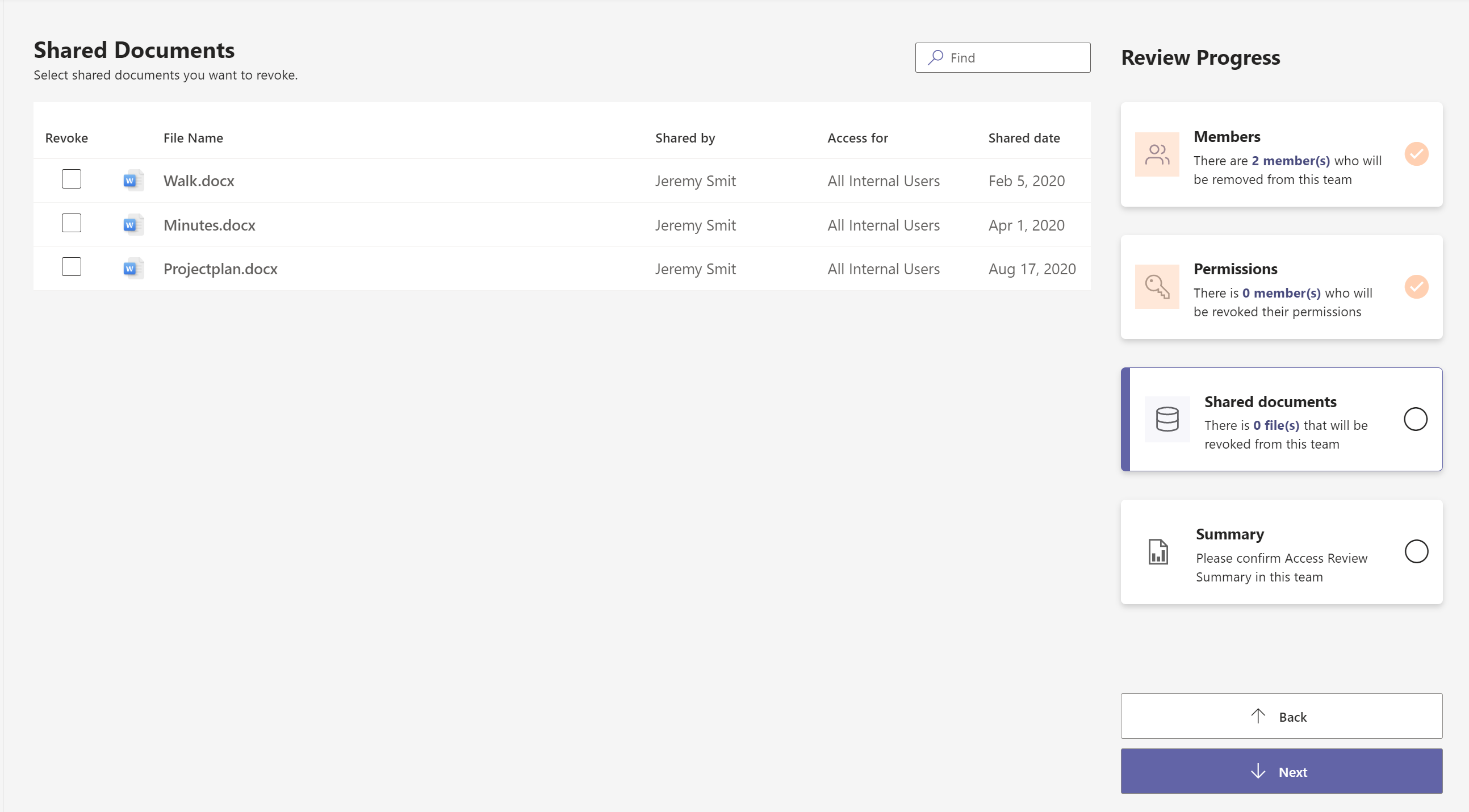
*This page is only displayed if the workspace’s category settings specify that the periodic access review includes reviewing the shared documents.
-
In the Revoke column, select the items you no longer wish to be shared.
-
Click the Next button at the bottom right corner of the page.
Insight into the Limits of PortalTalk
PortalTalk helps you gain insight into the status of shared documents. However, this is subject to limits. We will explain what these are.
-
We show you a maximum of 75 shared documents. Displaying more is not reasonable. You cannot review more than 75 documents. If there are more, we will not show them now.
-
We quickly check up to 2500 documents in your workspace. Beyond that, checking up to 5,000 documents takes a bit longer. We will show you a status screen and ask for your patience.
-
If there are 10,000 or more documents to check, we unfortunately have to stop; we cannot perform this for you.
At each step, we provide you with a message and explanation of why the Access Review cannot be performed properly. You also have the option to notify your administrator for additional help. We kindly ask you to make use of this. Your workspace currently deviates from the standards, and adjustments are needed to maintain control over it. Your administrator will be able to assist you shortly.
Part 4 Confirm the privacy setting of the workspace
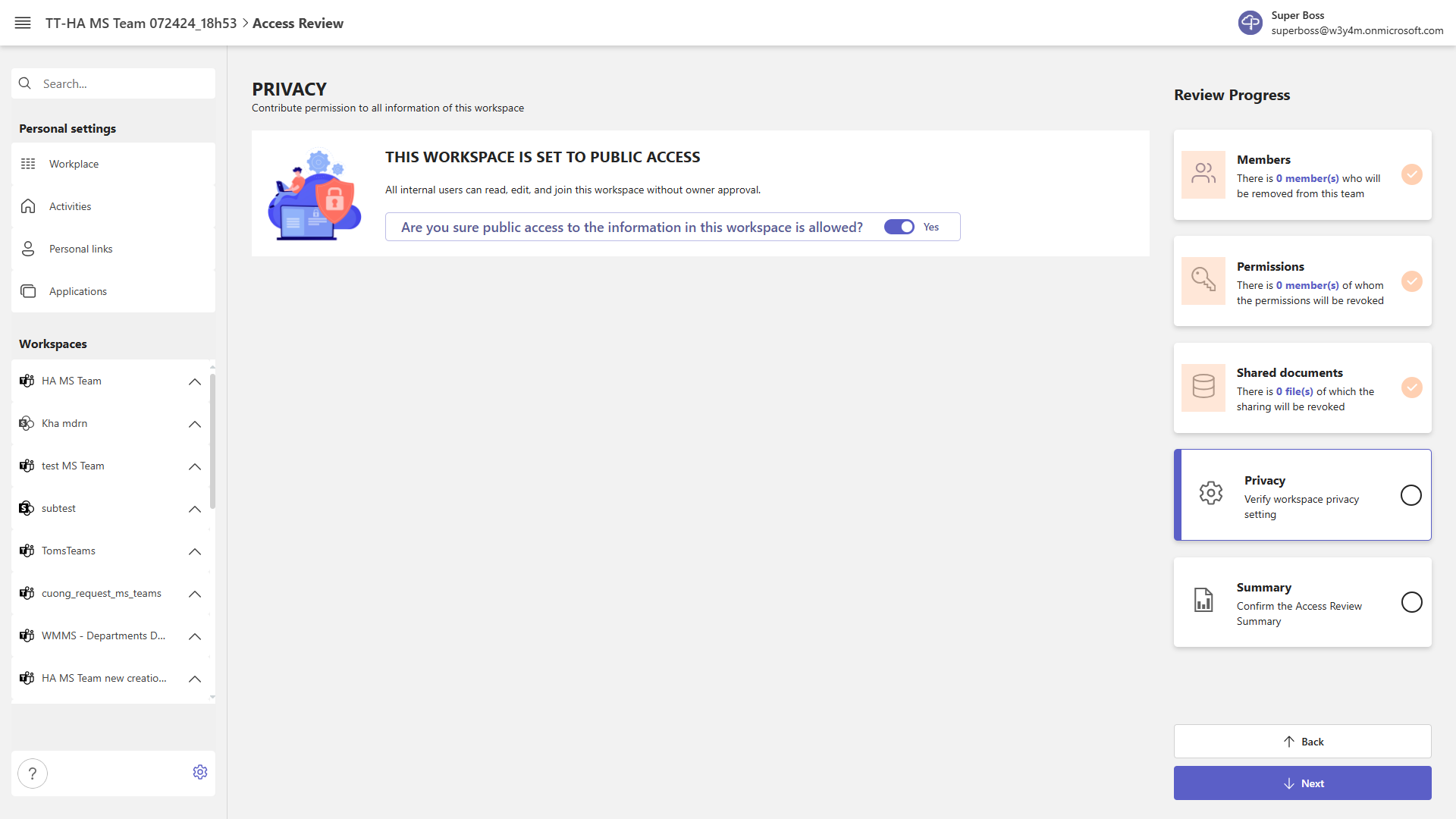
The Privacy Setting page* is presented:
The Privacy Setting page* draws your attention to the current privacy setting of your workspace.
Working in an MS Teams environment should probably reflect the modern way of collaboration, where every user in the organization has as much access to information as possible. Although some information should only be accessible to team members, private workspaces should remain an exception.
*This page will only be presented if your workspace's category settings specify that this part of the Access Review has to be performed.
-
In the Should this still be allowed? section, adjust the privacy setting of your workspace if so required.
-
Click Next at the bottom right of the page.
Part 5 Confirm and apply your choices
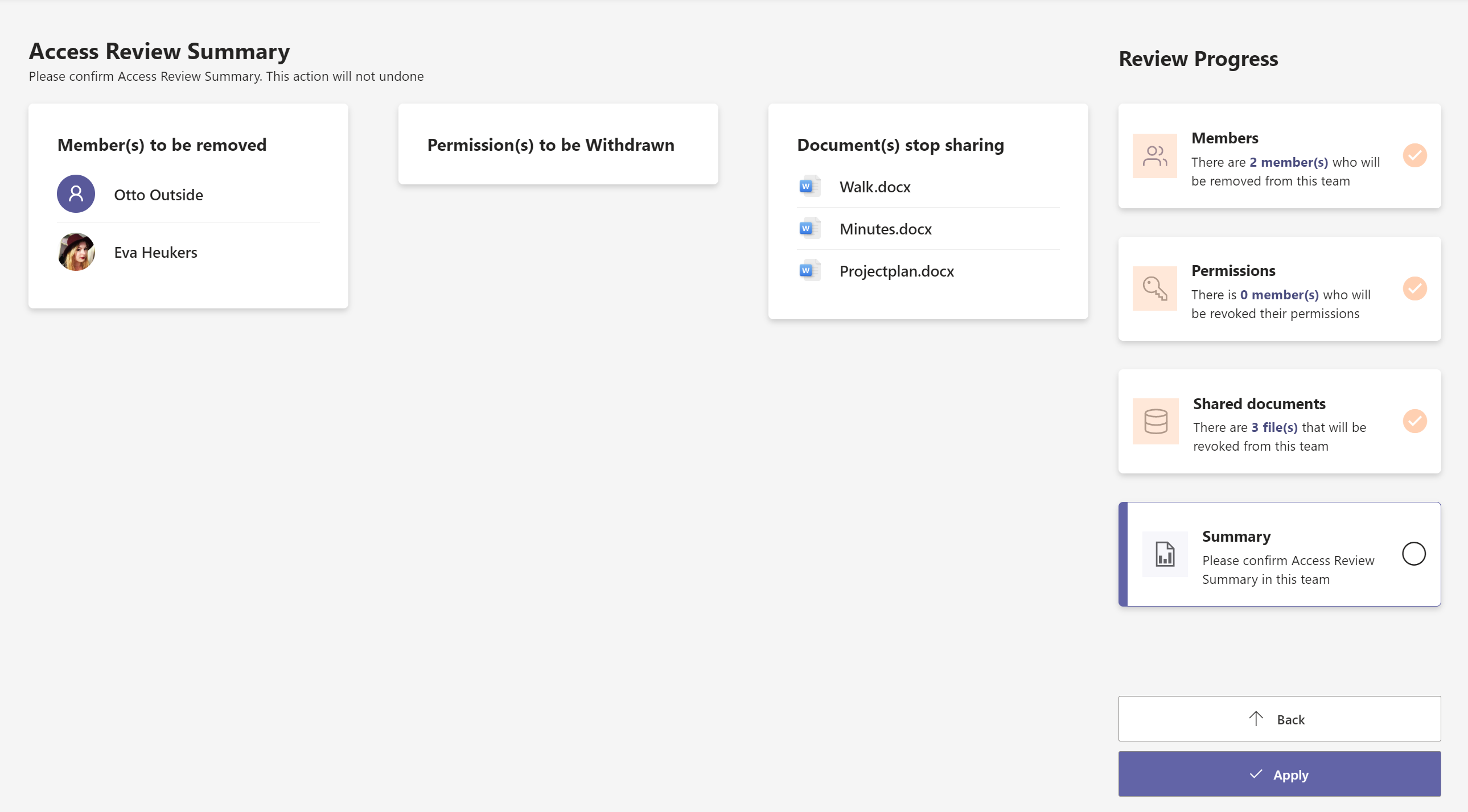
The Access Review Summary page is presented:
-
On the Access Review Summary page you can see the choices you made on the previous Access Review pages.
-
If necessary, go back to previous pages to adjust your choices.
-
Click the Next button at the bottom right corner of the page, to apply your revision choices and to finish the Access Review.
-
Click the Close this popup option to return to the Access Reviews To Do panel, within which the workspace you just completed is no longer listed.
The Access Review is now complete.
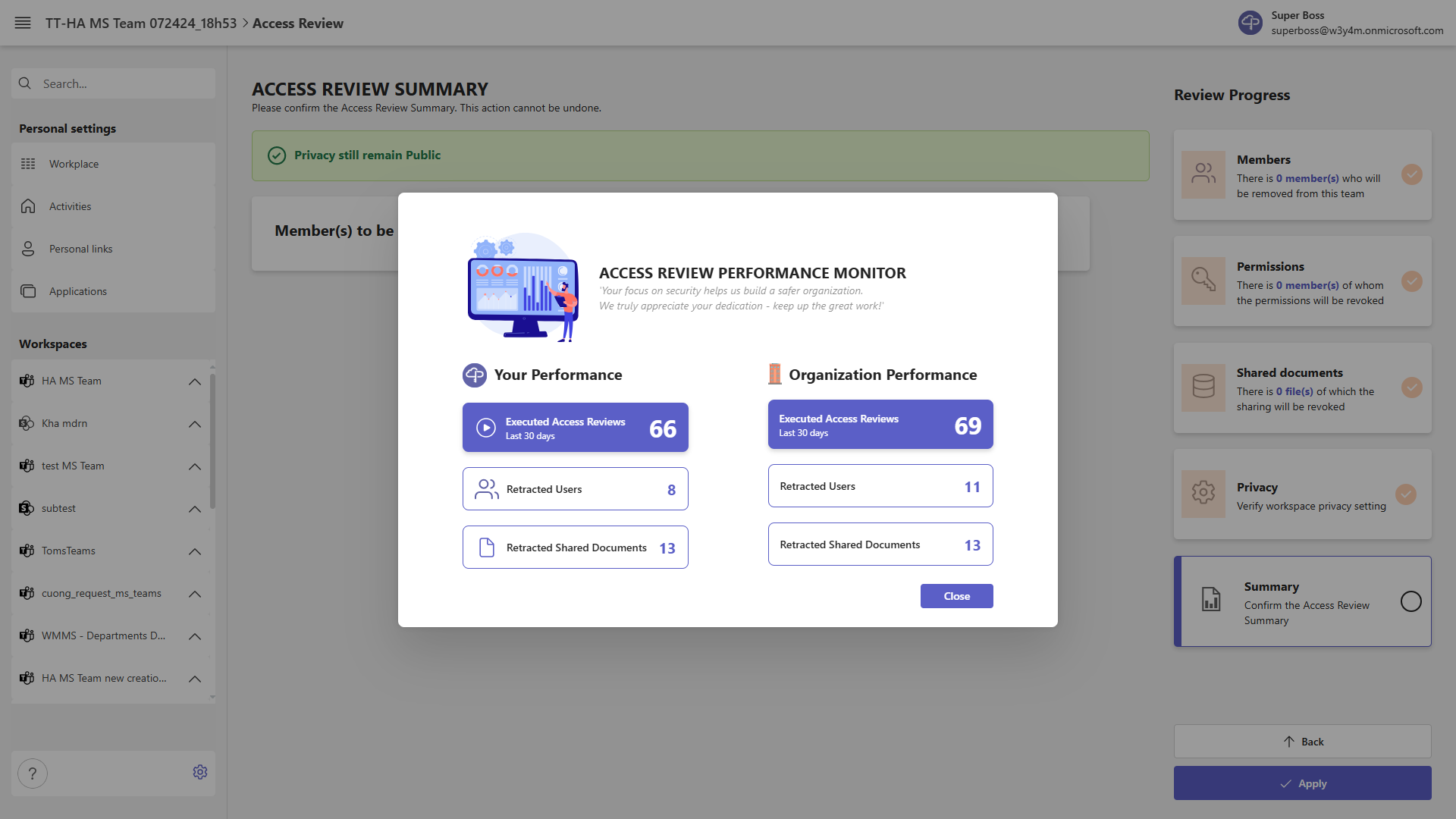
Your access review performance
You help the organization control access to information through the Access Review. To illustrate its effectiveness for you and the organization, we present insights from the Access Review performance over the last 30 days. The final screen of the Access Review process displays your performance dashboard..