.png)
Add internal users to your workspace team
You can add internal members to your workspace on the Members page of your workspace.
-
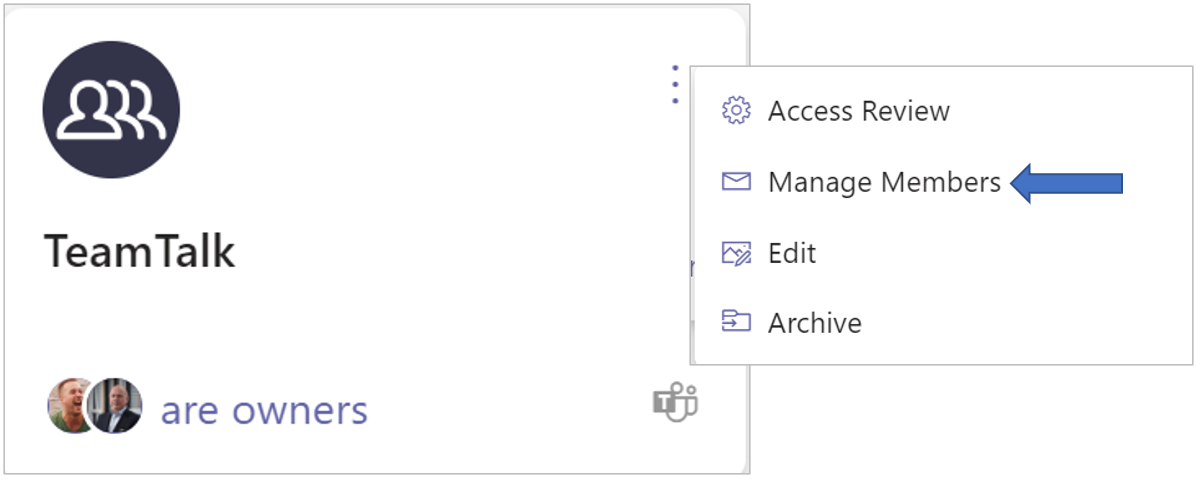
Click the workspace’s ellipsis menu button and select the option Manage Members. to launch the workspace’s Members page.
-
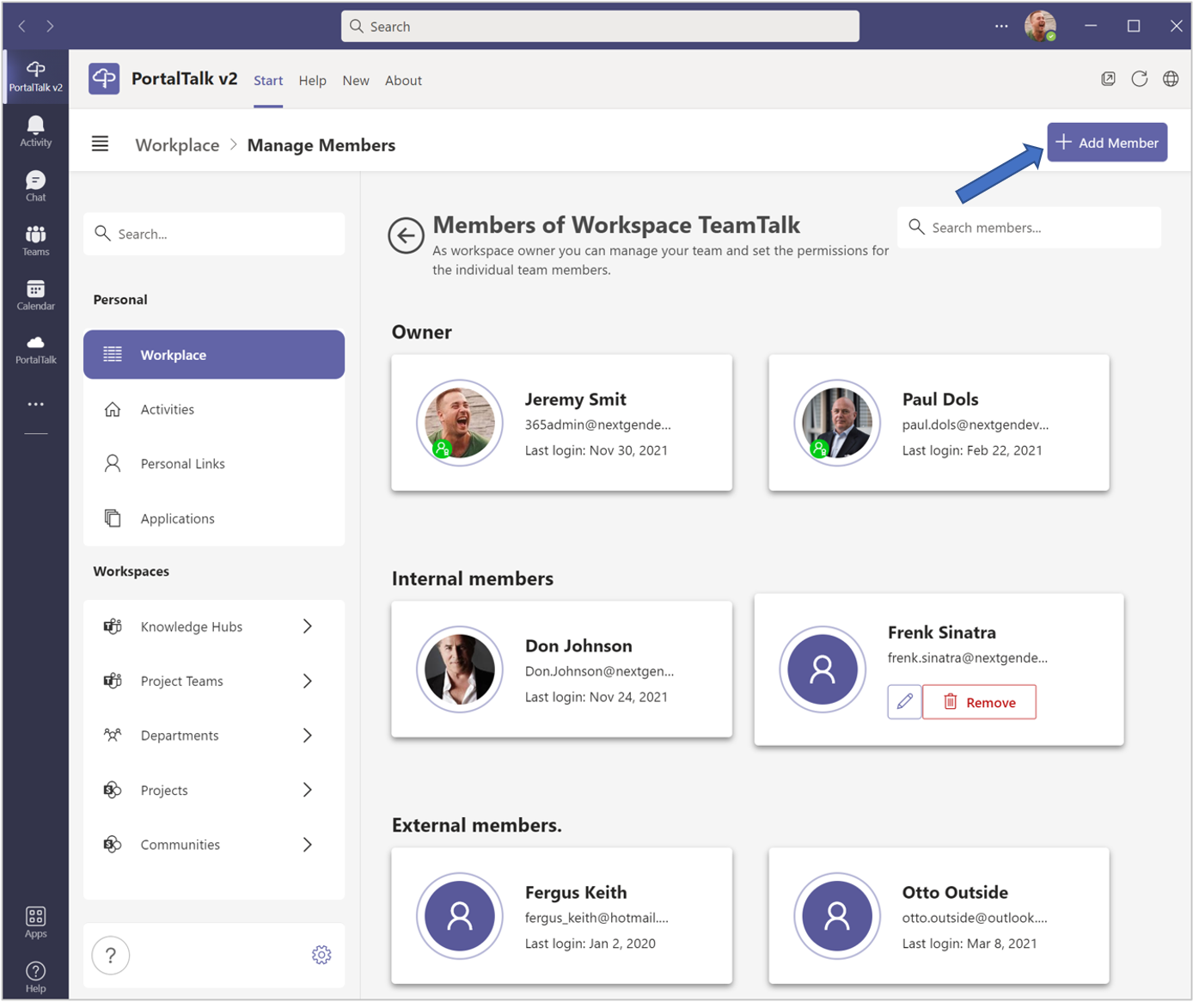
In the Members page of your workspace, click the +Add Member option.
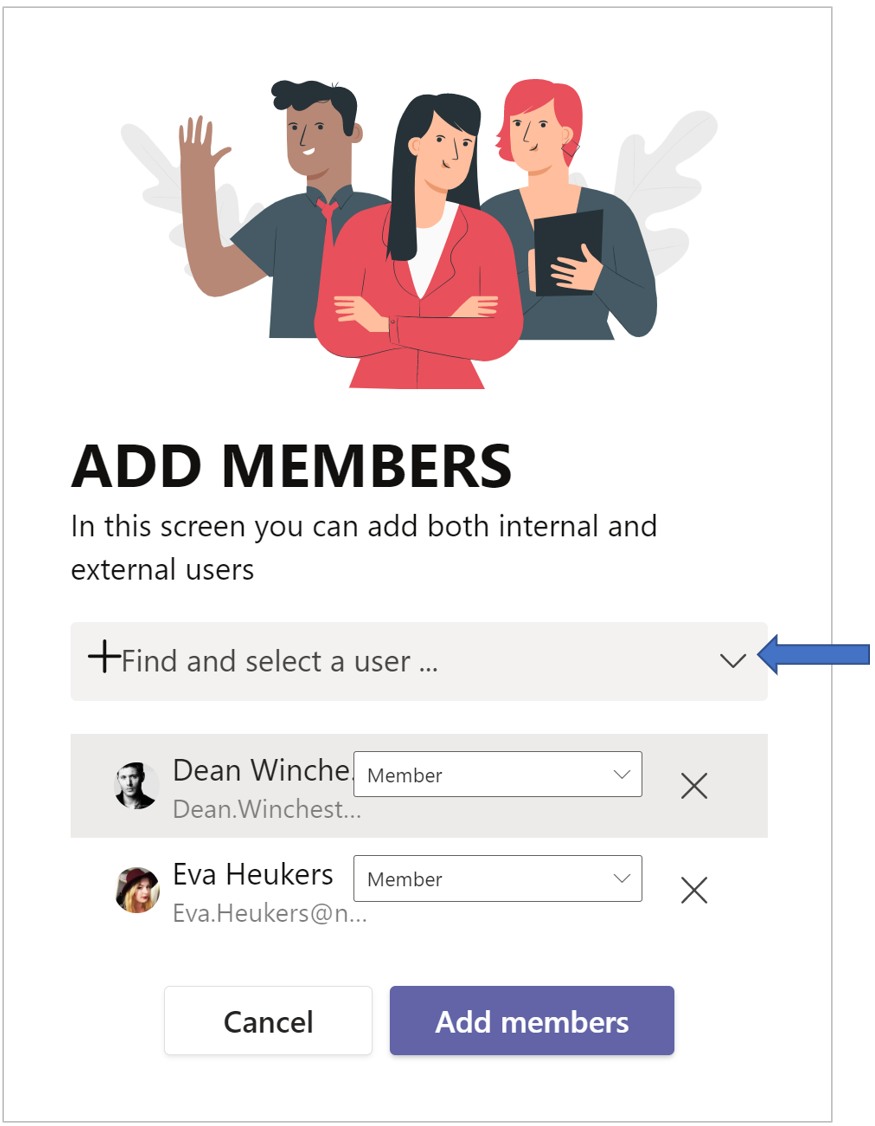
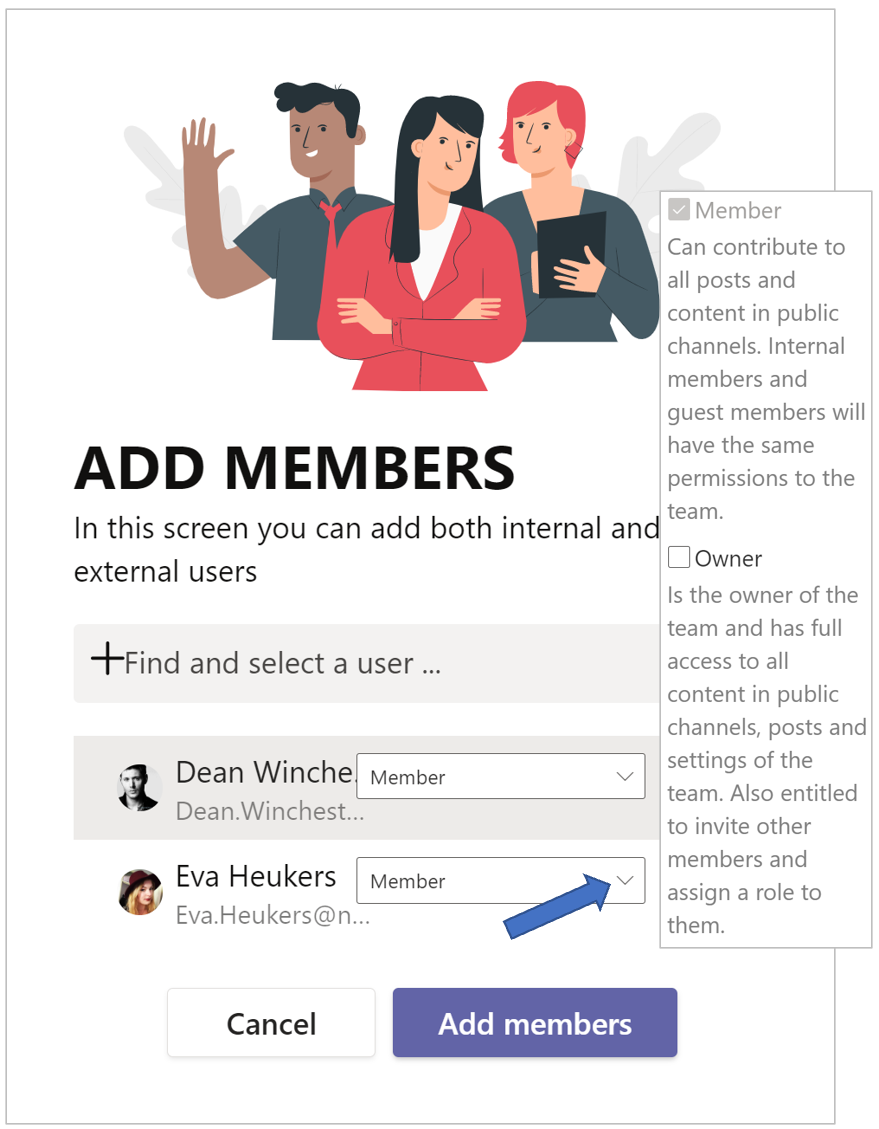
The Add Members form is displayed:
-
In the Find and select a user... box, select the users you wish to add to your workspace team.
Start typing a user's name to obtain a list of matching existing users within you can click on the name of the desired user.
Having selected a user, you will see which default permission the user is assigned. You can change or add to the permissions for the user to be added.
-
Select the desired additional roles/permissions for the selected users.
-
After you have selected all the desired users and possibly adjusted their default permissions, click on the Add members button.
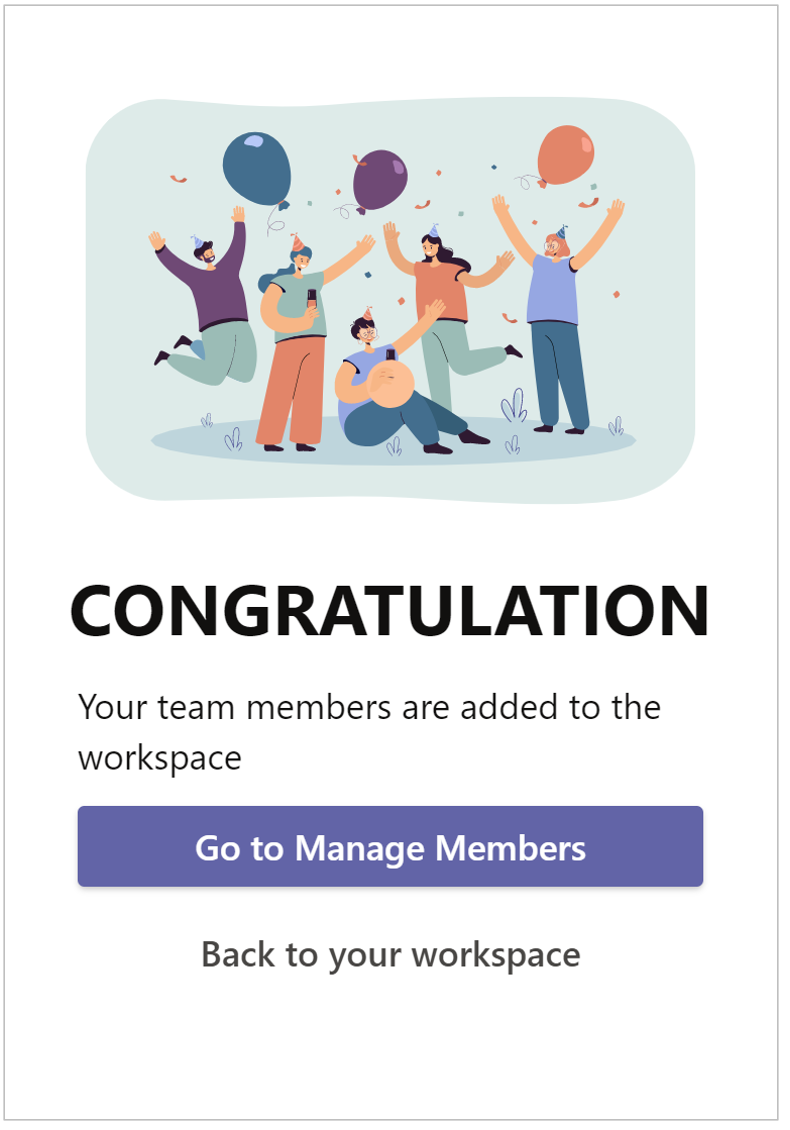
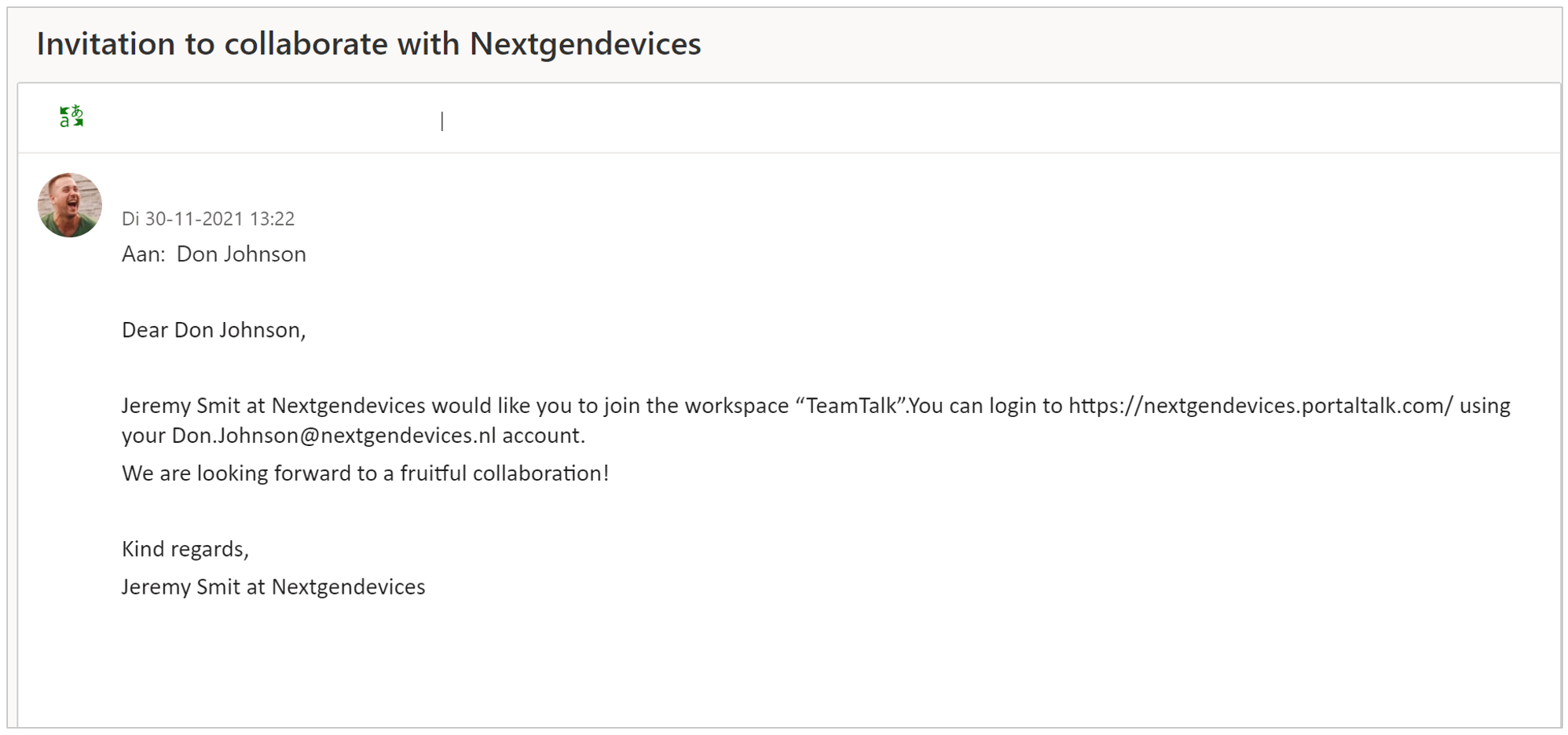
The users will receive an email from PortalTalk inviting them to launch PortalTalk and use the workspace to which you have added them as a team member.