.png)
Add external users to your workspace team
Adding external team members to your workspace team is done in the same way as adding internal team members.
The process of adding an external person who is not yet registered in the Azure Active Directory is slightly different from that involving an already known external user.
When you type the name of such a new external user in the Find and select a user... box, no matching users are suggested.
-
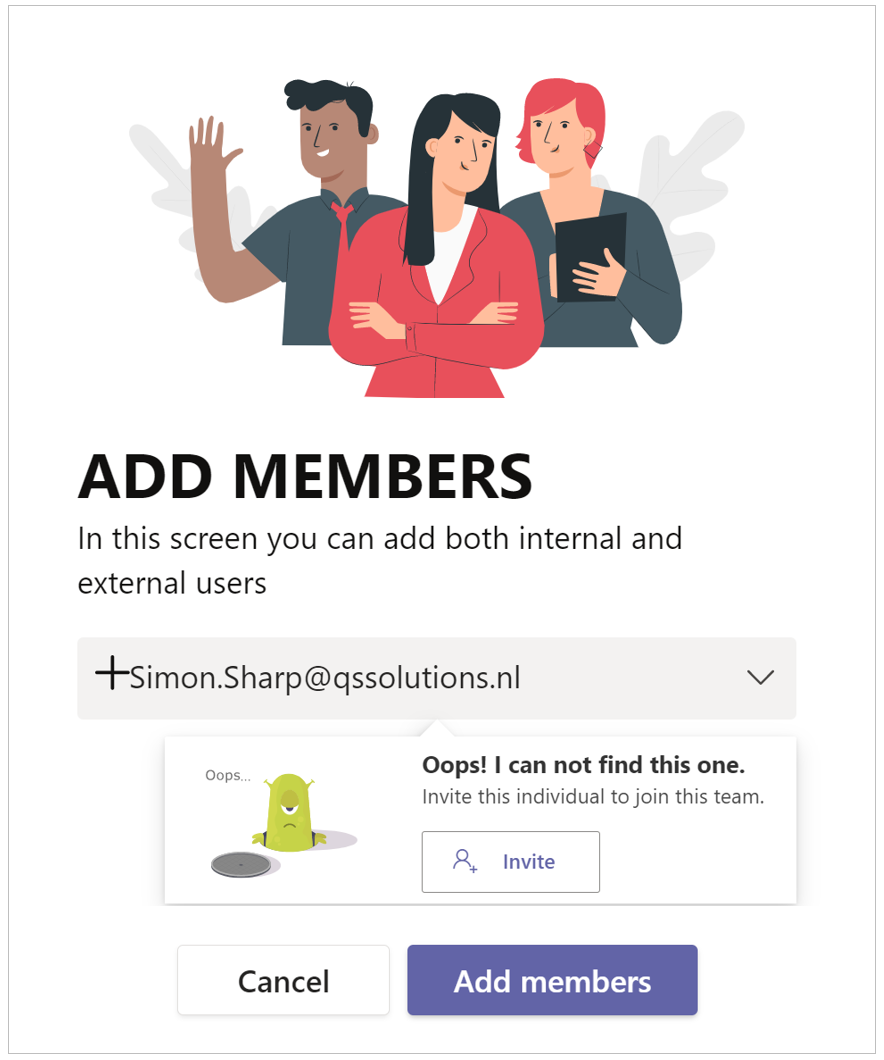
When the external person’s name cannot be found, enter the email address of the external user in the Find and select a user... box.
A popup will appear stating that the external user is not as yet known and that you have the option to invite the user.
-
Click the Invite button.
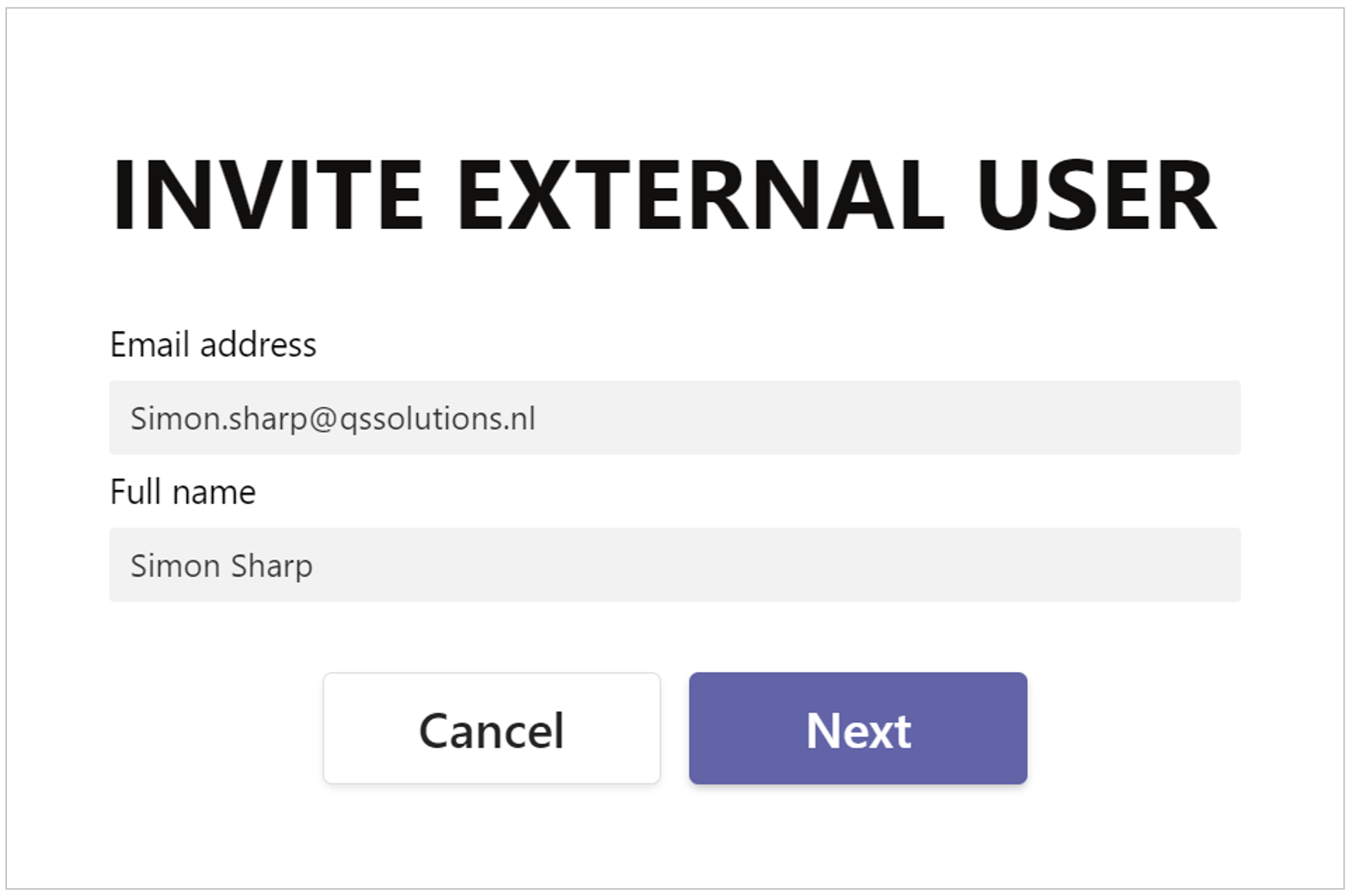
Het Externe gebruiker uitnodigen formulier wordt geopend:
-
Enter the full name of the external user. You can always adjust this at a later date.
-
Click Next.
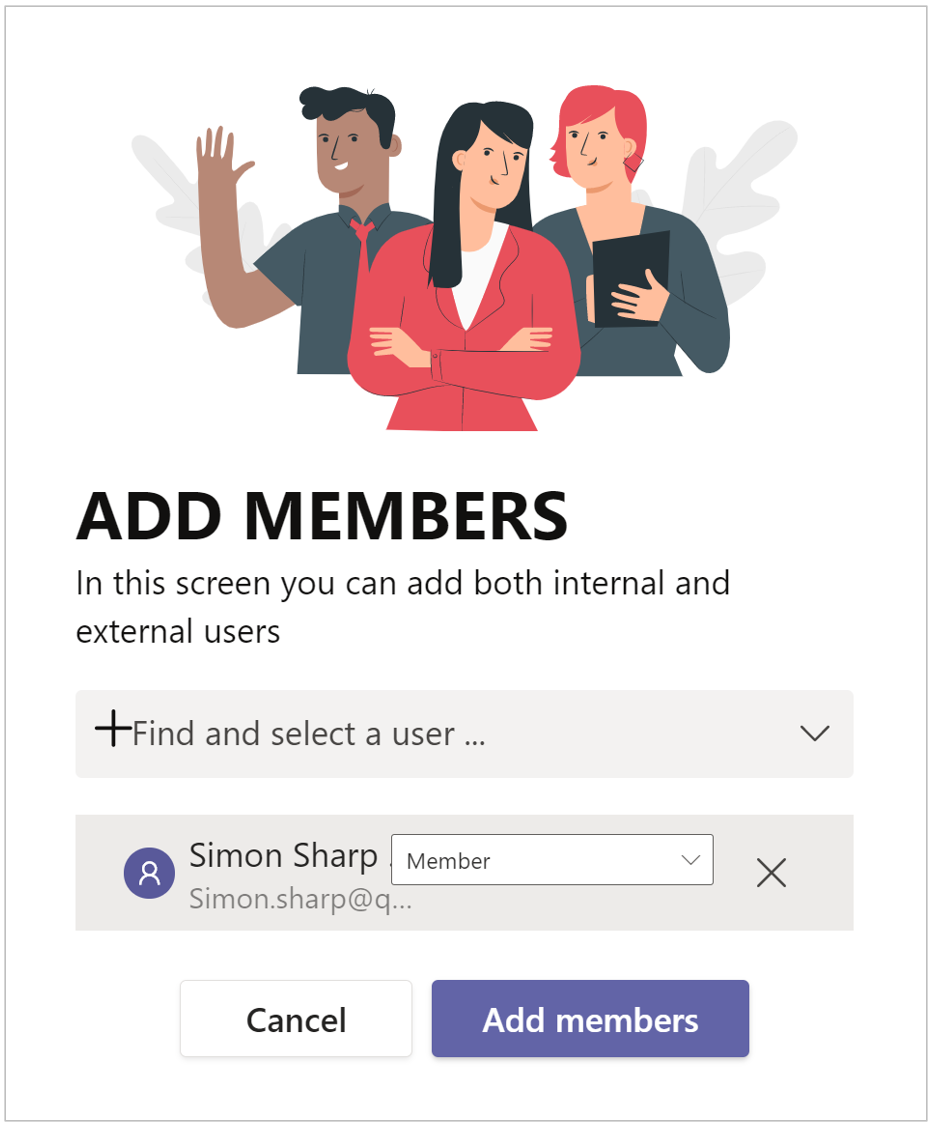
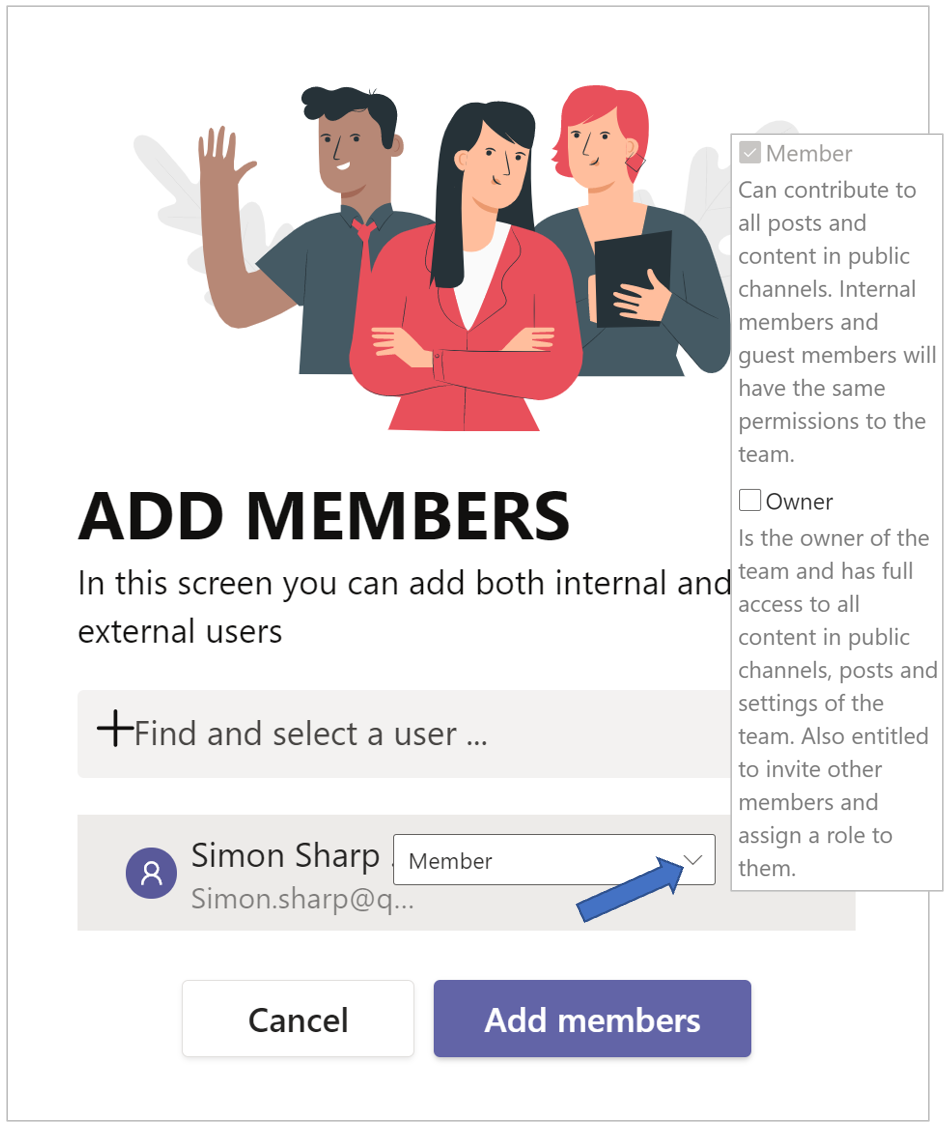
Having selected a new external user, you will see which default permissions the user is assigned. You can now edit the permissions for the external user to be added.
-
Check the desired additional roles/permissions for the selected users.
-
After you have selected all the desired users and possibly adjusted their default permissions, click on the Add members button.
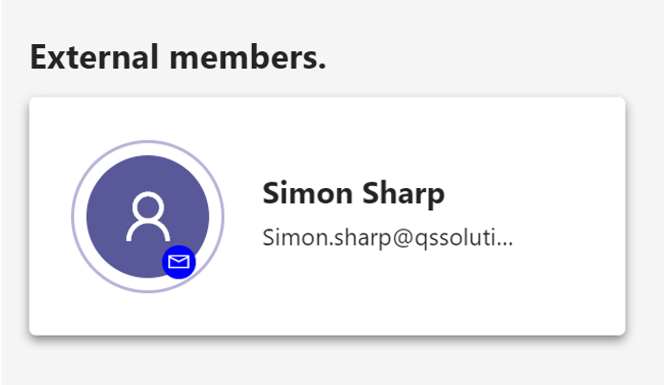
A newly added external team member is displayed as a tile on the workspace’s Members page, under the header External members, with an email icon indicating an invitation email has been sent to the external user.
Hover the mouse pointer over the external team member’s tile to have several action options presented:

|
The Edit icon at the top right of the external team member’s tile.
|

|
Click the Edit role option to edit the permissions for the external team member.
|

|
Click the Remove option to remove the external member from the team. |

|
This icon indicates that the invitation email has been sent. The external user will receive the email inviting them to log into PortalTalk and use the workspace to which you added them as a team member.
|

|
Klik op Opnieuw zenden om de uitnogigings-email opnieuw naar de externe gebruiker te zenden. Deze optie blijft beschikbaar zolang de externe gebruiker nog niet heeft ingelogd op PortalTalk. |