.png)
Open up your workspace to- or shield it from the organization
As a workspace owner, you can determine whether your workspace should be accessible to the entire organization (Public) or to the team members only (Private).
With the Private setting, only team members can access the workspace.
With the Public setting, a workspace is accessible to the entire organization. All organization members can see the public workspace within the Public subcategory.
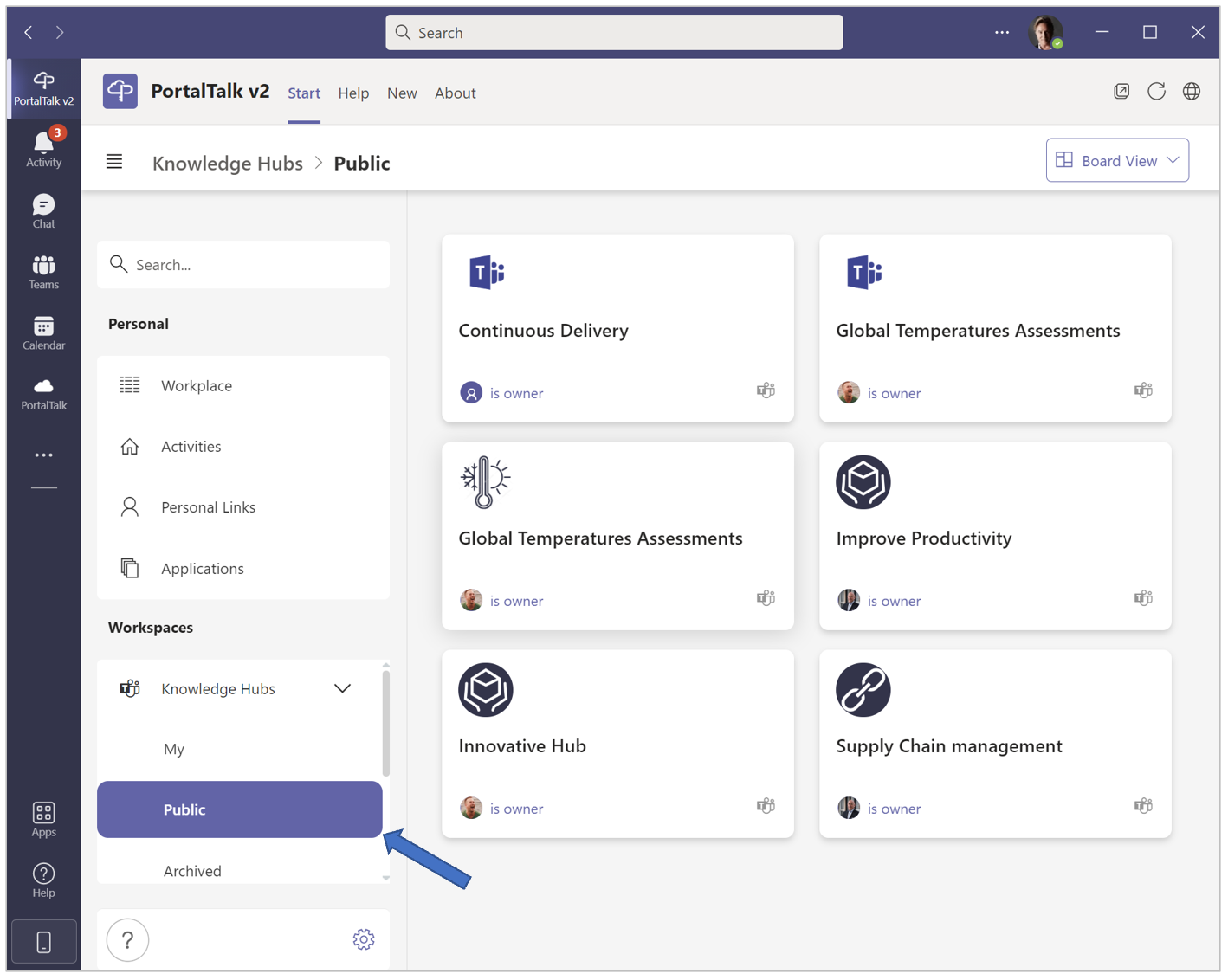
All organization members can see the tiles/links to the public workspaces.
They can verify the team composition of a public workspace and they can joint its team.
If you so wish, you can switch your workspace from Private to Public or vice versa.
-
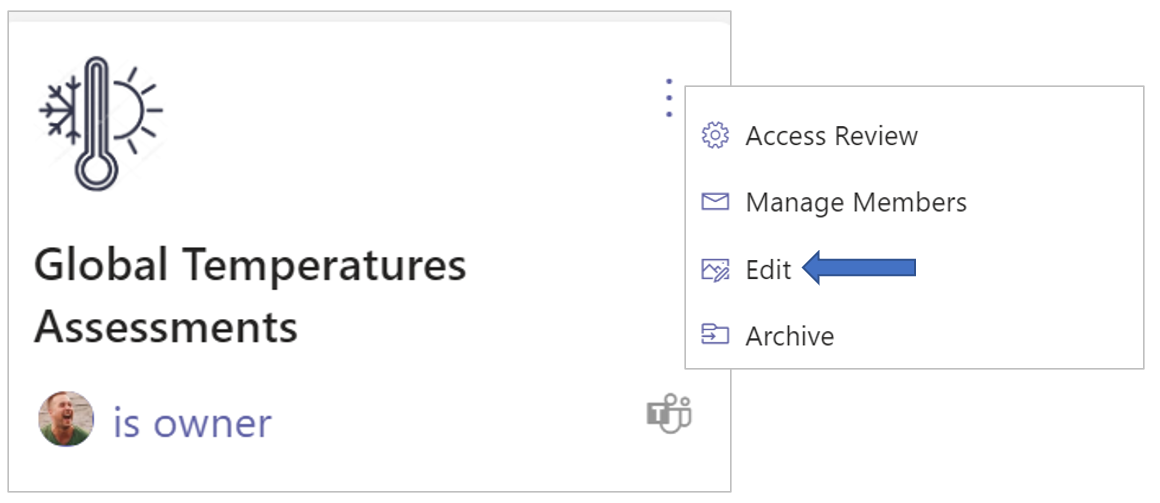
Click the workspace’s ellipsis menu button and select the option Edit.
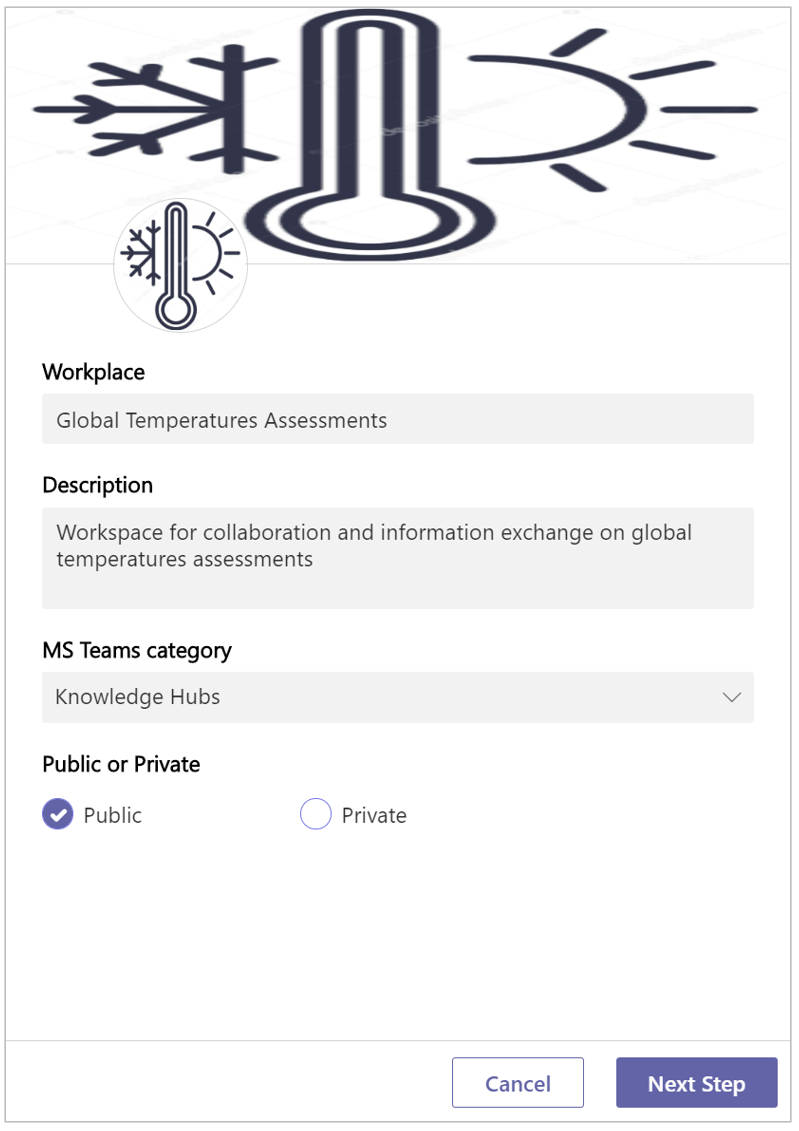
The panel for editing your workspace settings is displayed:
-
Public or Private - Change this setting from Public to Private or vice versa.
With the Public option, your workspace is accessible to the entire organization. With the Private option, only the team members can access your workspace. -
Click Next Step.
-
Click Finish.