.png)
Find a workspace using the search function
You can quickly find a workspace if you know (part of) the workspace's name or a character string from the workspace's description.
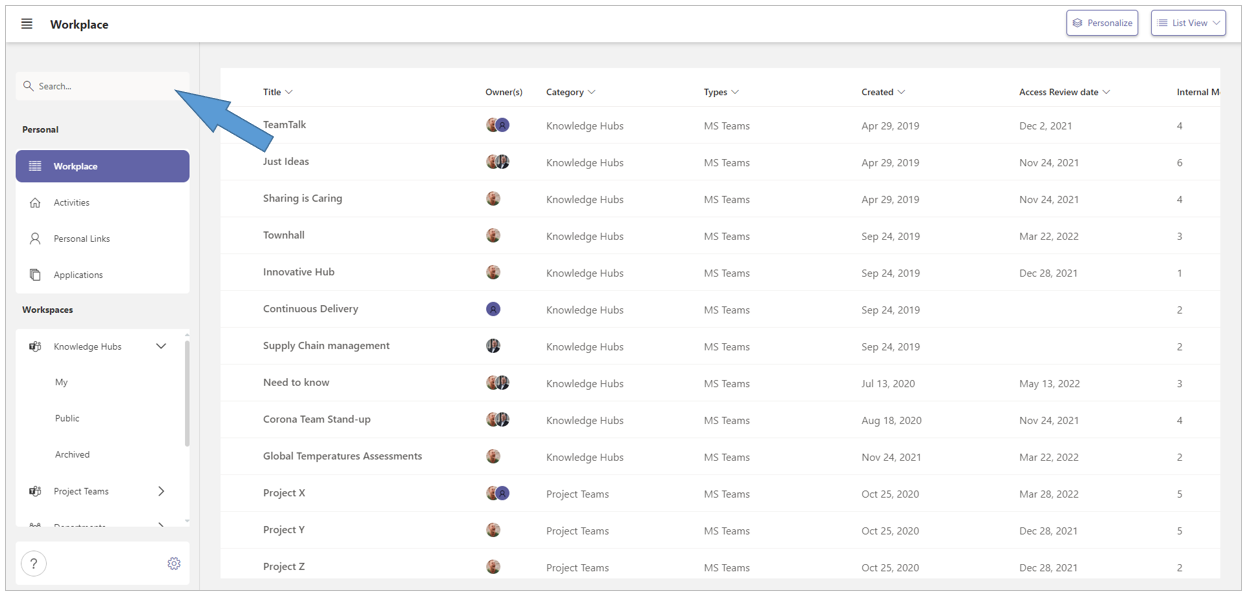
You can enter this as a search term in the search box at the top of the PortalTalk navigation panel.
-
Enter your search term in the search box.
-
Press the Enter key.
The Search Results page appears with tile-links to all workspaces matching your search term.
Each tile displays the name of the workspace and its category.
The workspaces found are displayed on three different tabs - one tab per subcategory: My, Public and Archived.
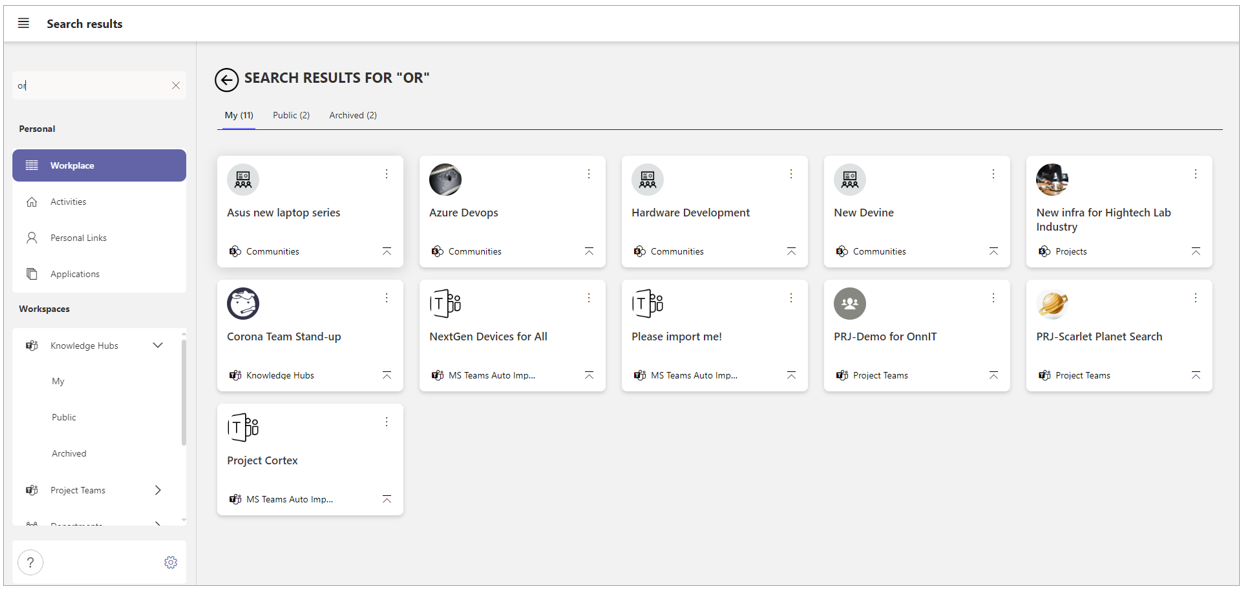
The found workspaces are displayed on the three subcategory tabs: My, Public and Archived.
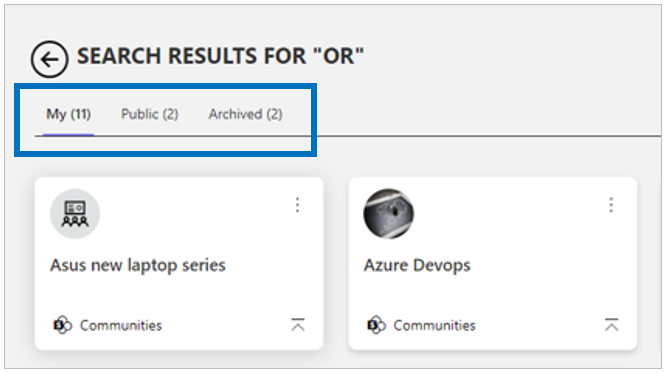
Refer to the workspace categories and subcategories page for an explanation of this topic, if needed.
If necessary, see the chapter Navigate to a workspace for an explanation of how to navigate to a found workspace.
Tip:
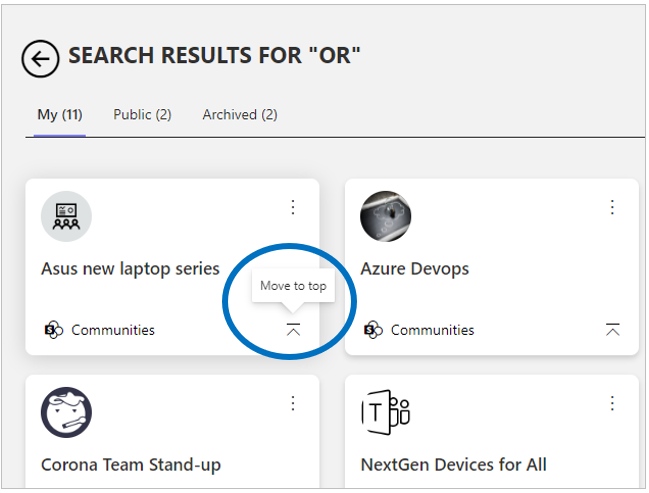
If you will be frequently active within the found workspace, you can immediately position its tile within easy reach.
To do this, place the tile on the far left of the top tile row of the workspace category, by clicking the Move to top icon.