.png)
Your personal activities dashboard within PortalTalk
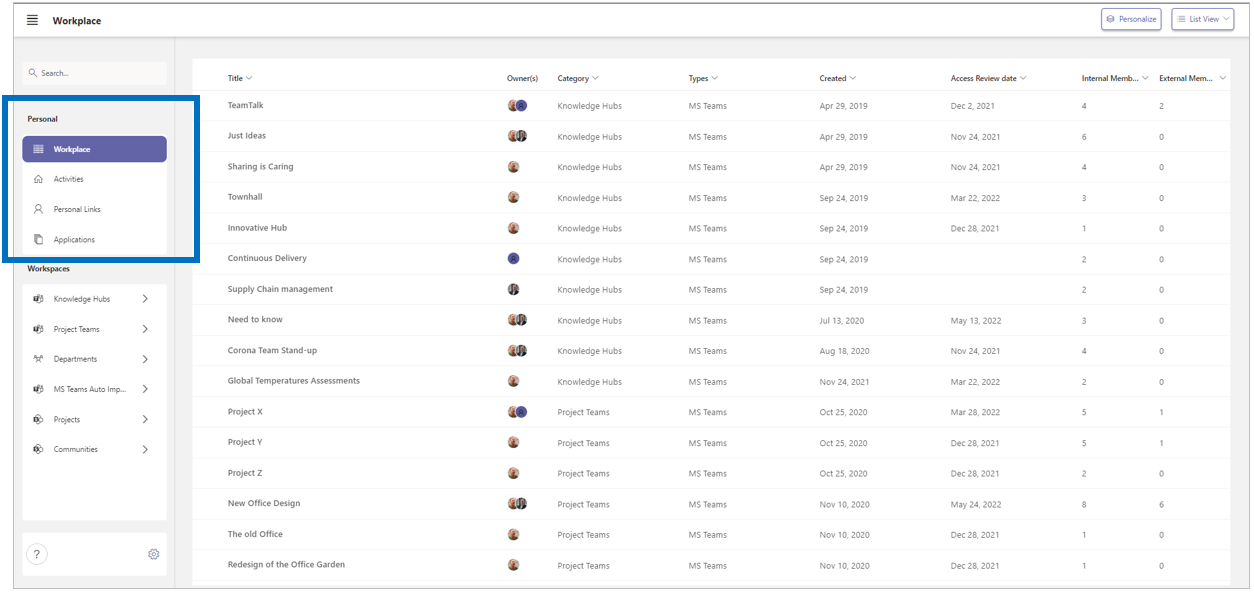
Within the Personal block in the navigation panel, you will find the link to your personal activities dashboard.
As a team member and/or team owner, the activities dashboard keeps you informed of all activities related to your workspaces.
-
In the navigation panel, select the navigation option Activities..
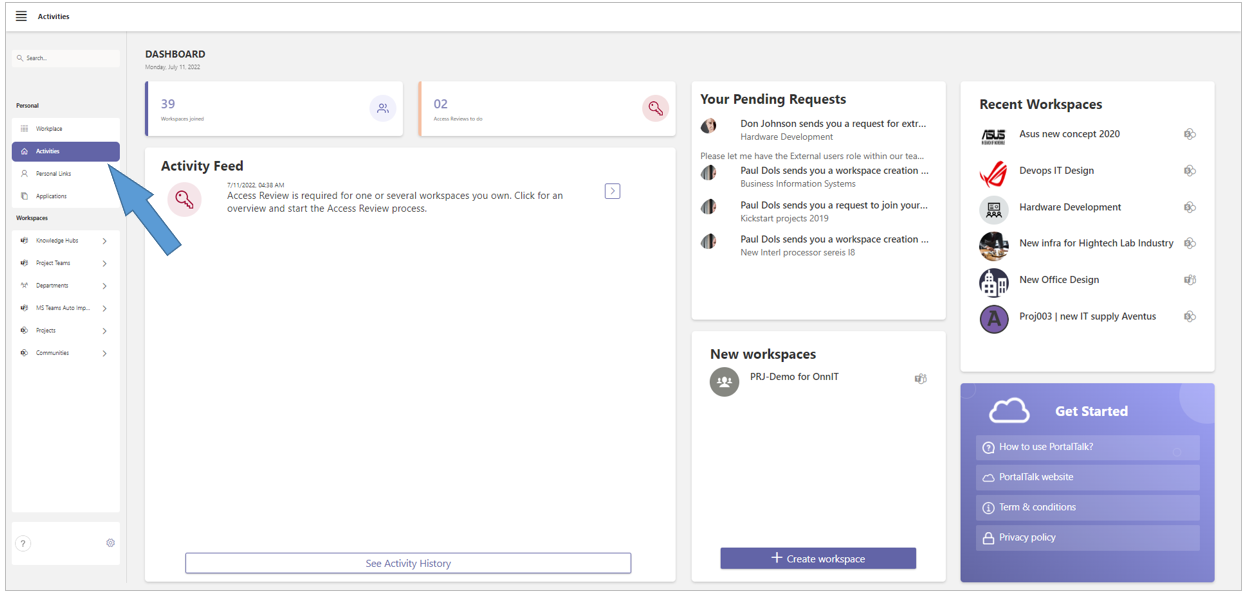
On your Activities Dashboard page, you'll find several boxes with the following information: Workspaces joined, Access Reviews to do, Pending requests, Activity feed, Recent workspaces and Newly created workspaces.
Workspaces joined
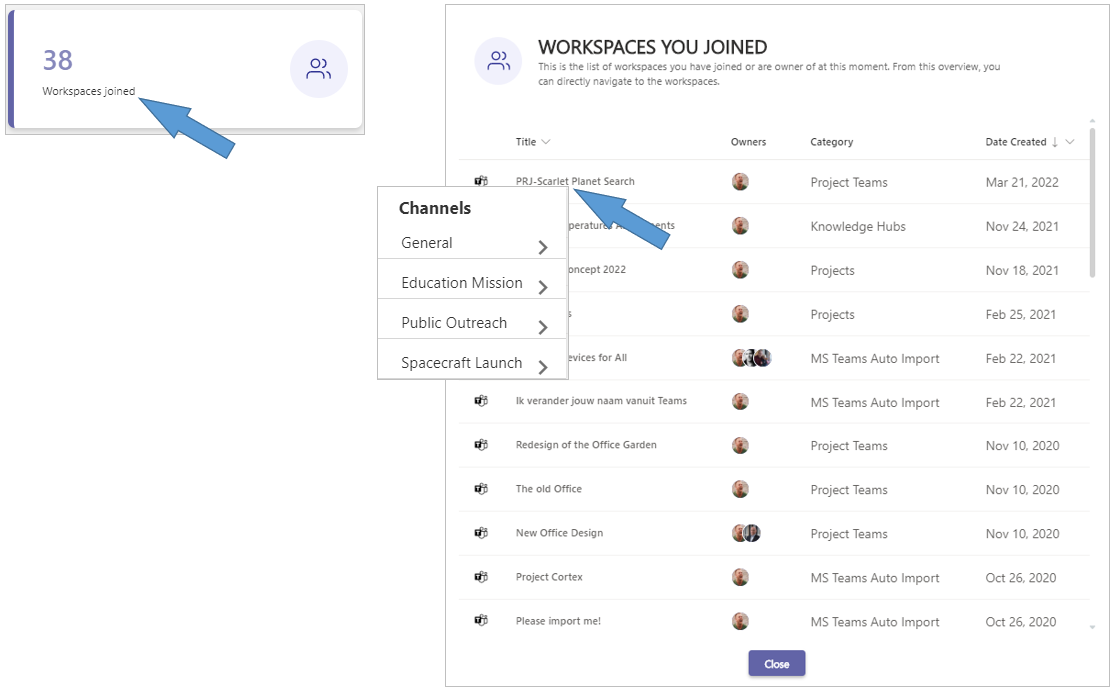
Workspaces joined - This box indicates the number of workspaces you are a member of.
-
Click the Workspaces joined box to open the panel Workspaces you joined.
-
In the Workspaces you joined panel, click a workspace’s name to access the linked SharePoint site (SharePoint site workspace) or to obtain a list of the workspace’s channels (MS Teams workspace).
-
Click a channel to access the channel within the MS Teams application.
Access Reviews to do
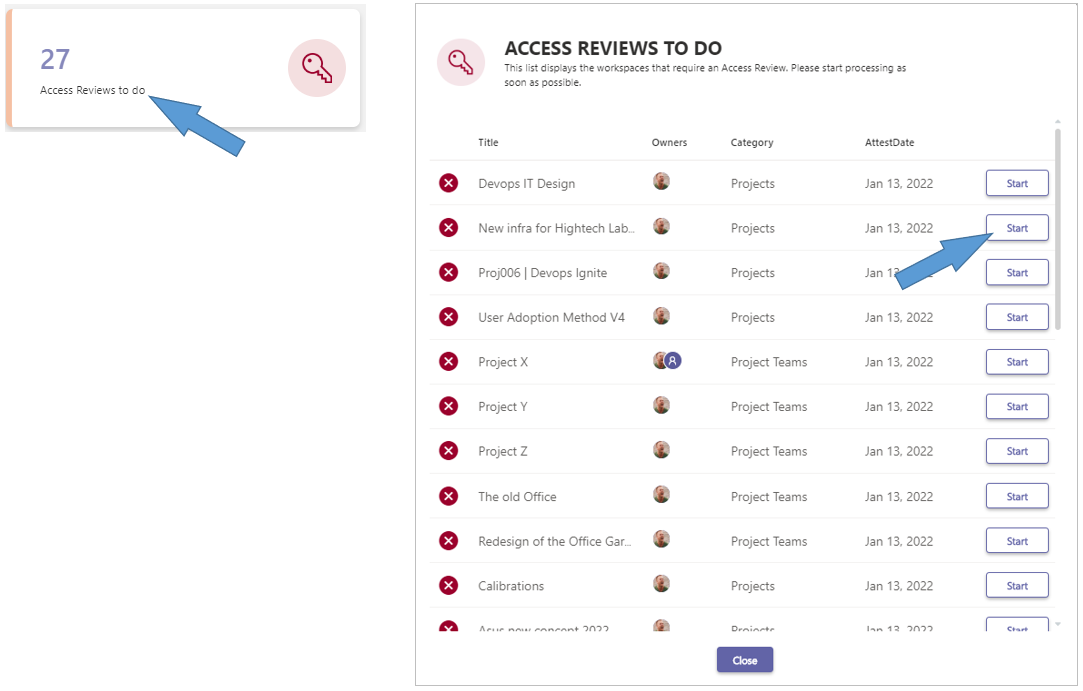
Access Reviews to do - This box indicates the number of workspaces for which you or one of your workspace co-owners must perform the periodical Access Review.
-
Click the Access Reviews to do box to open the associated panel with a list of the workspaces concerned.
-
Click a workspace's Start button to initiate the Access Review process for same workspace.
If so required, refer to the manual for workspace owners, page Access Review, for a detailed description.
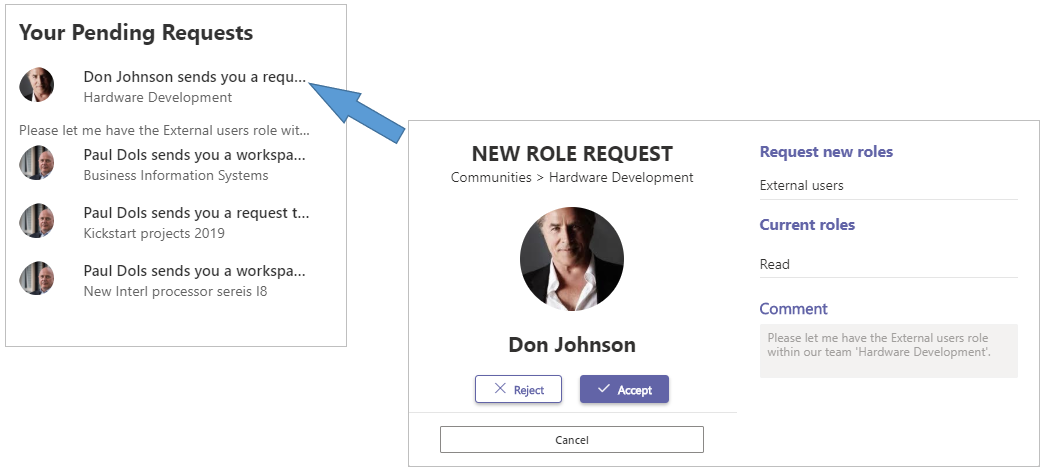
Your Pending Requests
Your Pending Requests - This box displays a list of the requests submitted to you that you need to review
-
Click on a request to open the screen in which you can straightaway process the request.
PortalTalk users can submit the following types of request:
- Creation of a new workspace;
- Admission to your workspace team;
- Being assigned a new role within your workspace.
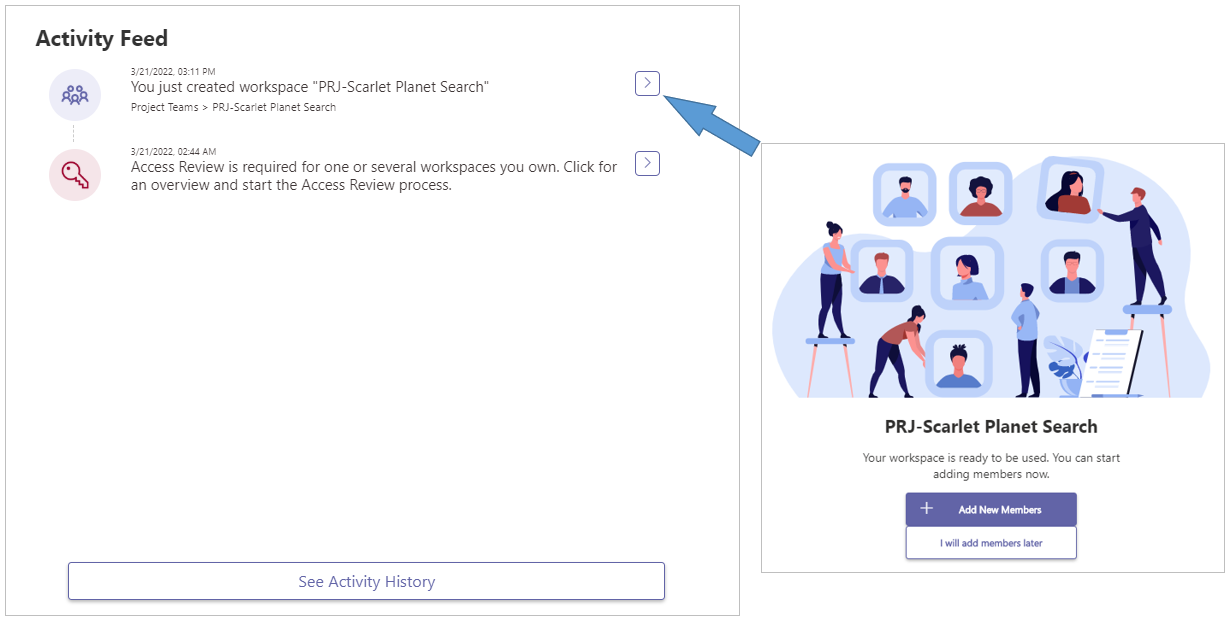
Activity Feed
Activity Feed - This box displays a timeline of all activities pertaining to your workspaces
The following PortalTalk activities can be found in this activity timeline:
- Workspace is requested
- Workspace Approve
- Approve or Reject Workspace
- Workspace Created
- You are Invited
- You are Rejected
- Request Role
- Approve or Reject Role
- Join team request
- Approve or Reject team
- Access Review due
-
Click an activity to open the screen within which you can verify the details and straightaway process the activity.
-
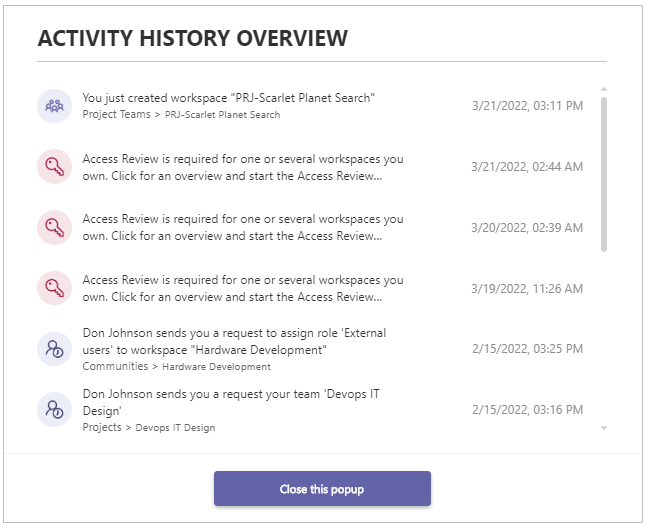
The See Activity History option provides access to a list of PortalTalk's activities of earlier dates.
New Workspaces
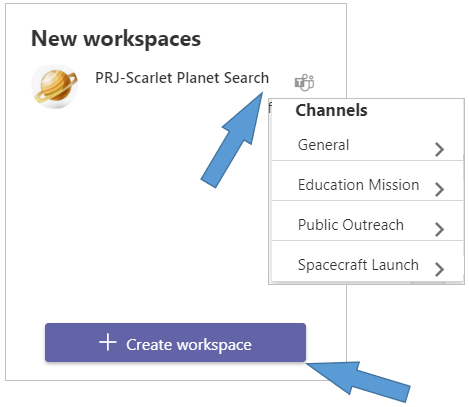
New Workspaces - This box lists the links to the workspaces recently created or requested by you.
In accordance with your permissions, you can also create a new workspace from this box or submit a request for a new workspace.
-
In the New workspaces box, click a workspace’s name to access the linked SharePoint site (SharePoint site workspace) or to obtain a list of the workspace’s channels (MS Teams workspace).
-
Click a channel to access the channel within the MS Teams application.
-
Click the + Create workspace option to create or request a new workspace.
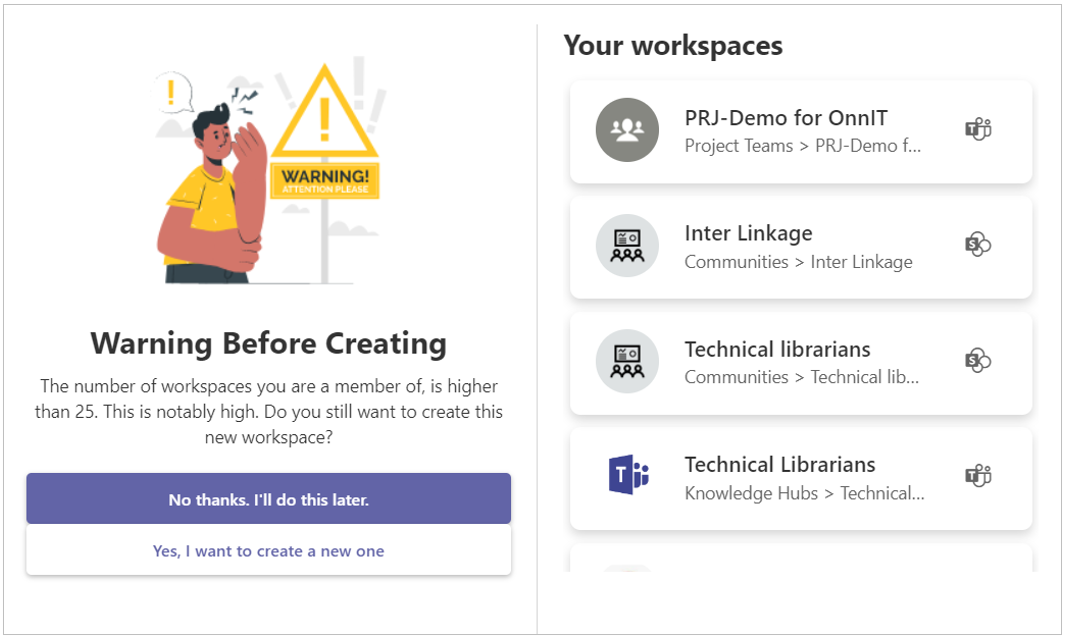
To control the creation of large numbers of workspaces, PortalTalk helps you.
If you are already a member of many workspaces or want to create one that already exists, a PortalTalk notification will appear stating:
Recent Workspaces
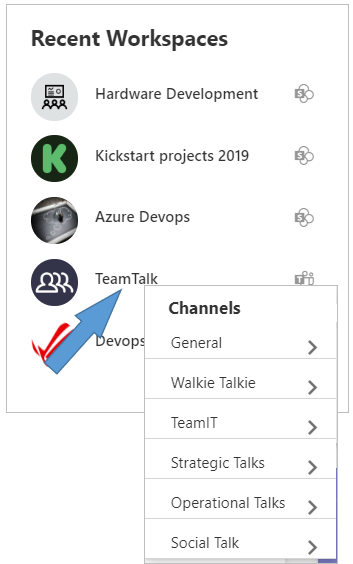
Recent Workspaces - This box lists the links to the workspaces recently used by you.
-
In the New workspaces box, click a workspace’s name to access the linked SharePoint site (SharePoint site workspace) or to obtain a list of the workspace’s channels (MS Teams workspace).
-
Click a channel to access the channel within the MS Teams application.