.png)
Navigate to the workspaces
From the PortalTalk web application you can navigate to any workspace you are a member of and to all workspaces that are public within the organization.
Navigate to your workspaces from your personal activity dashboard
-
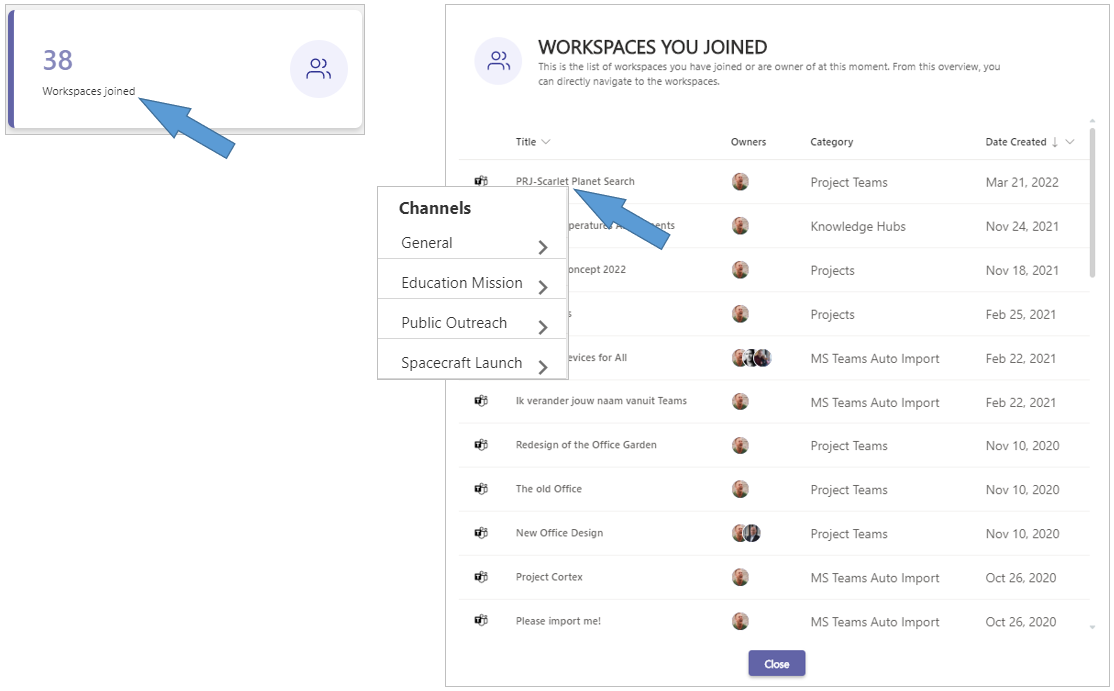
On your PortalTalk activities dashboard, click the Workspaces joined box to open the panel Workspaces you joined.
This list contains all the workspaces of which you are a member within the various workspace categories.
-
In the Workspaces you joined panel, click a workspace’s name to access the linked SharePoint site (SharePoint site workspace) or to obtain a list of the workspace’s channels (MS Teams workspace).
-
Click a channel to access the channel within the MS Teams application.
Navigating to a workspace from the My subcategory
-
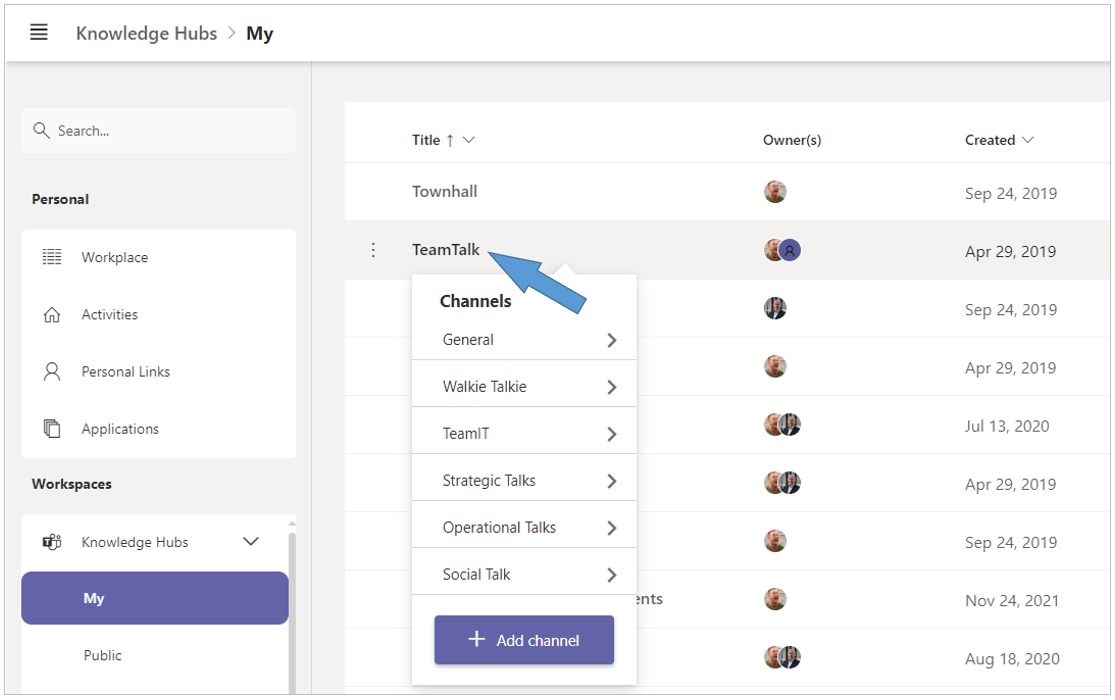
In the left navigation pane of the PortalTalk web application, click on the workspace category that contains the workspace you are looking for.
The workspaces within the My subcategory are immediately displayed - these are the workspaces of which you are a member. -
Click the link of the workspace you want to navigate to.
If it concerns a SharePoint site workspace, the site will now open in a new browser tab.
If it is an MS Teams workspace, a selection list is displayed of the various channels within the workspace - click on a channel to open it in MS Teams.
Navigate to a workspace from the Public subcategory
-
In the left navigation pane of the PortalTalk web application, click on the workspace category that contains the workspace you are looking for.
The workspaces of which you are a member are immediately displayed (My subcategory). -
Select the Public subcategory to see the public workspaces you're not a member of.
-
Click the link of the public workspace you want to navigate to.
If it concerns a SharePoint site workspace, the site will now open in a new browser tab.
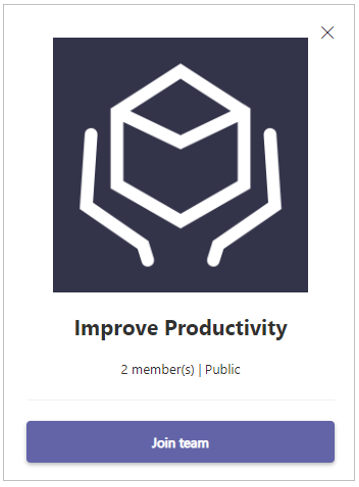
If it is an MS Teams workspace, you will be presented with a window where you can join the workspace:
-
Click Join team.
The link for the MS Teams workspace is moved directly to the My subcategory.
-
Select the My subcategory.
-
Click on the link of the MS Team workspace you just joined.
-
A selection list is displayed of the various channels within the workspace - click on a channel to open it in MS Teams.