.png)
Request a new workspace
You can request for the creation of a new workspace from the New workspaces box on your activity dashboard.
You can also request a new workspace from the category in which the workspace is to be created.
You require specific permissions within a workspace category to request a workspace.
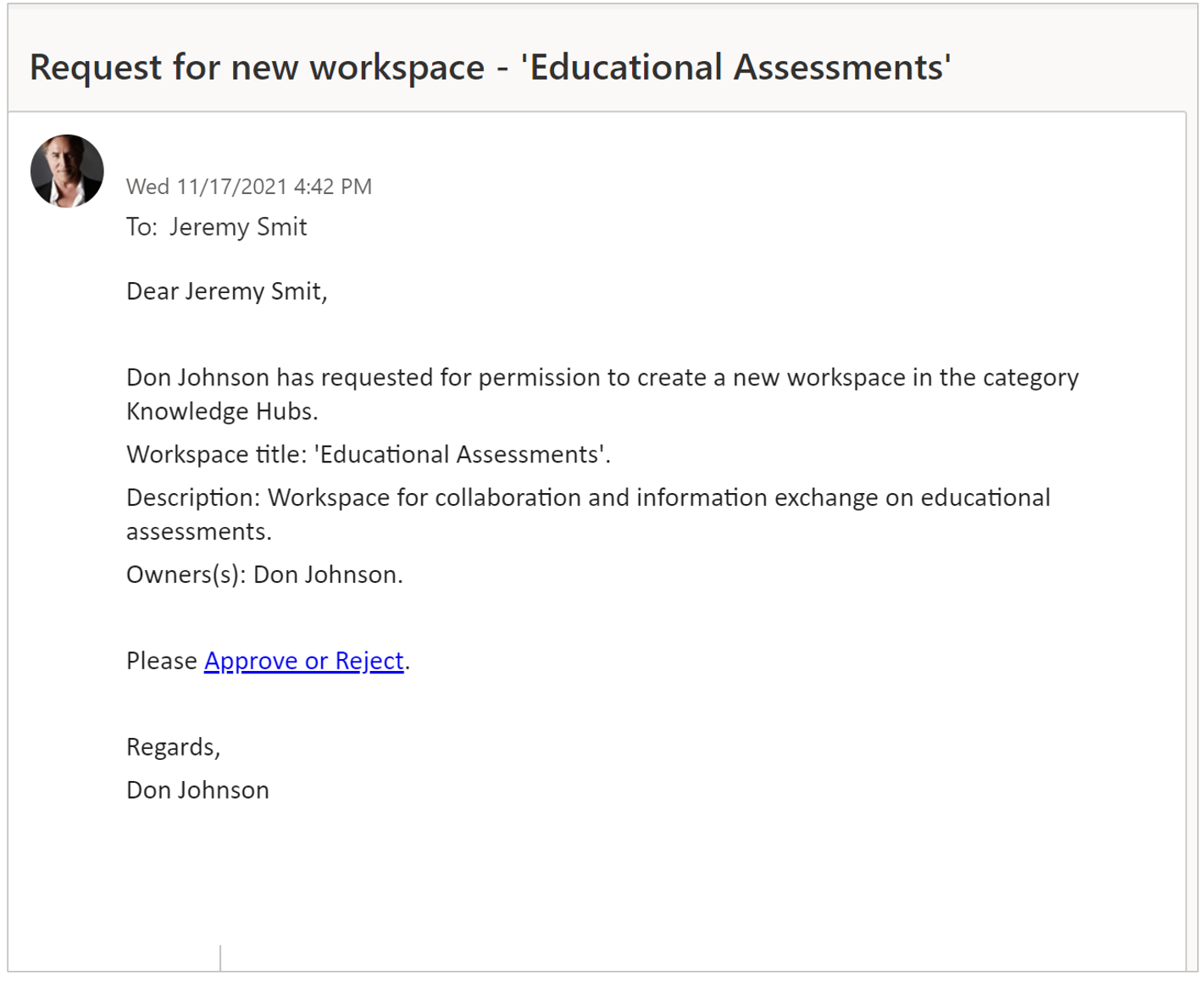
When you submit a request for a workspace, your request will be addressed to the relevant users by way of both an email message and a notification in their Activity Feed.
This concerns all users with permission to create workspaces within the same workspace category.
As soon as your request has been approved or rejected, you will receive a corresponding email confirmation as well as a notification in your Activity Feed.
Consult the chapter on approving or rejecting a workspace request if you wish to know more about this.
Request a new workspace from your activity dashboard
-
Select the Activities menu option to go to your activity dashboard.
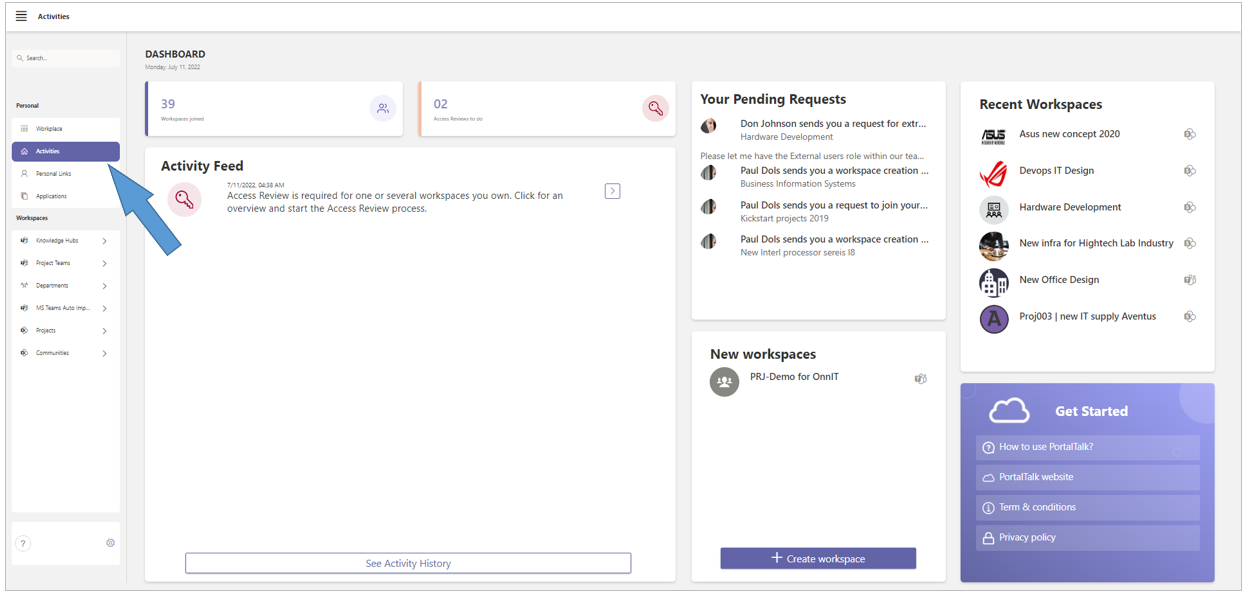
The New Workspaces box lists the links to the workspaces recently created or requested by you.
In accordance with your permissions, you can create a new workspace from this box or submit a workspace request.
-
Click, in the New workspaces box, the +Create workspace option.
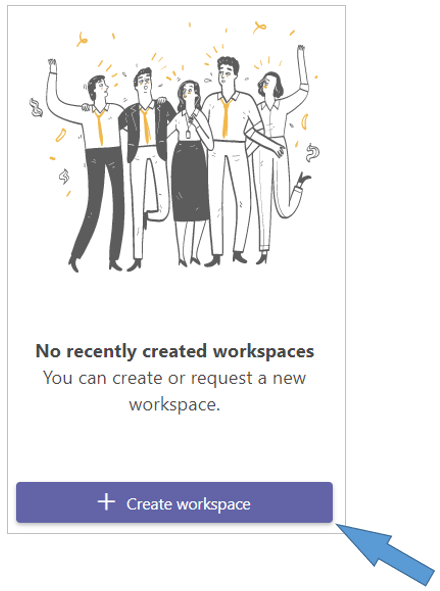
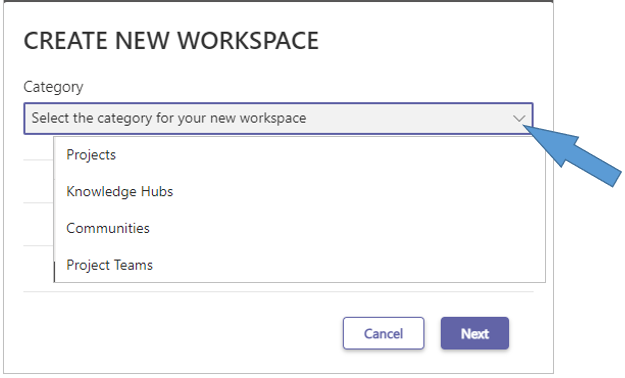
The Create New Workspace form is displayed:
-
Category - Select the workspace category in which you want the new workspace created.
Workspace categories for which you do not have a request or create permission will not be offered in the selection list. -
Click Next.
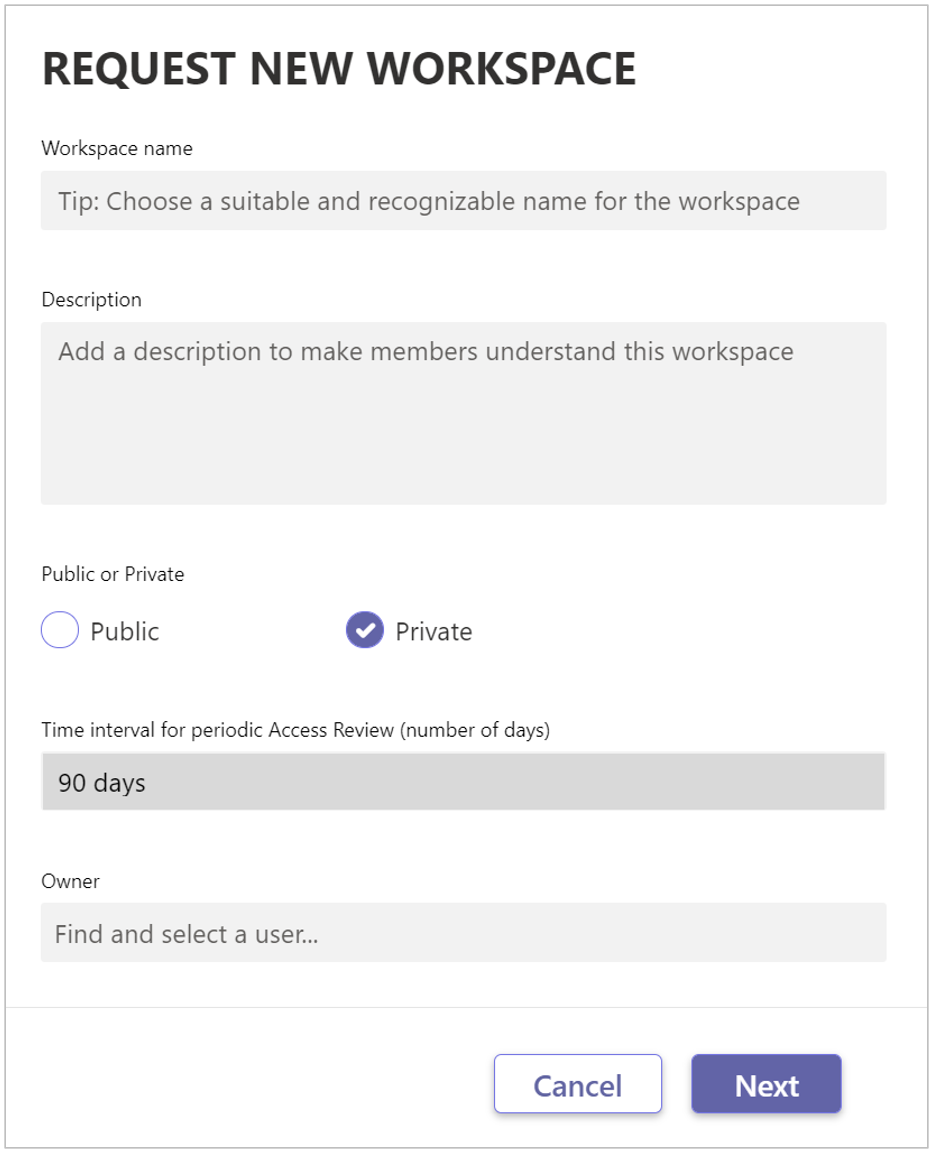
When you select a workspace category for which you have the request permission, the request form for the new workspace will now open:
-
Workspace name - Enter the title of your new workspace.
-
Description - Enter a description if you so wish. PortalTalk’s search functionality also searches within the text entered here.
-
Metadata - If specific metadata applies to the workspace category, you can enter the appropriate values for the new workspace in the following fields.
-
Public or Private – Specify whether the workspace should be accessible to the entire organization or just for team members.
-
Owner - Select an owner for the new workspace.
-
Click Next.
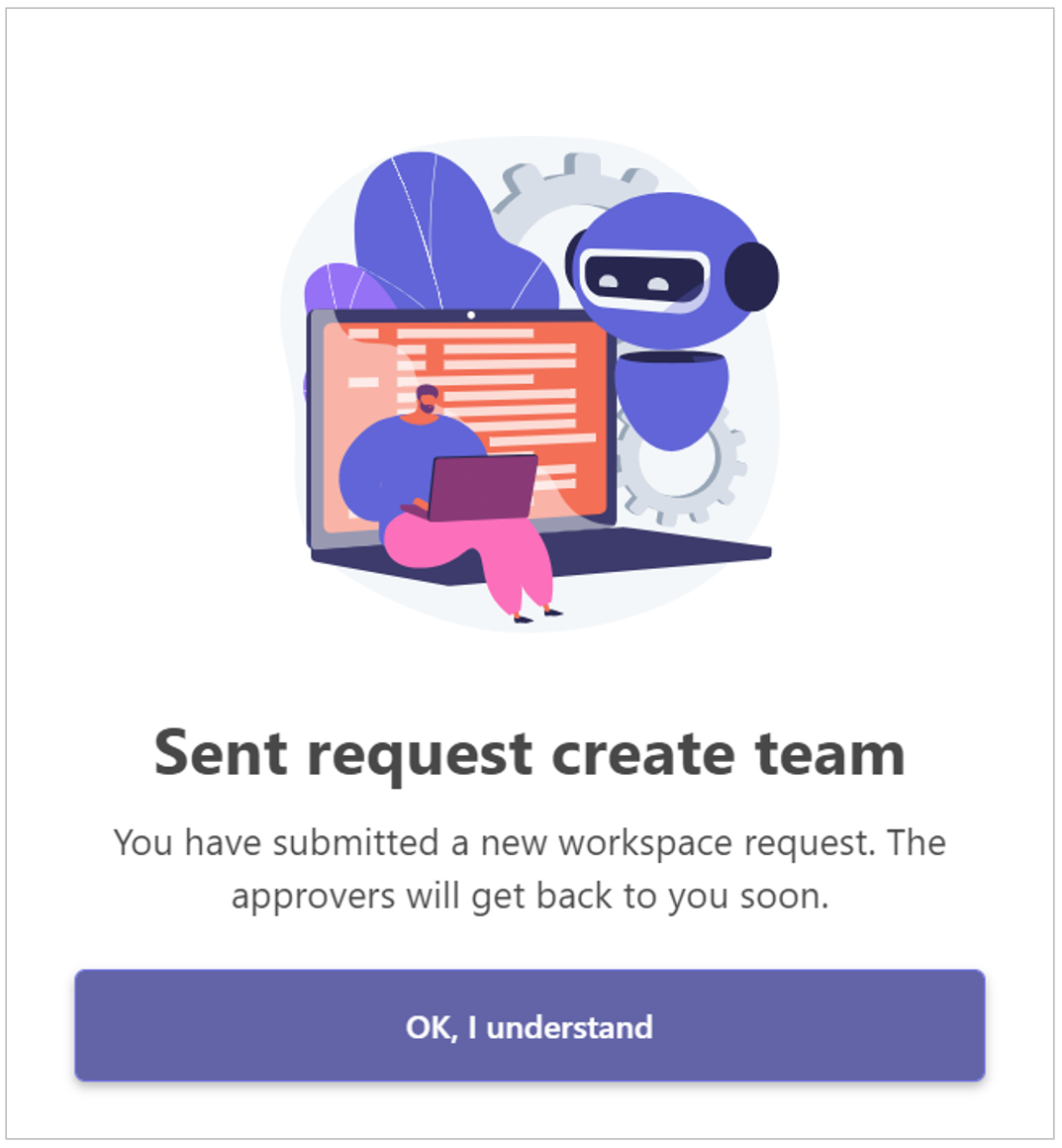
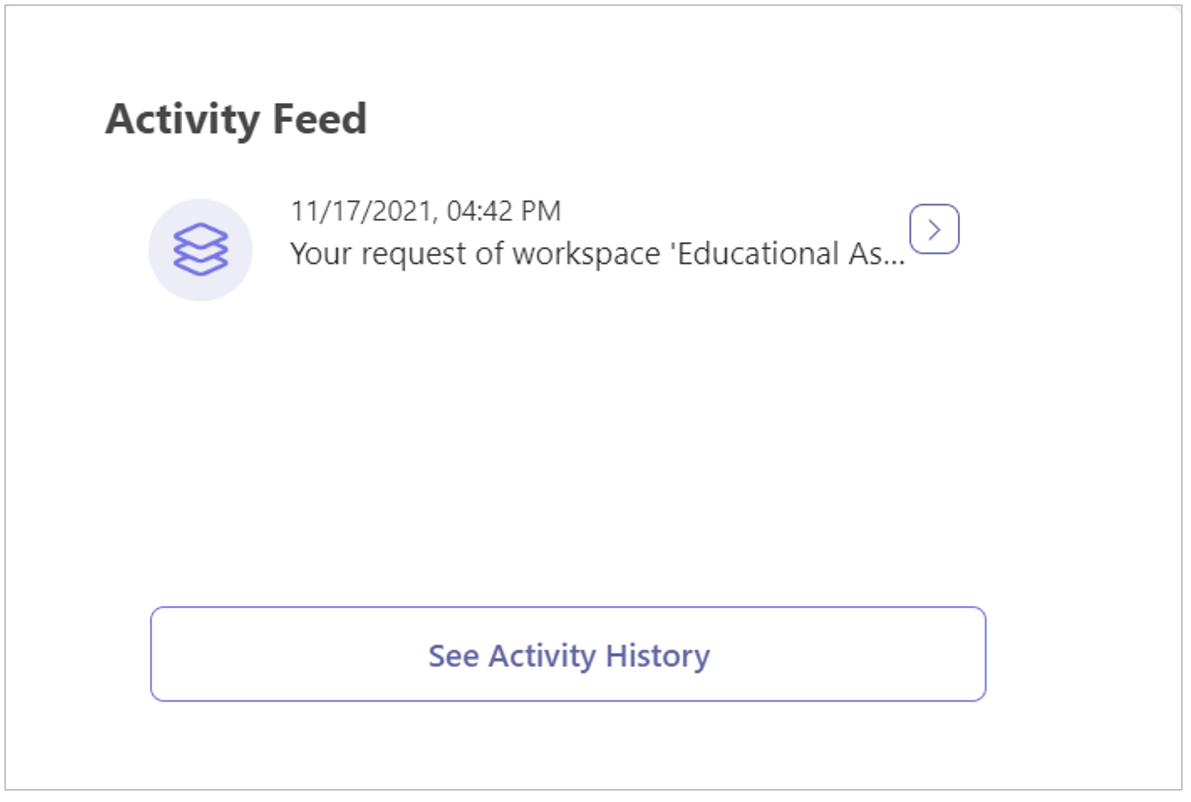
Your workspace request activity is logged in your Activity Feed:
The users who have permission to review and approve your request will receive a notification by email:
Within your Activity Feed you are notified of the approval or rejection of your request:
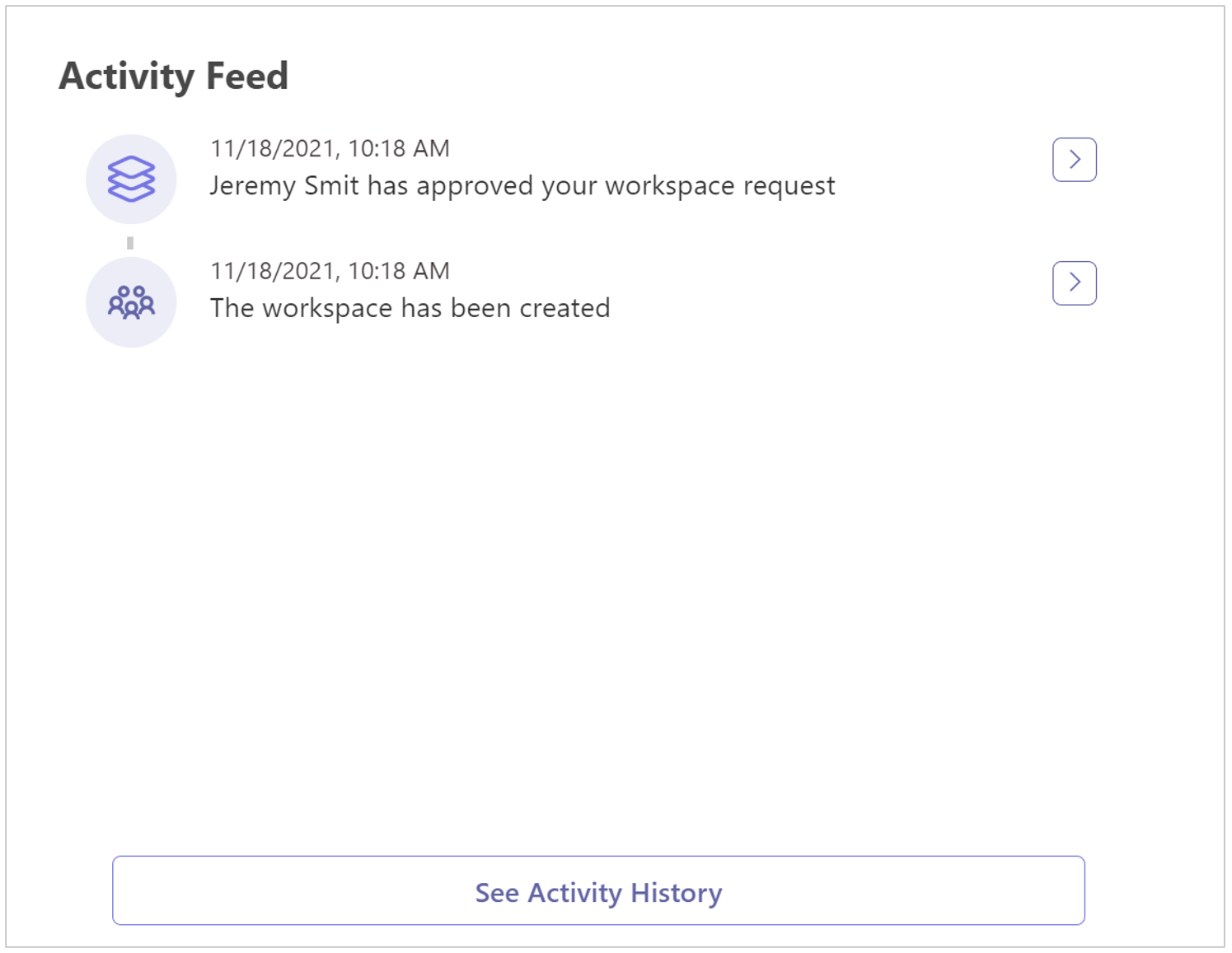
If your request is approved, the workspace is created and the appropriate workspace tile is displayed in the owner's PortalTalk web application, in the My subcategory.
A link to the newly created workspace is also displayed in their New Workspaces box.
As long as the workspace request is pending, a PortalTalk administrator can find the request and handle it (see Manage Workspaces).
Request a new workspace from the workspace category
-
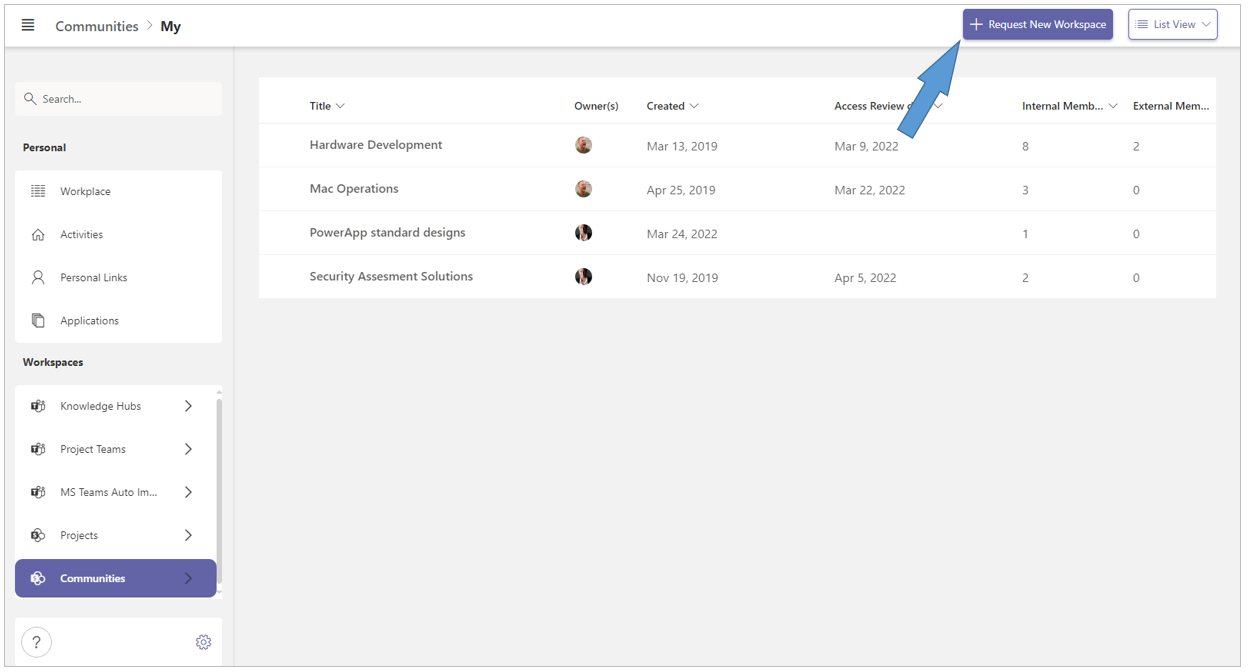
In the left navigation pane of PortalTalk, click on the category in which you want to request a new workspace, for example the category 'Communities'.
-
Click on the taskbar option Request New Workspace. You will not see this option if you do not have the required permissions.
The request form for the new workspace is displayed:
For the further actions you can follow the same instructions as with respect to requesting a new workspace from your activity dashboard.