.png)
Handle requests for additional user permissions
Team members within a workspace can request an extension to their existing permissions to increase their scope of activity within the workspace.
If so required, refer to the manual page Request a new role for a detailed description.
As a workspace owner, it is your job to review and approve or reject these permission requests.
When such a permission request is submitted within a workspace of which you are owner, this will be signaled to you by email and by an activity item within your Dashboard.
Handle role requests from your activity dashboard
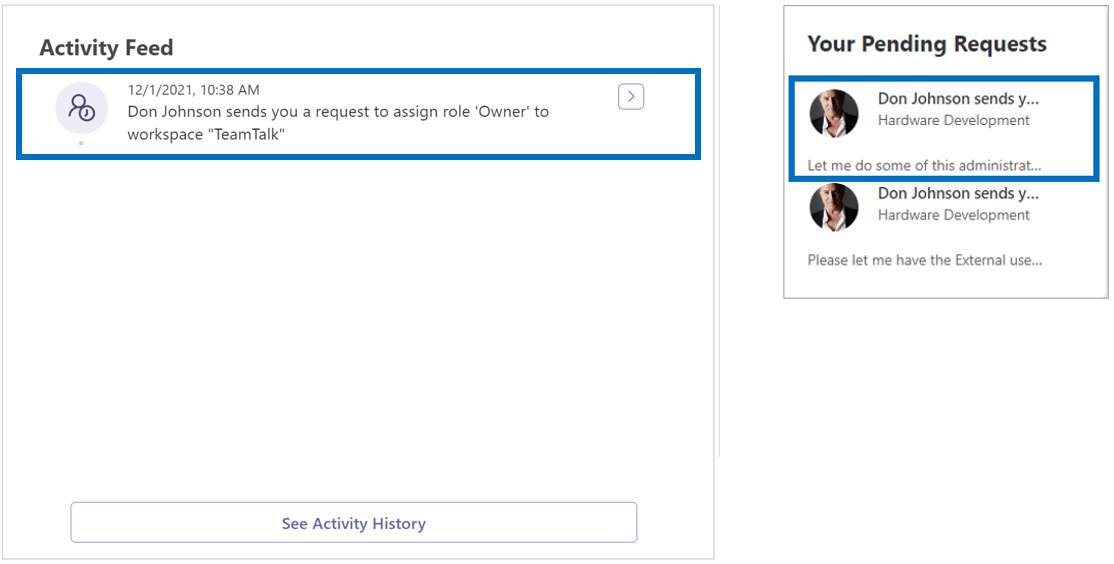
A role request within a workspace that you own is registered on your dashboard in both your Activity Feed and the Your Pending Requests box.
-
Click the notification in either box.
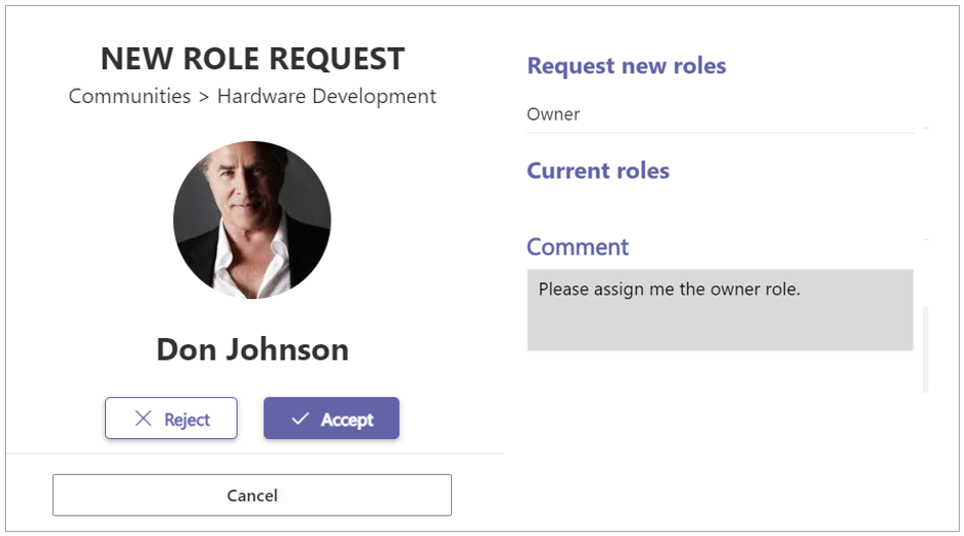
The New Role Request form is displayed:
-
Click either Reject or Accept.
-
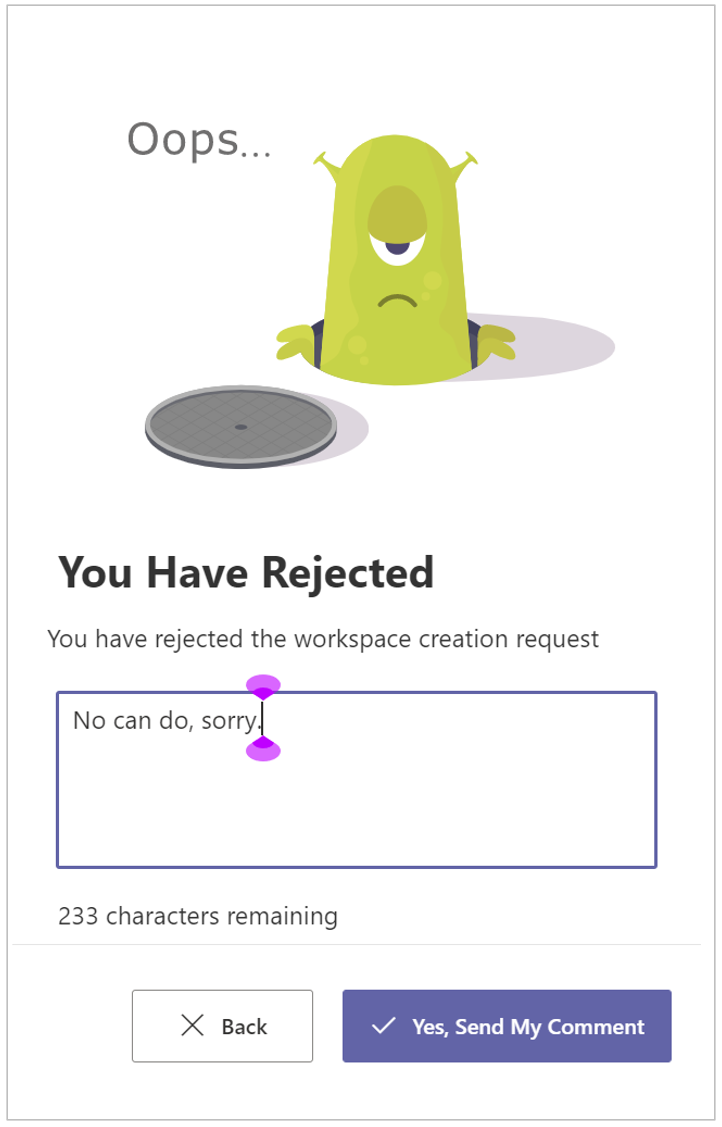
In case of rejection you can add your motivation.
-
Click Yes, Send my Comment.
-
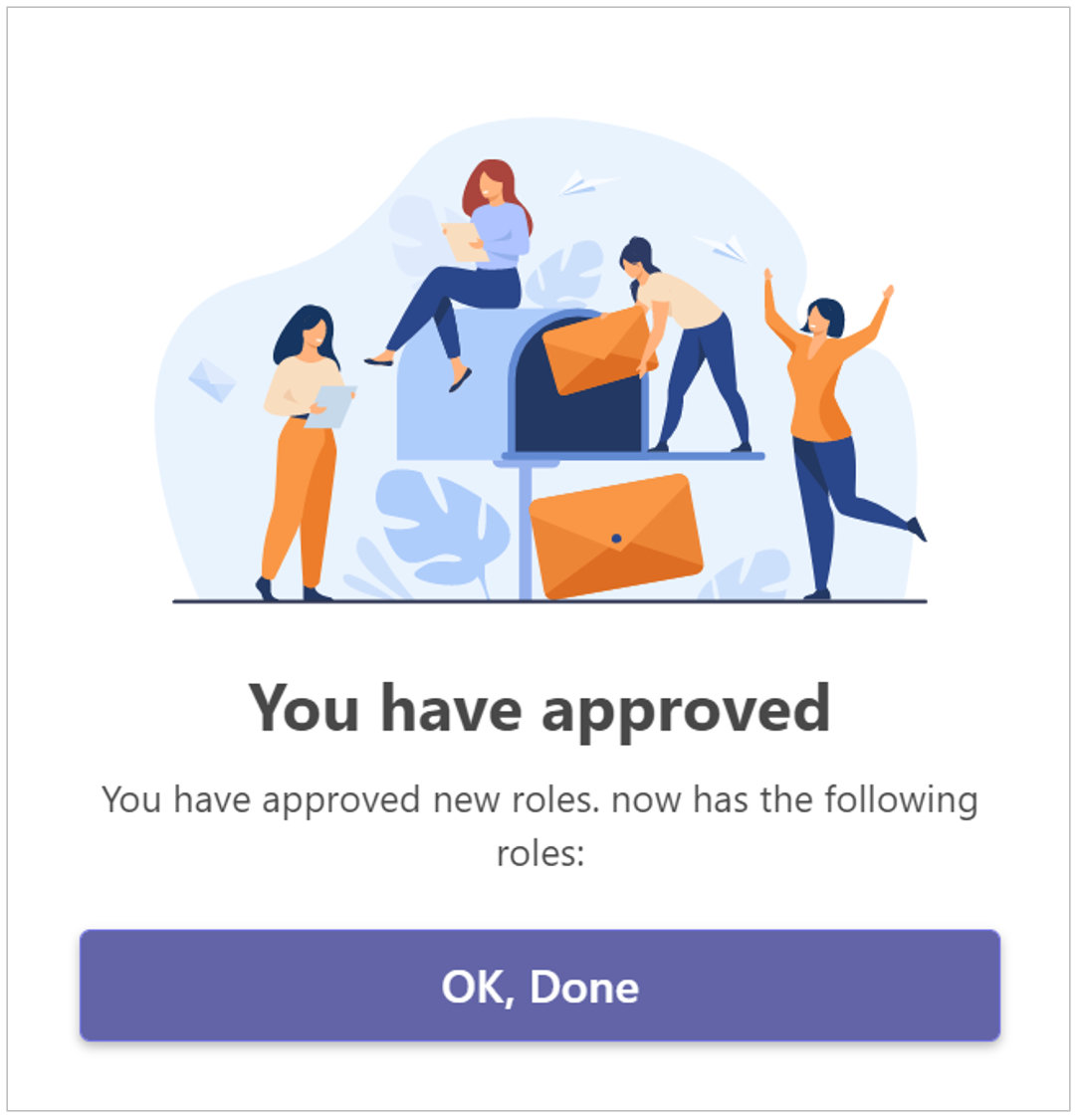
In case of approval, click OK, Done.
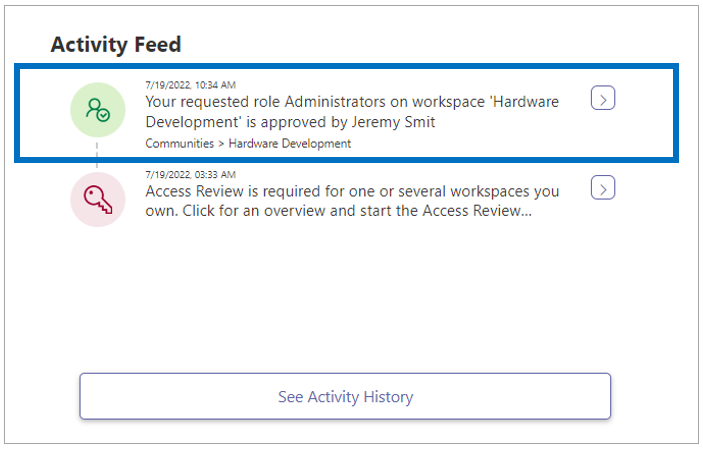
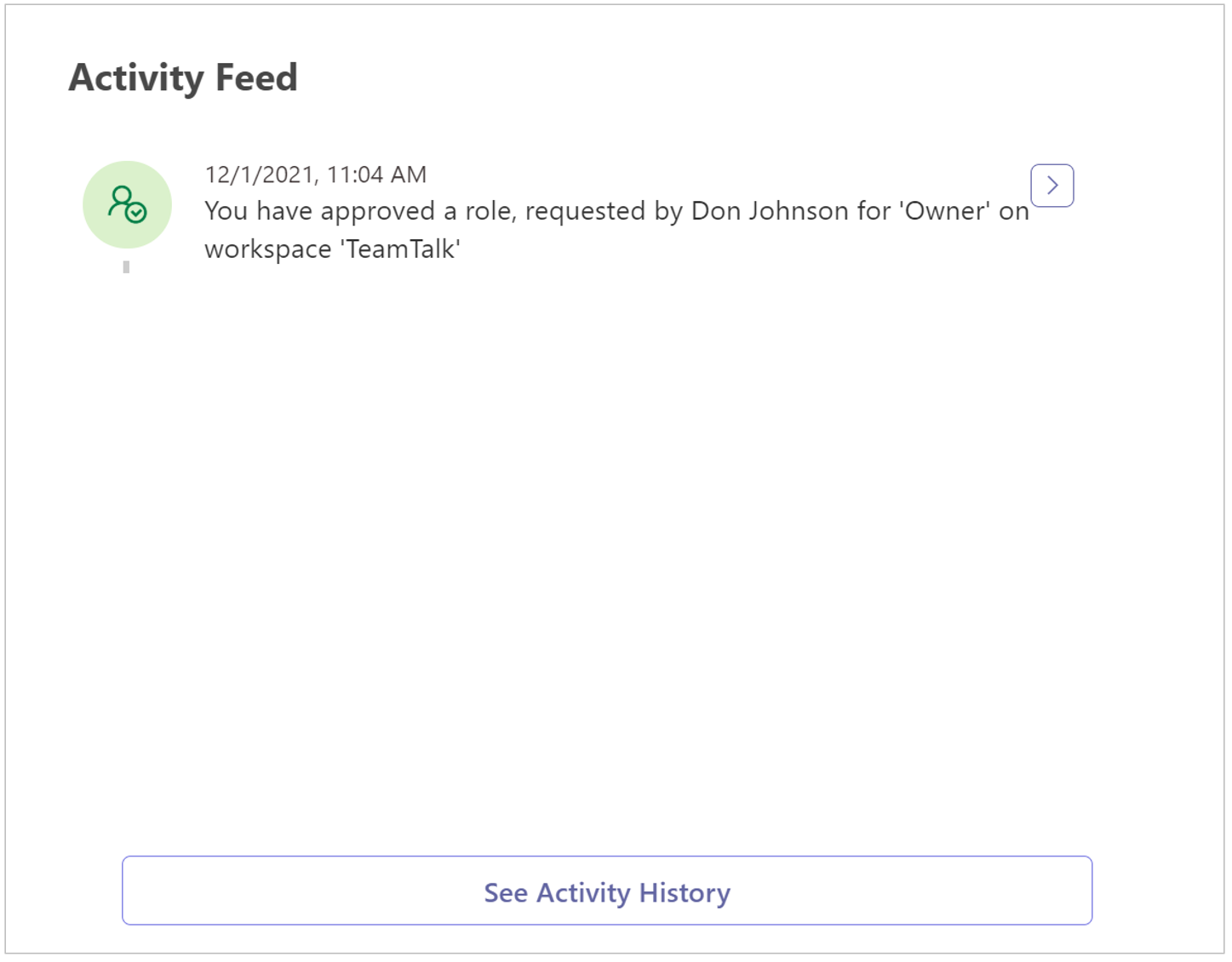
Your action is confirmed by a new Activity Feed item:
Handle role requests from the request email
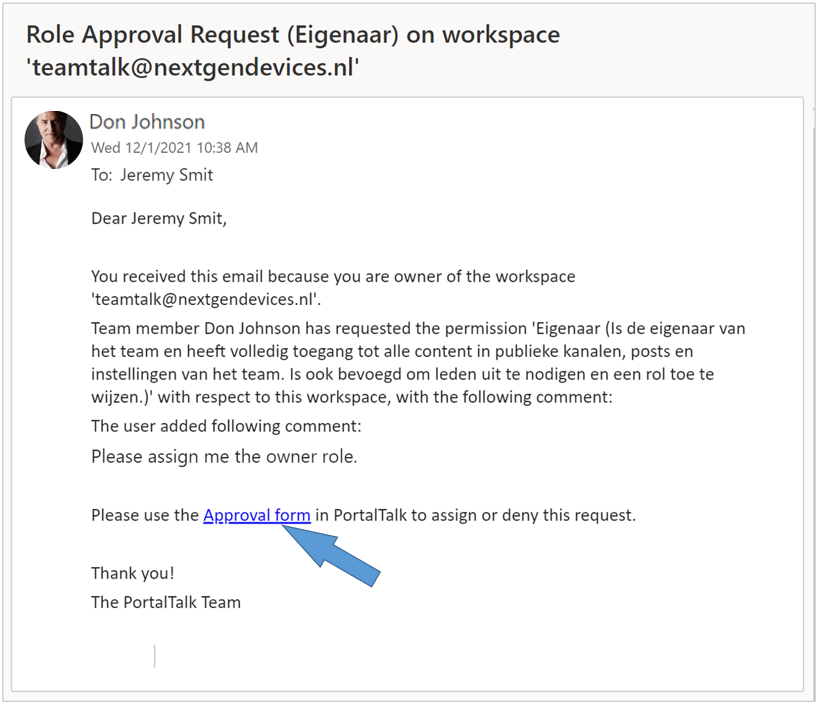
You receive an automated email notification of each role request within a workspace that you own.
-
Click the hypertext link in the email message.
The New Role Request form is displayed:
For the subsequent actions you can follow the same instructions as for handling role requests from your activities dashboard.
The feed back to the requester
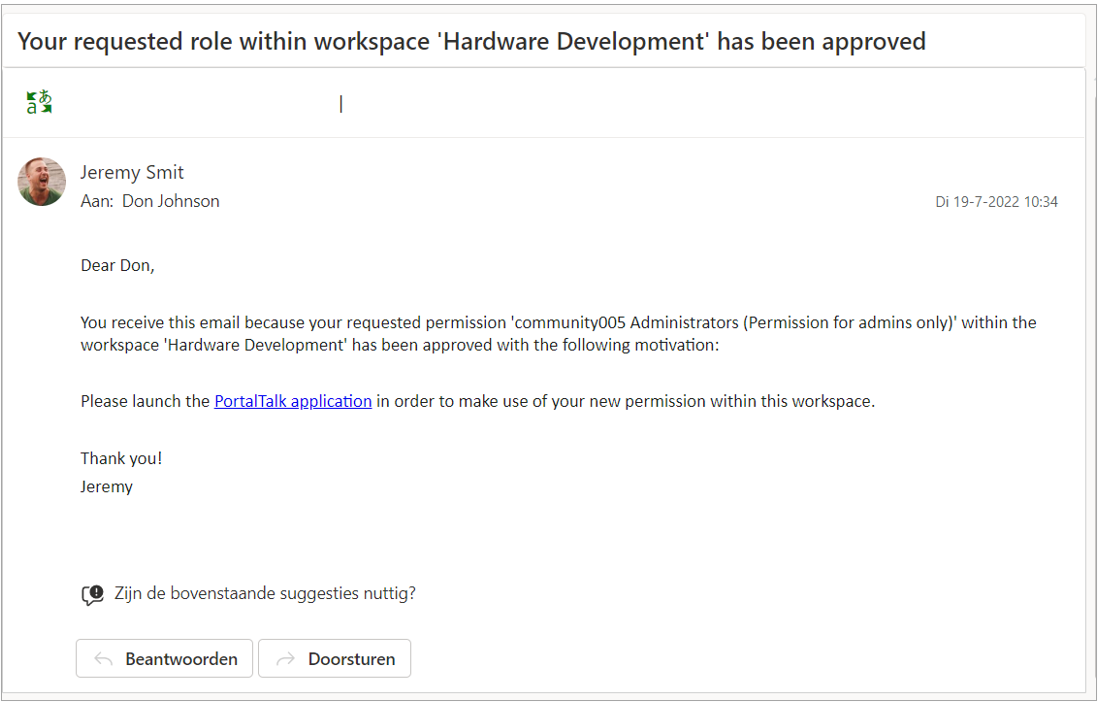
The requester will receive a notification of your action in their Activity Feed and also a confirmation per email message.