.png)
Navigate from your personal workplace to any workspace you are a member of
You can navigate from your personal workplace to the workspaces you are a member of. This can be done from either the List View or the Board View.
With respect to the Board View, you must have included a workspace category in your personal workplace in order to be able to navigate to any of the category’s workspaces. (see personalise your workplace).
-
In the navigation panel, select the navigation option Workplace.
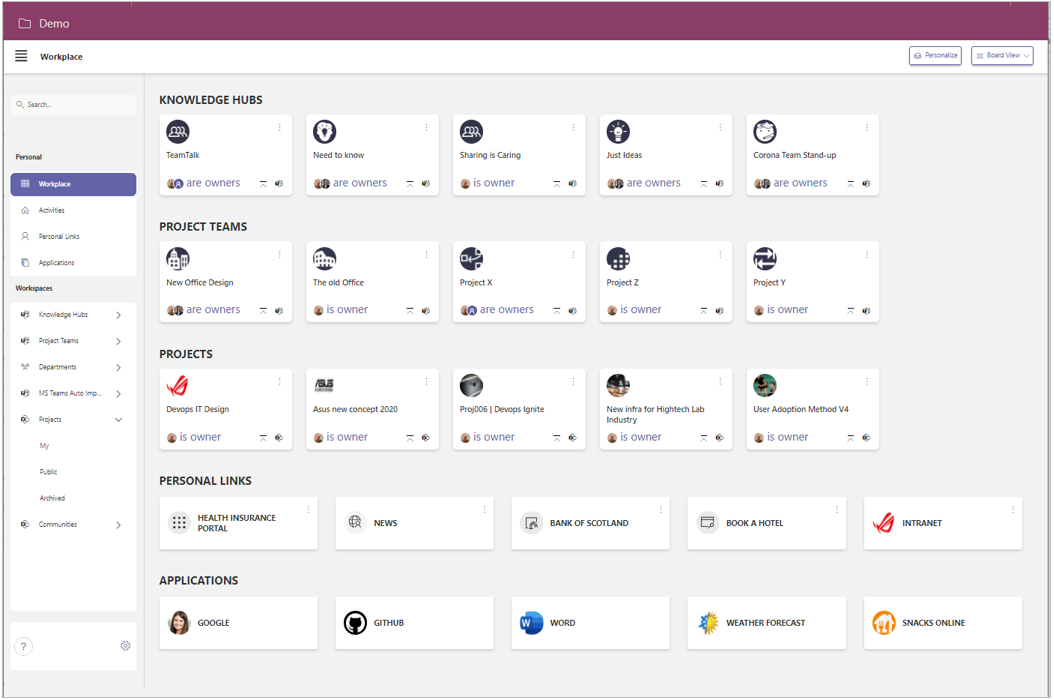
Navigate to a SharePoint site workspace from the board view
-
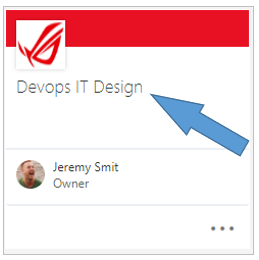
Scroll to the board of the SharePoint site workspace you wish to access.
-
Click the workspace’s name to launch the linked SharePoint site in a new browser tab.
Navigate to a MS Teams workspace from the board view
-
In the Board View, scroll to workspace category in which the workspace you are looking for is located.
If the board of the workspace you are looking for is not displayed within its category, you can activate the List View.
The List View displays all your workspaces.Scroll to the board of the MS Teams workspace you wish to access.
-
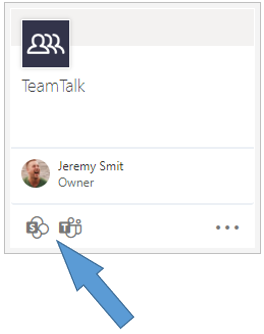
Click the SharePoint icon to access the workspace’s SharePoint site.
The SharePoint site is launched in a new browser tab. -
Click the MS Teams icon to access the team’s General channel in the MS Teams application.
-
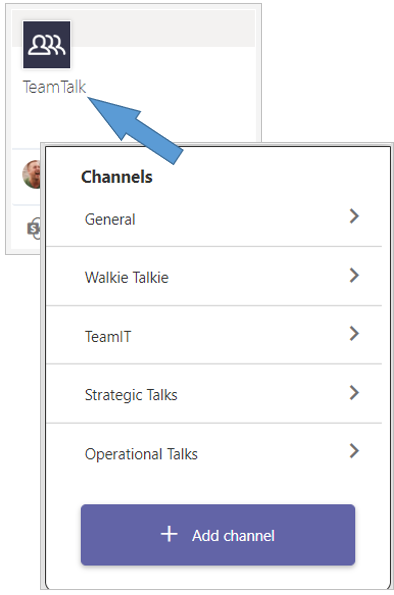
Click the workspace’s name to obtain a selection list of the team’s channels.
-
Click a channel to open it within the MS Teams application.
Navigate to a SharePoint site workspace from the list view
-
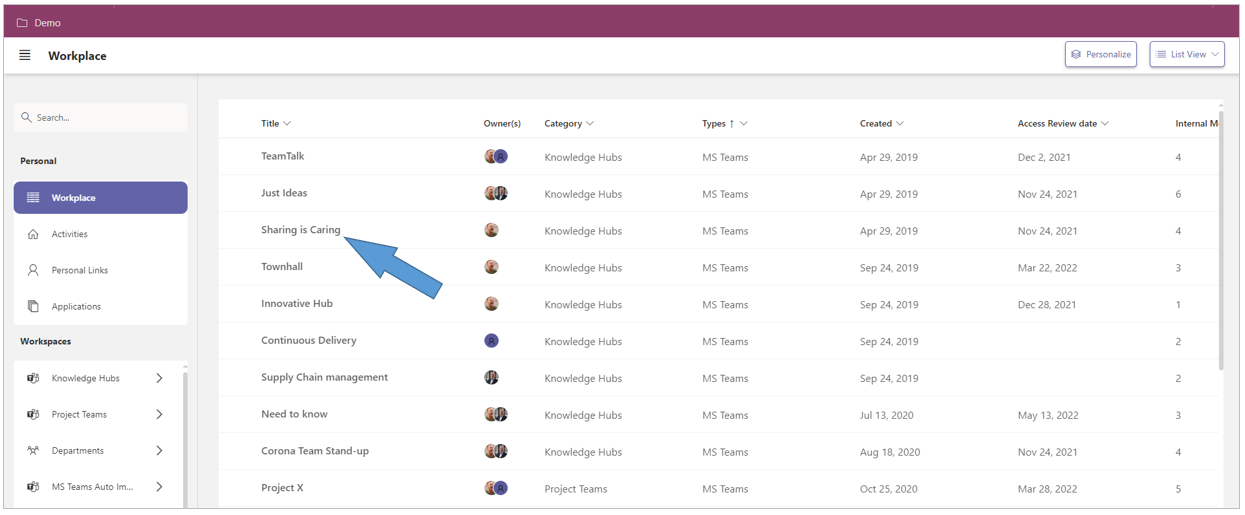
Filter and/or sort the list view if necessary to get the desired SharePoint site workspace-link in view.
-
Click the workspace’s name to launch the SharePoint site in a new browser tab.
Navigate to a MS Teams workspace from the list view
-
Filter and/or sort the list view if necessary to get the desired MS Teams workspace-link in view.
-
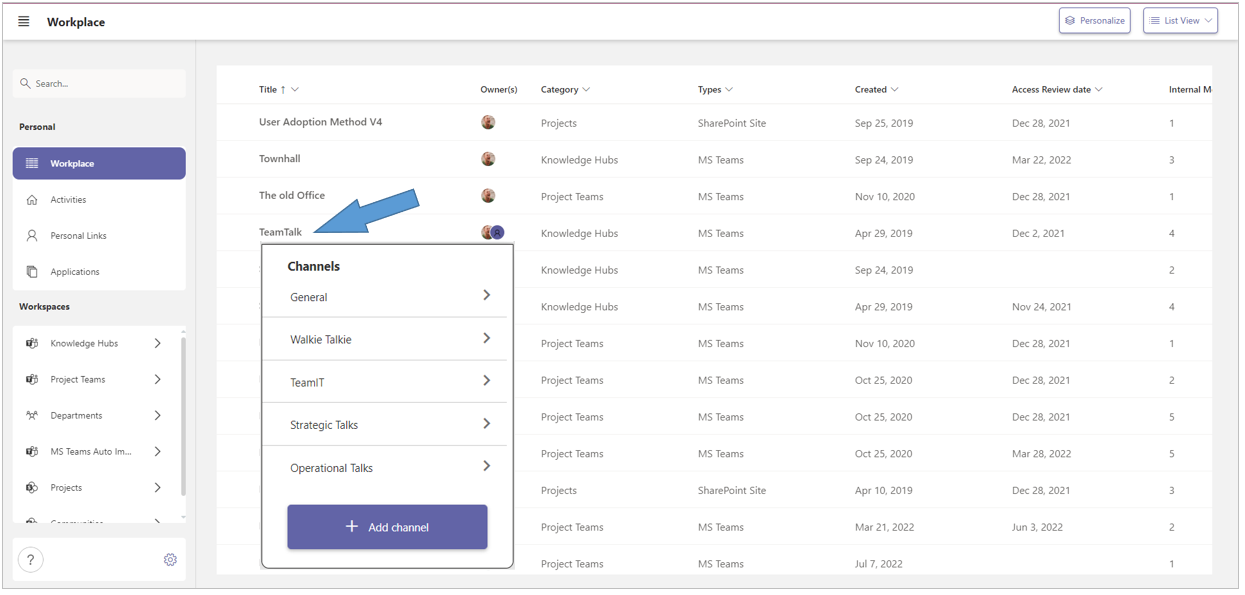
Click the workspace’s name to obtain a selection list of the team’s channels.
-
Click a channel to open it within the MS Teams application.