.png)
Create and maintain your personal links
The Personal Links functionality must be enabled by the PortalTalk administrator (see Allow Personal Apps).
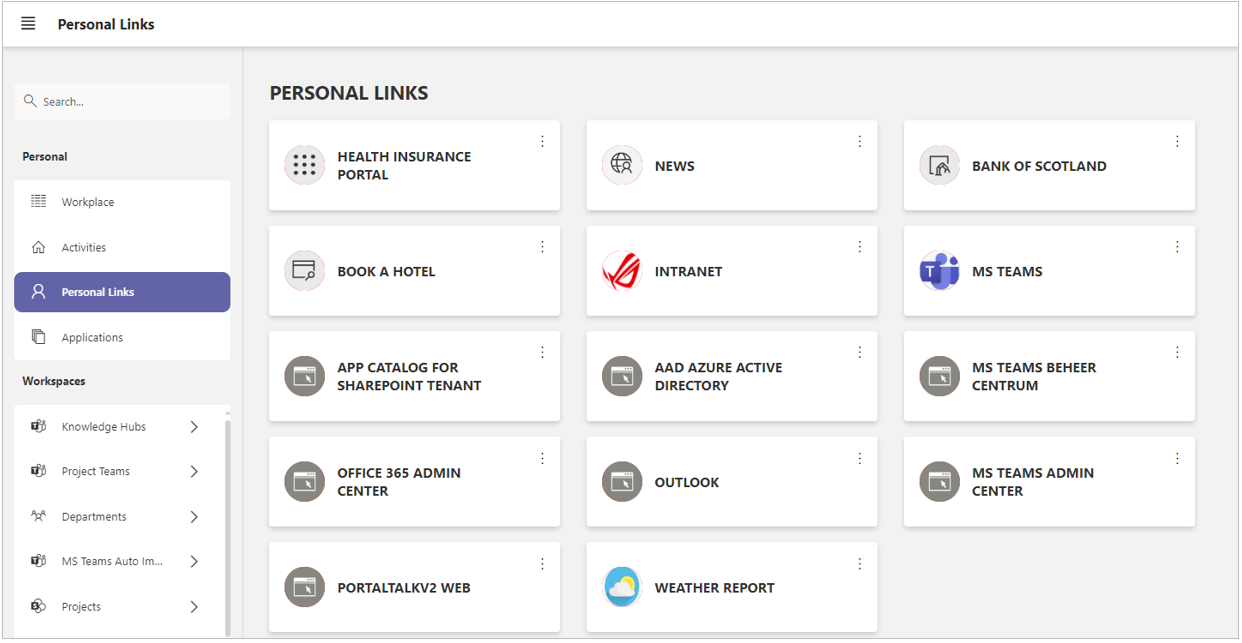
Each user maintains on their Personal Links page, the links to workspaces, websites and web applications of their personal choice.
These links are displayed as tiles and are created and maintained by you.
Create a personal link
-
In the left navigation panel, click on the Personal Links navigation option to open this page.
-
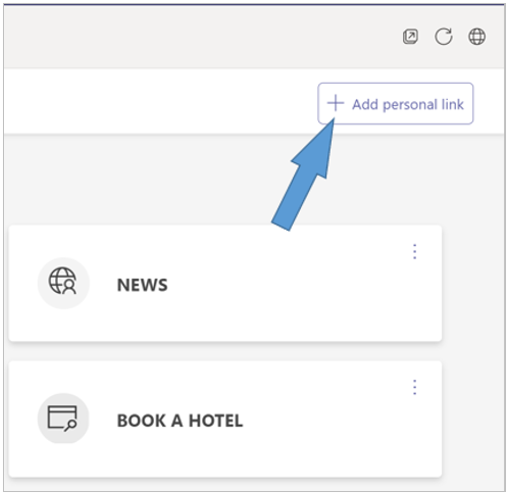
Click the option + Add personal link.
-
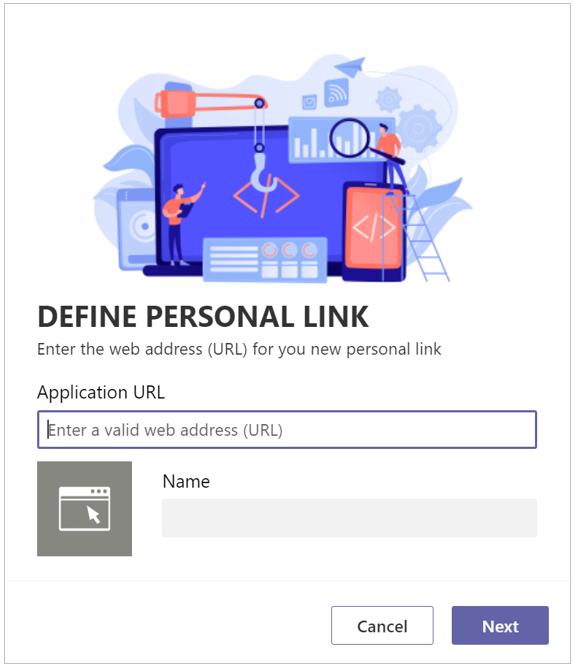
The form Define Personal Link is displayed:
-
Application URL - Enter the web address of the site or application you want to link to.
-
Name - Enter a name for this site or application.
-
Click Next.
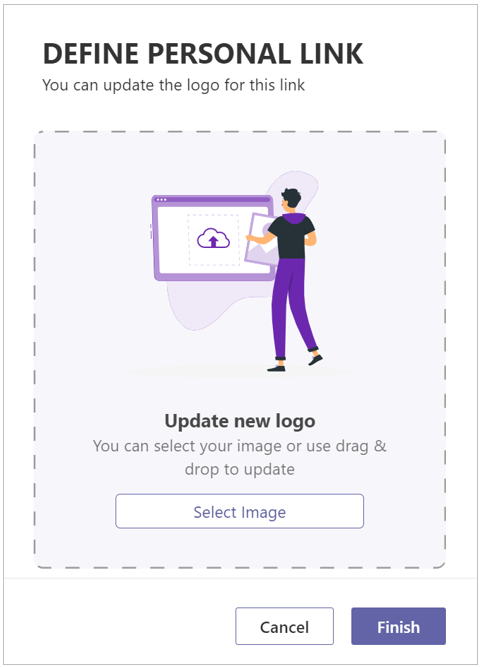
If you want to have your own image on the tile of your new personal link, you can upload it now.
-
Select image - Upload (or drag and drop) an image as logo for your new personal link. You can also do this at a later date.
-
Click Finish.
The tile for your newly created personal link has now been added at the bottom of your Personal Links page.
Change, delete or move a personal link
If you wish, you can drag the tile to another position.
If so required, refer to the manual page on drag and drop tiles for an additional explanation.
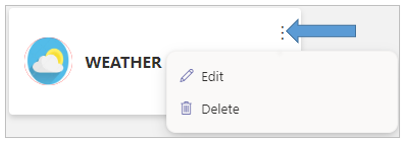
To edit or remove a personal link, use the tile’s ellipsis menu options.
You can make your personal links available on your Workplace page.
Refer to the page on Personalizing your workplace for an explanation of this topic.