.png)
Archive your workspace
When your workspace is no longer required for active collaboration and storage of new information, you can archive the workspace.
This would apply, for example, to a workspace associated with a completed project. The archived workspace remains available to consult the information stored therein.
When you archive your workspace:
-
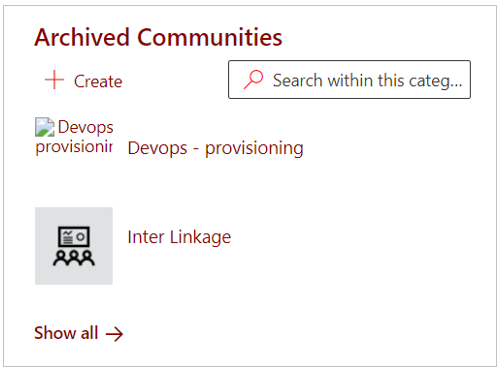
The workspace link is no longer displayed under the subcategories My or Public, but under Archived;
-
Terminates the periodic Access Review process;
-
Removes all external team members from the workspace team;
-
All internal team members of the workspace team are stripped of their current roles and instead are assigned the default archive permission - usually Read Only. (see Permission settings for a modern SharePoint site category)
Note:
The changes described above can only be rolled back by a PortalTalk administrator.
When an archived workspace is restored from the archive, the team must be reassembled (see Manage the composition of your workspace team and it’s members' permissions).
-
Find the workspace link within the PortalTalk Workspaces webpart
-
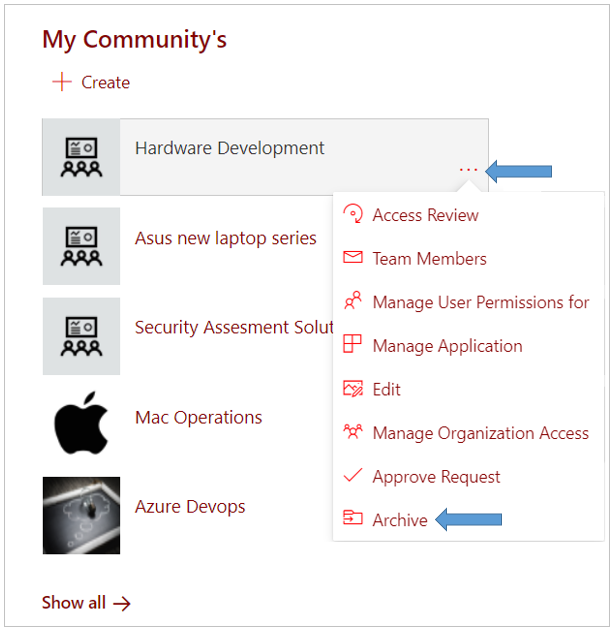
Click the ellipsis menu button for the workspace link and select the option Archive.
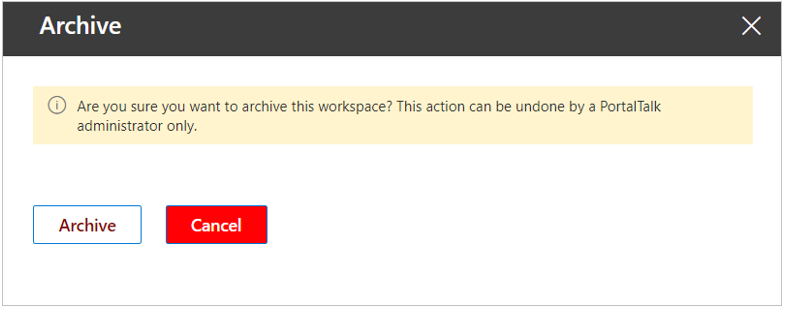
The Archive panel is displayed on the right side of the screen:
-
Click Archive.
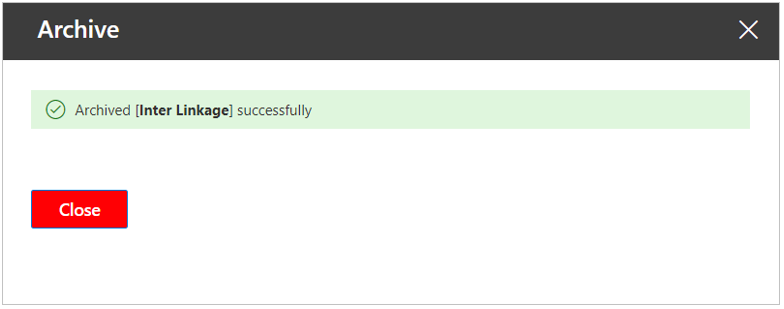
The workspace link is now moved to the subcategory Archived.
The external members have been removed from the workspace team.
All internal team members of the workspace team are stripped of their current roles and instead are assigned the default archive permission - usually Read Only.